To enter Safe Mode on Galaxy S27, press and hold the Side (Power) button until the power menu appears, tap and hold Power off, then tap Safe Mode when it shows up. The phone restarts with only pre-installed system apps running, letting you check if a downloaded app is causing crashes, battery drain, or lag. This has been Samsung’s standard method since the Galaxy S20 series
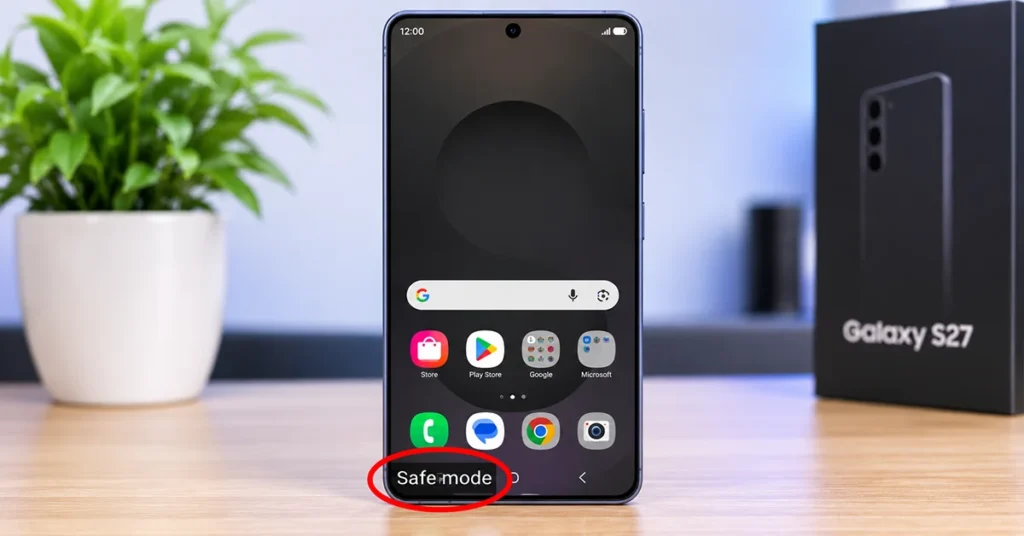
This guide explains both methods, how to troubleshoot your device in Safe Mode, and how to return to normal operation.
What Is Safe Mode on Galaxy S27?
Safe Mode is a diagnostic feature that starts your Samsung Galaxy smartphone with its essential system software while temporarily disabling most downloaded applications.
It helps determine whether a third-party application is causing performance problems, unexpected crashes, freezing, or other unusual behavior.
For example, if your Galaxy S27 frequently freezes after installing a new application, Safe Mode lets you use the phone without that application running.
Here are some common situations where Safe Mode can help:
- Frequent freezing: Determine whether a downloaded application is affecting system performance.
- Unexpected crashes: Investigate applications that repeatedly cause errors.
- Battery drain: Check whether a third-party app contributes to excessive battery consumption.
- Performance problems: Find out whether lag or slow operation is associated with installed applications.
- App-related issues: Identify applications that interfere with normal phone operation.
Safe Mode does not delete your personal information, photos, contacts, or downloaded applications. It temporarily restricts third-party apps while troubleshooting.
How to Enter Safe Mode on Galaxy S27
There are two established ways to start a Samsung Galaxy phone in Safe Mode. Try the Power menu method first because it is generally easier when your touchscreen is working properly.
Method 1: Enter Safe Mode Using the Power Menu
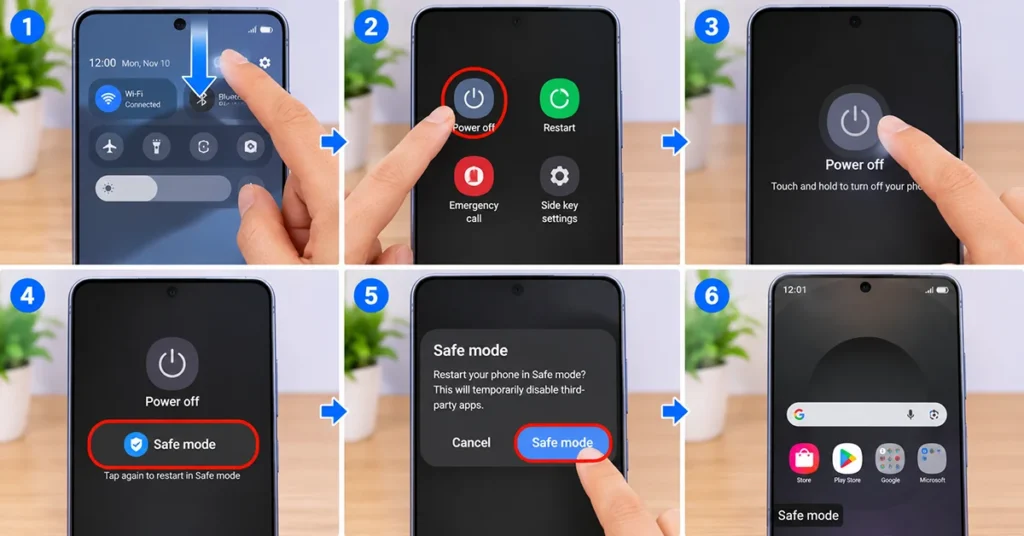
This method is convenient when your Galaxy S27 is responsive and you can access its Power menu.
Follow these steps:
- Swipe down from the top of the screen to open the Quick Settings panel. You may need to swipe down twice.
- Tap the Power icon to open the Power menu. Alternatively, use the Side and Volume Down buttons to access the power options.
- Touch and hold the Power off icon on the screen.
- Wait until the Safe mode option appears.
- Tap Safe mode to confirm.
- Wait for your Galaxy S27 to restart.
Once the phone finishes restarting, check the bottom-left corner of the screen. You should see the words Safe mode, indicating that the diagnostic environment is active.
Method 2: Enter Safe Mode on Galaxy S27 Using Physical Buttons
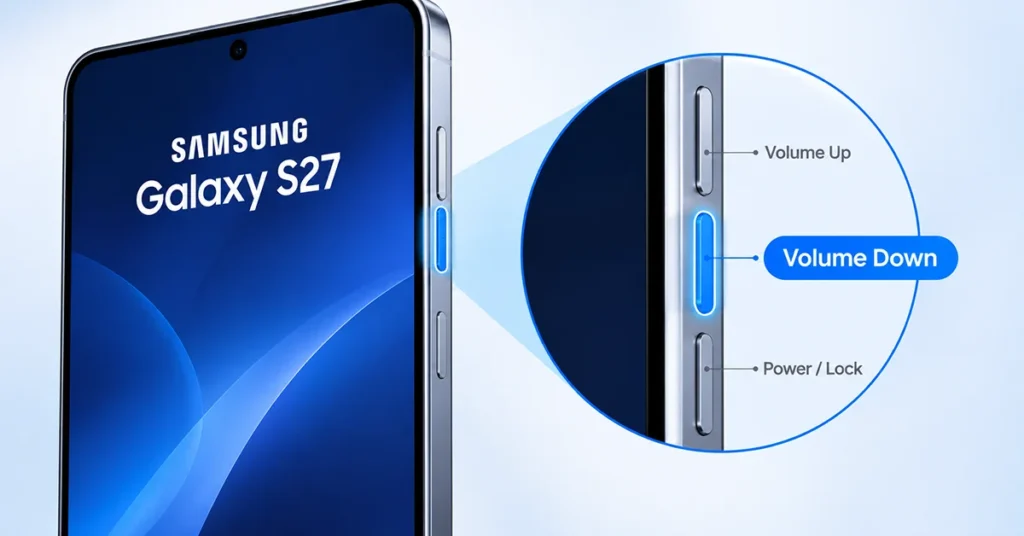
If your phone is unresponsive or you cannot access the Power menu, try the physical-button method.
- Completely turn off your Galaxy S27.
- Press the Side button to turn the phone back on.
- When the Samsung logo appears, press and hold the Volume Down button.
- Continue holding Volume Down while the phone completes its startup process.
- Release the button when the lock screen or Home screen appears.
- Look for the Safe mode label in the bottom-left corner.
If the Safe Mode label does not appear, turn off the device and repeat the procedure. Timing is important when pressing the Volume Down button.
Safe Mode Entry Methods at a Glance
The following table summarizes both methods.
| Feature | Power Menu | Physical Buttons |
|---|---|---|
| Difficulty | Easy | Moderate |
| Touchscreen required | Yes | No |
| Phone must be powered off first | No | Yes |
| Main action | Hold Power off | Hold Volume Down during startup |
| Best for | Responsive phones | Unresponsive phones |
| Expected result | Safe Mode startup | Safe Mode startup |
What to Do After Entering Safe Mode
After successfully entering Safe Mode, test your Galaxy S27 to determine whether the original problem still occurs.
Start by using your phone normally for several minutes. Open system applications, navigate through Settings, and observe whether the previous performance issues continue.
If your phone works normally in Safe Mode, a downloaded application may be responsible.
Follow these steps to investigate:
- Open Settings.
- Select Apps.
- Review recently installed or updated applications.
- Select an application you suspect is causing the problem.
- Tap Uninstall.
- Confirm the removal.
- Repeat the process for other suspicious applications if necessary.
Start with applications installed or updated shortly before the problem appeared. Remove applications one at a time so you can identify the likely cause.
After uninstalling a suspicious application, restart your phone normally and check whether the issue has disappeared.
If the problem continues in Safe Mode, the cause may be related to the operating system, hardware, or another issue rather than a downloaded application.
How to Exit Safe Mode on Galaxy S27
Leaving Safe Mode is straightforward. You normally do not need to change any settings or reinstall your applications.
Follow these steps:
- Press and hold the Side button to open the Power menu.
- Tap Restart.
- Wait for your Galaxy S27 to reboot.
- Allow the phone to finish starting normally.
- Check that the Safe Mode label has disappeared.
Your downloaded applications should become available again after the normal startup process.
Alternatively, if your phone displays a Safe Mode notification, swipe down from the top of the screen, tap the notification, and select Turn off if that option is available.
How to Fix Common Safe Mode Problems
Sometimes, users experience difficulties entering or leaving Safe Mode. Here are some practical solutions.
| Problem | Possible solution |
|---|---|
| Safe Mode does not activate | Repeat the startup procedure and hold Volume Down when the Samsung logo appears. |
| Phone keeps restarting in Safe Mode | Check whether the Volume Down button is stuck or continuously pressed. |
| Cannot exit Safe Mode | Restart the phone normally using the Power menu. |
| Some applications are unavailable | This is expected because third-party apps are temporarily disabled. |
| Phone still freezes in Safe Mode | Investigate system software or possible hardware problems. |
| Safe Mode activates unexpectedly | Remove the phone case and check whether it presses the Volume Down button. |
If your Galaxy S27 repeatedly starts in Safe Mode, inspect the physical buttons and remove any protective case that might be pressing them.
If the problem persists, consider using Samsung Members diagnostics or contacting Samsung Support for further assistance.
Safe Mode vs. Factory Reset: Which Do You Need?
Safe Mode is step one, not a last resort. Use it to diagnose before you consider anything more drastic:
- Use Safe Mode first if you suspect a specific app, or recently installed something before problems started.
- Move to a factory reset only if Safe Mode doesn’t resolve the issue, or if you’ve already identified and removed the problem app without success.
- Contact Samsung Support or a repair center if problems persist even after a factory reset — this points to a hardware issue.
Frequently Asked Questions
No. Safe Mode does not normally erase your photos, videos, contacts, messages, or personal files. It temporarily disables most third-party applications for diagnostic purposes.
Your phone may have entered Safe Mode intentionally through the Power menu or startup button combination. It can also happen if the Volume Down button is accidentally pressed or stuck during startup.
Some built-in connectivity features may remain available, but functionality can vary. Third-party applications that require internet access may not work because they are temporarily disabled.
If your Galaxy S27 works normally in Safe Mode but experiences problems during regular operation, a downloaded application may be responsible. Uninstall recently installed or updated applications individually to identify the likely cause.
No. Safe Mode temporarily disables most third-party applications without erasing personal data. A Factory Reset removes user data and restores the device to its factory configuration.
Final Thoughts
Entering Safe Mode on your Samsung Galaxy S27 is a useful first step when investigating freezing, crashing, battery drain, or unexpected performance problems.
The easiest method is to open the Power menu, touch and hold Power off, and select Safe mode. If your touchscreen is unresponsive, use the physical-button startup method by holding Volume Down when the Samsung logo appears.
Once you identify and remove the problematic application, restart your phone to return to normal operation.
If the problem continues in Safe Mode, consider investigating system software or hardware issues before performing more advanced troubleshooting.
Primary reference documentation:
- Samsung: How to start a Galaxy device in Safe Mode
- Samsung: Using Safe Mode on Galaxy devices
You might also like:
- Samsung Galaxy S27 Overheating
- Samsung Galaxy S27 Battery Health
- Samsung Galaxy S27 Not Charging
- Samsung Galaxy S27 Battery Optimization
- Samsung Galaxy S27 Software Update Problems

5 thoughts on “How to Enter Safe Mode on Galaxy S27: Step-by-Step Guide”