Is your Samsung Galaxy S27 battery draining fast, even when you are not using the phone? Excessive battery consumption can result from background apps, weak network signals, high screen brightness, software updates, or incorrect battery settings.
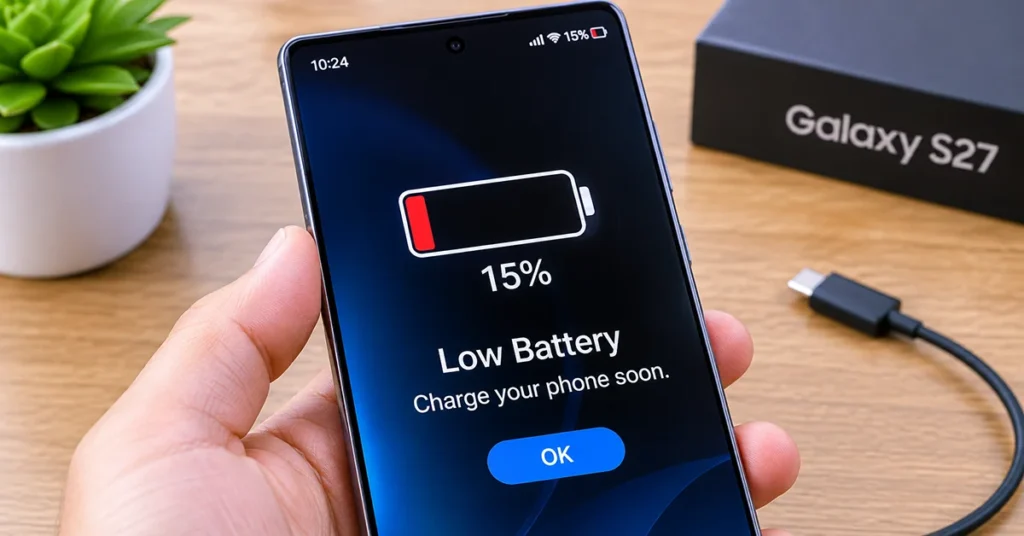
Fortunately, you can troubleshoot most battery drain problems without replacing the battery or performing a factory reset. Start by checking battery usage, restricting unnecessary background activity, updating your software, and adjusting display settings.
Why Is My Samsung Galaxy S27 Battery Draining So Fast?
Several factors can cause excessive battery consumption on a Samsung Galaxy phone. The most common causes include:
- Background applications: Social media, messaging, navigation, and other apps may continue running when you are not using them.
- Weak network signals: Your phone may consume additional power searching for a stable mobile connection.
- High screen brightness: Bright displays and high refresh rates can increase power consumption.
- 5G connectivity: Maintaining a mobile connection in areas with inconsistent 5G coverage may consume additional energy.
- Software updates: Background optimization and app synchronization can temporarily increase battery usage.
- Battery aging: Repeated charging and discharging gradually reduce battery capacity.
If your Galaxy S27 is relatively new, allow a few days for initial setup, app installation, synchronization, and background optimization to finish before judging its normal battery performance.
10 Ways to Fix Samsung Galaxy S27 Battery Draining Fast
If your Galaxy S27 loses battery overnight, gets unusually warm, or struggles to last a full day, follow these 10 troubleshooting methods to improve battery life.
1. Check Which Apps Are Draining Your Battery
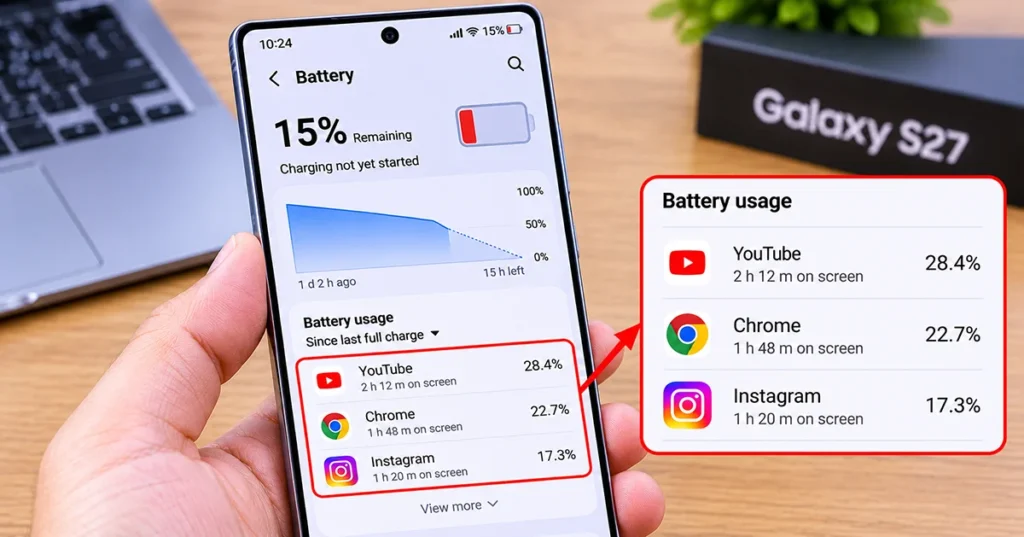
Start by identifying applications responsible for excessive battery consumption.
- Open Settings on your Galaxy S27.
- Tap Battery.
- Open the battery usage graph or usage details.
- Review the applications consuming the most power.
- Select an application with unusually high usage.
If an application consumes significant power despite limited use, restrict its background activity or uninstall it if you no longer need it.
This is one of the most effective ways to identify the actual cause instead of changing settings unnecessarily.
2. Put Unused Apps Into Deep Sleeping Mode
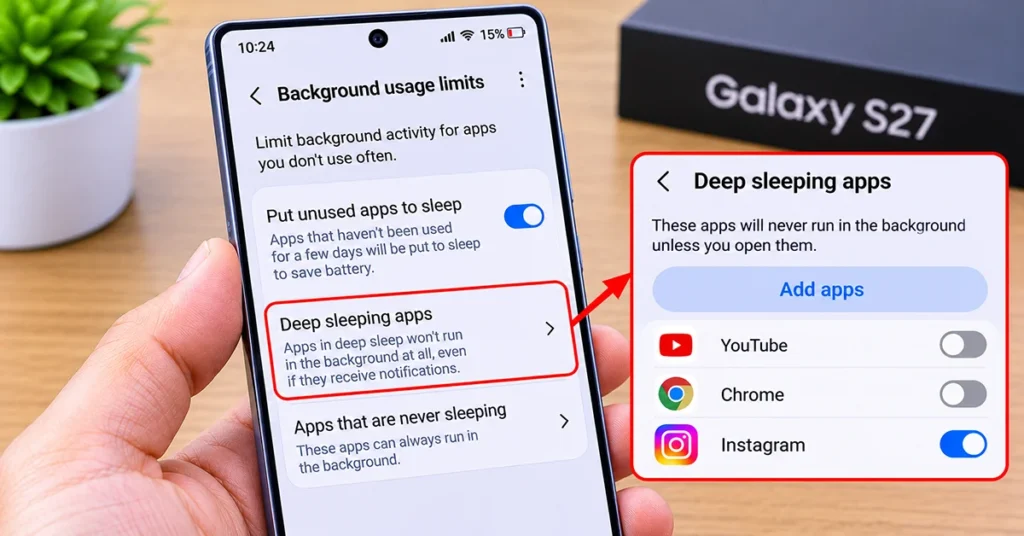
Some applications continue performing background activities even when you are not actively using them.
To restrict unnecessary background activity:
- Open Settings.
- Tap Battery.
- Select Background usage limits.
- Open Deep sleeping apps.
- Tap the Add (+) icon.
- Select applications you rarely use.
- Tap Add to confirm.
Deep sleeping apps will not run in the background and will work when you open them manually.
Avoid adding important messaging, email, or security applications because you may miss notifications.
3. Reduce Screen Brightness and Refresh Rate
Your display can consume considerable battery power, particularly when brightness remains high throughout the day.
Try these adjustments:
- Open Settings.
- Select Display.
- Enable Adaptive brightness or lower the brightness manually.
- Open Motion smoothness.
- Select Standard, if available.
- Return to Display and choose a shorter screen timeout.
You can also enable Dark mode to reduce power consumption in suitable display conditions.
4. Turn On Power Saving Mode
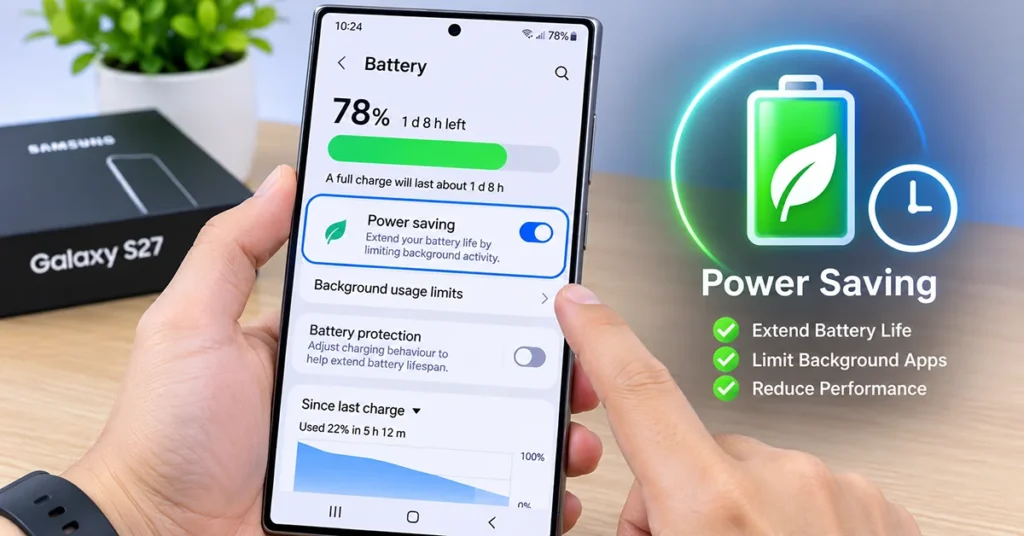
Power Saving mode helps extend battery life by limiting certain background activities and power-intensive features.
Follow these steps:
- Open Settings.
- Tap Battery.
- Select Power saving.
- Turn on the Power saving switch.
- Enable additional restrictions if necessary.
Depending on the available options, Power Saving mode may restrict background data, Always On Display, processing performance, and other power-consuming features.
Use this mode when your battery is running low or you need your phone to last longer.
5. Switch to LTE When 5G Coverage Is Weak
Your Galaxy S27 may consume more power when it struggles to maintain a stable mobile network connection.
If you frequently experience weak 5G coverage, try switching to LTE temporarily.
- Open Settings.
- Tap Connections.
- Select Mobile networks.
- Open Network mode.
- Choose an available LTE/4G option.
Menu names and network options may vary depending on your carrier and software version.
Compare battery consumption over a similar period to determine whether the network connection contributes to the problem.
6. Turn Off Unused Connectivity Features
Wi-Fi, Bluetooth, GPS, and mobile hotspot features can contribute to battery consumption, particularly when actively transferring data or searching for connections.
Open the Quick Settings panel and disable features you are not using.
Pay particular attention to:
- Mobile hotspot.
- Bluetooth.
- Location services.
- Nearby device scanning.
- Unnecessary automatic synchronization.
You do not need to disable every connection permanently. Focus on features that you rarely use.
7. Update Your Galaxy S27 Software and Apps
Software bugs or poorly optimized applications can sometimes cause unusual battery consumption.
To check for system updates:
- Open Settings.
- Tap Software update.
- Select Download and install.
- Install available updates.
- Restart your phone if necessary.
Also update applications through Google Play Store and Galaxy Store.
If battery drain started immediately after an update, give the phone some time to complete background optimization. Monitor battery usage before attempting more disruptive troubleshooting.
8. Restart Your Samsung Galaxy S27
A simple restart can resolve temporary software problems and refresh background processes.
- Swipe down from the top of the screen to open Quick Settings.
- Tap the Power icon.
- Select Restart.
- Tap Restart again to confirm.
After restarting, use your phone normally and check whether battery consumption improves.
9. Test Your Phone in Safe Mode
If the battery continues draining quickly, a third-party application may be responsible.
Safe Mode temporarily disables downloaded applications, helping you determine whether an installed app is causing the problem.
- Open the Power menu.
- Touch and hold Power off.
- Select Safe mode when prompted.
- Wait for your phone to restart.
- Monitor battery consumption.
If battery performance improves significantly in Safe Mode, a downloaded application may be responsible.
Restart your phone normally and uninstall recently installed or suspicious applications one at a time.
10. Check Battery Health With Samsung Members
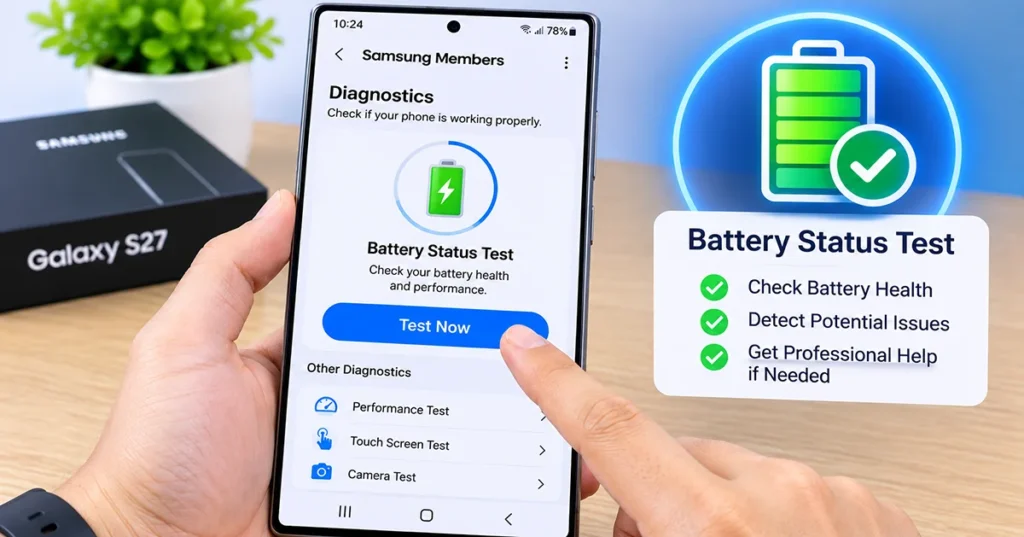
If none of the previous methods resolves the problem, check your battery condition.
- Open the Samsung Members app.
- Tap Support.
- Select Phone diagnostics or Get started.
- Find Battery status.
- Run the available diagnostic test.
- Review the results.
If the diagnostic indicates a battery problem, contact Samsung Support or visit an authorized service center.
Avoid attempting battery replacement yourself.
Samsung Galaxy S27 Battery Drain: Common Problems and Solutions
| Battery problem | Possible cause | Recommended solution |
|---|---|---|
| Battery drains overnight | Background applications | Use Deep sleeping apps |
| Battery drops while idle | Weak signal or synchronization | Check network and battery usage |
| Battery drains after an update | Background optimization | Update apps and allow optimization |
| Phone gets hot and loses battery | Heavy applications or network activity | Identify demanding apps |
| Battery drains during gaming | High performance and display usage | Reduce graphics and brightness |
| Battery drains quickly on 5G | Unstable network coverage | Try LTE temporarily |
| Battery percentage drops suddenly | Software or battery condition | Restart and run diagnostics |
Frequently Asked Questions
Background applications, automatic synchronization, weak network coverage, and system processes can consume battery while your phone is idle. Check battery usage and restrict unnecessary background applications.
Software updates can trigger background optimization, application updates, and synchronization. Allow these processes to finish, update your apps, and monitor battery consumption for a few days.
It can. Maintaining a 5G connection, particularly in areas with weak coverage, may increase power consumption. Switching to LTE temporarily can help determine whether network activity contributes to battery drain.
A factory reset should be your last resort. Try checking battery usage, restricting background apps, updating software, and testing Safe Mode first. Always back up your important data before performing a reset.
Final Thoughts
If your Samsung Galaxy S27 battery is draining fast, start by checking battery usage and identifying applications consuming excessive power. Next, restrict unnecessary background activity, adjust display settings, enable Power Saving mode, and check your network connection.
If the problem continues, update your software, test Safe Mode, and run Samsung Members battery diagnostics.
Persistent battery drain, unexpected shutdowns, or abnormal heating may indicate a hardware issue that requires professional inspection.
Troubleshooting recommendations:

4 thoughts on “How to Fix Fast Battery Drain on Your Samsung Galaxy S27”