To enter recovery mode on the Samsung Galaxy S27 series, power off the device completely, then press and hold Volume Up + Power (Side) button until the Samsung logo appears. Unlike older Galaxy models, several S26 variants now require a USB-C connection to a computer to access the recovery menu reliably — a change tied to Samsung’s 2026 security update that also removed sideloading and several legacy recovery tools.
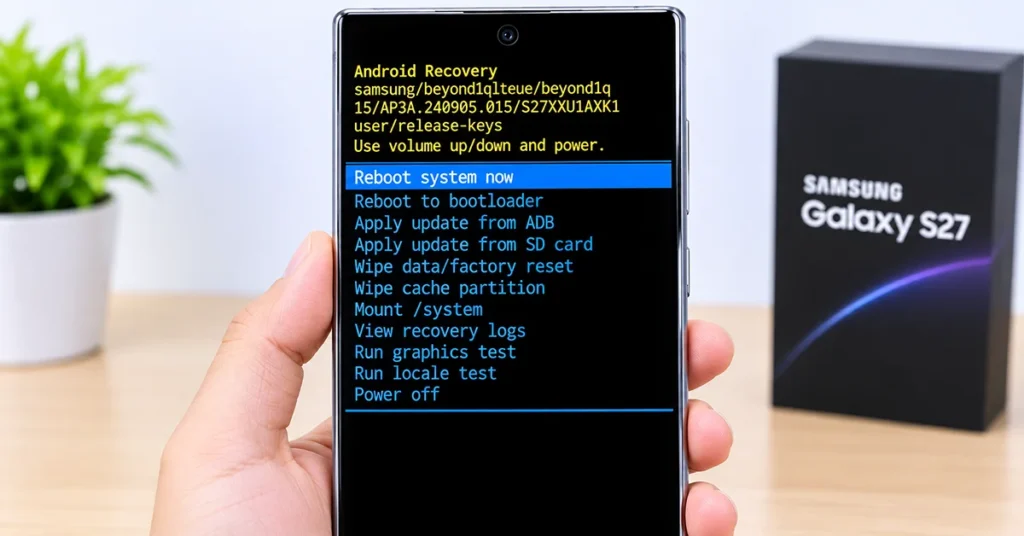
If your Samsung Galaxy S27 is frozen, stuck on the Samsung logo, experiencing startup problems, or failing to boot normally, Recovery Mode can help you troubleshoot the device.
The Samsung Galaxy S27 Recovery Mode menu allows you to restart the phone, wipe the cache partition, install certain system updates, or perform a factory reset.
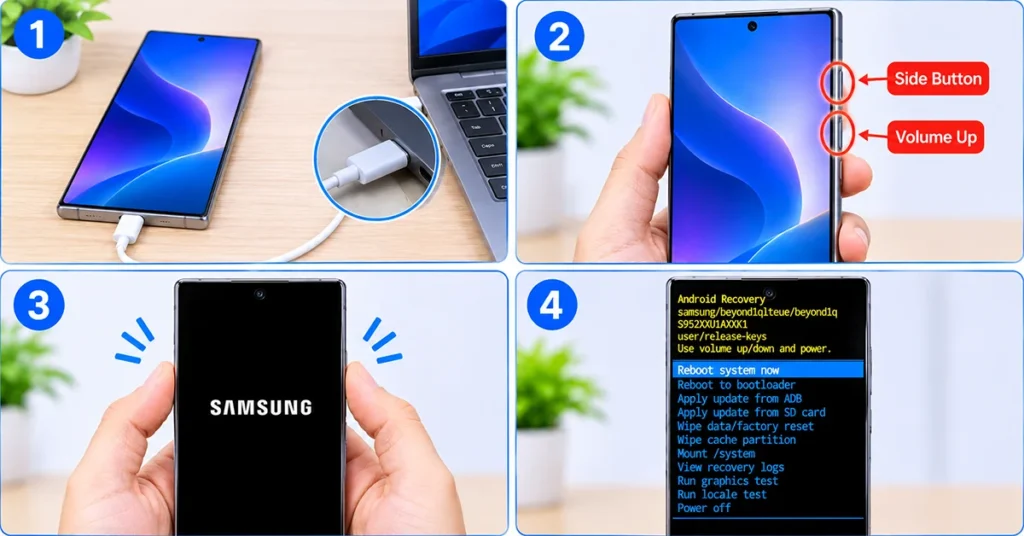
To enter Recovery Mode on the Samsung Galaxy S27:
- Turn off your Galaxy S27 completely.
- Connect a USB-C data cable to your phone and a computer.
- Press and hold the Volume Up and Side buttons simultaneously.
- Keep holding the buttons until the Android Recovery menu appears.
- Release both buttons.
Use the Volume buttons to navigate the menu and the Side button to select an option.
Important: Entering Recovery Mode does not erase your personal information. However, selecting Wipe data/factory reset permanently deletes your locally stored data.
What Is Samsung Galaxy S27 Recovery Mode?
Recovery Mode is a built-in Android maintenance environment that operates separately from the regular Android interface.
It provides access to troubleshooting and maintenance options when your Galaxy S27 cannot start properly or experiences software-related problems.
You might need Recovery Mode if:
- Your Galaxy S27 gets stuck on the Samsung startup logo.
- The phone repeatedly restarts without reaching the home screen.
- Your device experiences software problems after an update.
- The phone freezes during startup.
- You need to clear temporary system cache files.
- You cannot access the regular Settings menu.
Recovery Mode is different from Safe Mode. Safe Mode starts Android while temporarily disabling third-party applications. Recovery Mode opens a separate maintenance menu.
How to Enter Recovery Mode on Samsung Galaxy S27
Before starting, prepare the following:
- Your Samsung Galaxy S27.
- A USB-C data cable.
- A Windows PC or Mac with an available USB connection.
A USB connection to a computer is required for the documented recovery procedure on this generation. A charging-only cable may not work.
Follow these instructions carefully.
Step 1: Turn Off Your Galaxy S27
Press and hold the Volume Down and Side buttons simultaneously to open the power menu.
Select Power off and confirm your choice if prompted.
Wait until the screen turns completely black. Give the phone a few seconds to shut down.
Step 2: Connect Your Phone to a Computer
Connect one end of a USB-C data cable to your Galaxy S27 and the other end to a computer.
Make sure the connection is secure. Avoid using a damaged cable or an unreliable USB port.
Step 3: Press the Recovery Mode Buttons
Press and hold the following buttons together:
Volume Up + Side button
Keep holding both buttons while the Samsung logo appears.
Do not release them immediately when the logo appears. Continue holding until the Android Recovery screen loads.
Step 4: Open the Android Recovery Menu
When the Android Recovery menu appears, release both buttons.
Your Galaxy S27 should now display a text-based menu containing several maintenance options.
You can navigate using the hardware buttons:
- Volume Up: Move the selection upward.
- Volume Down: Move the selection downward.
- Side button: Confirm the selected option.
The touchscreen generally does not work in this menu.
Samsung S27 Recovery Mode Options Explained
The Android Recovery menu contains several options. Understanding their functions is important before selecting anything.
| Recovery option | What it does | Data loss |
|---|---|---|
| Reboot system now | Restarts Android normally | No |
| Reboot to bootloader | Opens the bootloader interface | No immediate data deletion |
| Apply update from ADB | Installs a compatible update package through ADB | Depends on the update |
| Wipe data/factory reset | Restores factory settings | Yes |
| Wipe cache partition | Clears temporary system cache files, if available | No personal data deletion |
| Power off | Turns off the phone | No |
Menu options can vary depending on the installed software version.
1. Reboot System Now
Choose this option to exit Recovery Mode and restart your Galaxy S27 normally.
It is the safest option when you have finished troubleshooting and do not want to change system settings.
2. Wipe Cache Partition
Wipe Cache Partition removes temporary system cache files.
This option can help when your Galaxy S27 experiences certain software-related problems, particularly after an update.
To clear the cache:
- Highlight Wipe cache partition using the Volume buttons.
- Press the Side button.
- Confirm the action if prompted.
- Wait until the process finishes.
- Select Reboot system now.
Wiping the cache partition does not perform a factory reset or intentionally delete personal photos, videos, contacts, and downloaded files.
3. Wipe Data/Factory Reset
This option restores your Galaxy S27 to its factory settings.
Use it only when other troubleshooting methods have failed or when you intentionally want to erase the phone.
Before proceeding, back up important information whenever possible.
To perform a factory reset:
- Highlight Wipe data/factory reset.
- Press the Side button.
- Select Factory data reset or the confirmation option displayed.
- Press the Side button to confirm.
- Wait for the data-wiping process to finish.
- Select Reboot system now.
Warning: This process permanently deletes locally stored personal data, installed applications, and settings. You may also need the Google Account credentials previously associated with the device because of Factory Reset Protection.
How to Exit Recovery Mode on Samsung Galaxy S27
If you entered Recovery Mode accidentally, you can return to the regular Android interface without resetting the phone.
Follow these steps:
- Use the Volume Down button to highlight Reboot system now.
- Press the Side button to confirm.
- Wait for your Galaxy S27 to restart.
- Enter your PIN, password, or pattern if requested.
Your phone should return to the normal home screen.
Samsung Galaxy S27 Recovery Mode Not Working? Try These Fixes
If your Galaxy S27 boots normally instead of entering Recovery Mode, try these troubleshooting suggestions.
- Check the USB connection
Make sure the USB-C cable supports data transfer. Connect it directly to a computer rather than a wall charger.
- Turn off the phone completely
Wait several seconds after the display turns black before attempting the button combination again.
- Hold the correct buttons
Press Volume Up and the Side button simultaneously. Keep holding them until the recovery menu appears.
- Remove your phone case
A bulky case may prevent you from pressing the hardware buttons correctly.
- Charge your battery
If the battery is nearly empty, connect a compatible charger and allow the phone to charge before trying again.
- Try another USB cable or computer
A faulty cable, USB port, or connection can prevent the recovery procedure from working.
If none of these solutions works, contact Samsung Support or visit an authorized service center.
Frequently Asked Questions
No. Simply entering Recovery Mode does not erase your information. However, selecting Wipe data/factory reset deletes locally stored personal data and restores factory settings.
The documented procedure uses a USB-C data connection to a computer. Some compatible USB-C accessories may also work as an alternative USB host, but a computer is the recommended starting point.
Turn off your phone, connect it to a computer using a USB-C data cable, and enter Recovery Mode. Select Wipe cache partition if the option is available, confirm, and select Reboot system now.
Highlight Reboot system now using the Volume buttons and press the Side button. If the phone repeatedly returns to Recovery Mode, investigate possible software problems or contact Samsung Support.
No. Recovery Mode is a maintenance environment containing multiple options. Factory Reset is one of the available actions that erases personal data and restores the device to its original software settings.
Final Thoughts
Samsung Galaxy S27 Recovery Mode is a useful troubleshooting tool when your phone experiences startup problems, freezes, or certain software issues.
You can access it by turning off the device, connecting a USB-C data cable to a computer, and holding the Volume Up and Side buttons until the Android Recovery menu appears.
Start with Reboot system now or Wipe cache partition when appropriate. Only choose Wipe data/factory reset when necessary, and always consider backing up your important information before erasing the device.
