Is your Samsung Galaxy S27 Wi-Fi not working? Start by restarting your Galaxy S27 and Wi-Fi router, checking your network password, and reconnecting to the wireless network. If the problem continues, update your phone software, reset network settings, or use Samsung Members diagnostics to identify potential issues. This guide explains how to fix common Samsung Galaxy S27 Wi-Fi problems without immediately performing a factory reset.
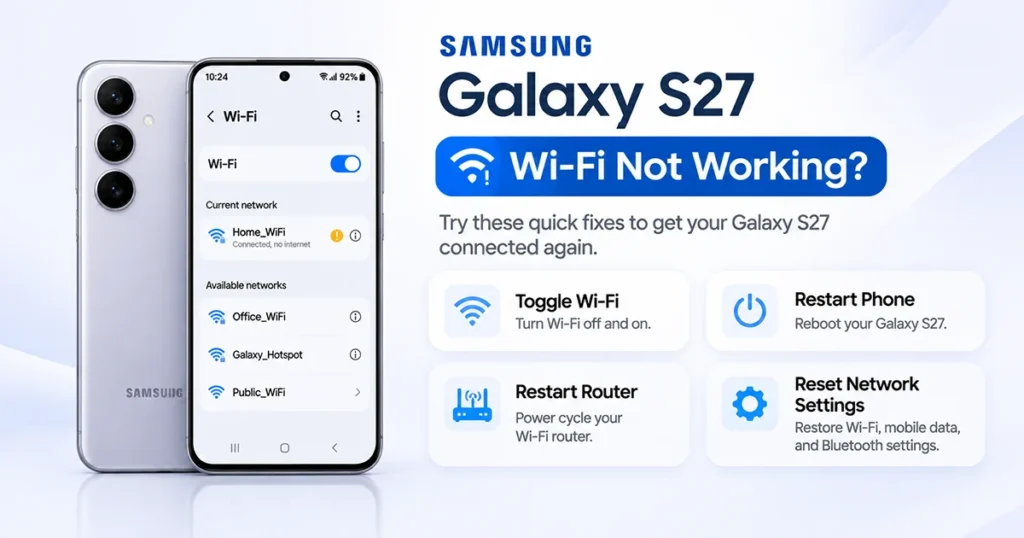
Why Is Wi-Fi Not Working on Samsung Galaxy S27?
Wi-Fi problems on the Samsung Galaxy S27 can result from temporary software glitches, incorrect network settings, router issues, outdated firmware, or interference from third-party applications.
The specific cause often depends on the symptoms. For example, if your Galaxy S27 cannot detect any wireless networks, the issue may involve the phone’s Wi-Fi settings or router. However, if your phone connects successfully but cannot access websites, the problem may be related to your internet connection.
Common causes include:
- Temporary software glitches affecting wireless connectivity.
- Incorrect Wi-Fi passwords or saved network information.
- Router or modem connection problems.
- Outdated phone software or router firmware.
- Network congestion or weak wireless signals.
- Conflicts caused by recently installed applications.
- Incorrect Wi-Fi and Bluetooth network configurations.
Identifying the symptoms first can help you choose the appropriate troubleshooting method.
How to Fix Samsung Galaxy S27 Wi-Fi Not Working
Try these solutions in order, starting with the simplest troubleshooting steps.
1. Restart Your Samsung Galaxy S27
Restarting your phone is one of the easiest ways to resolve temporary software problems that interfere with Wi-Fi connectivity.
Follow these steps:
- Swipe down from the top of the screen to open the Quick Settings panel.
- Tap the Power icon.
- Select Restart.
- Wait for your Galaxy S27 to reboot.
- Open Wi-Fi settings and try connecting again.
A restart refreshes system processes and can resolve temporary wireless connection errors without deleting personal information.
2. Restart Your Wi-Fi Router
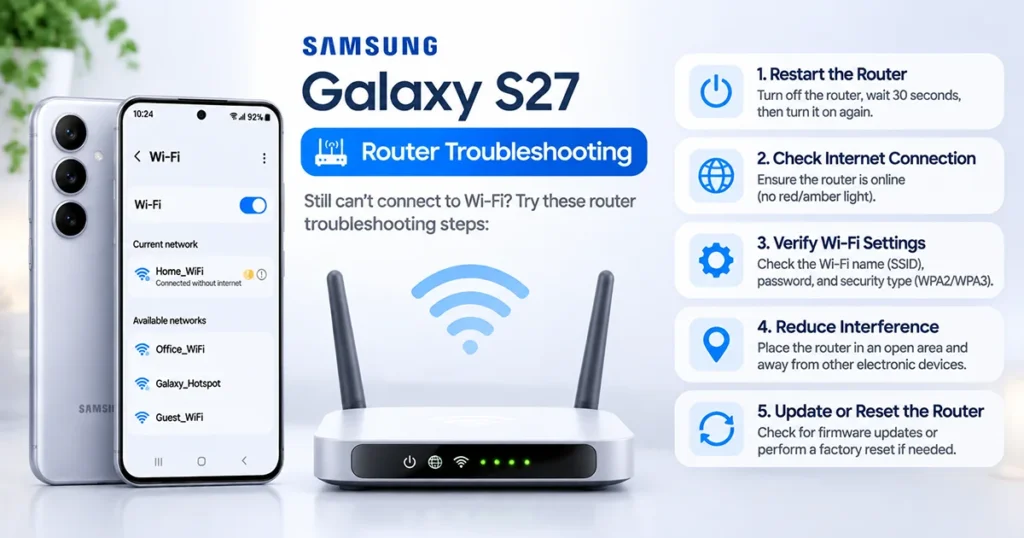
Sometimes, the problem comes from your wireless router rather than your Samsung Galaxy S27.
To restart your router:
- Disconnect the router’s power cable.
- Wait approximately 30 seconds.
- Reconnect the power cable.
- Allow the router to restart completely.
- Connect your Galaxy S27 to the Wi-Fi network again.
You should also check whether other devices can access the internet. If your laptop and other smartphones also experience connection problems, contact your internet service provider or router manufacturer.
3. Turn Wi-Fi Off and On
A temporary Wi-Fi connection error may prevent your phone from communicating properly with the router.
To refresh the connection:
- Open Settings.
- Tap Connections.
- Select Wi-Fi.
- Turn the Wi-Fi switch off.
- Wait approximately 10 seconds.
- Turn Wi-Fi back on.
- Select your wireless network and reconnect.
You can also toggle Wi-Fi from the Quick Settings panel.
4. Forget and Reconnect to the Wi-Fi Network
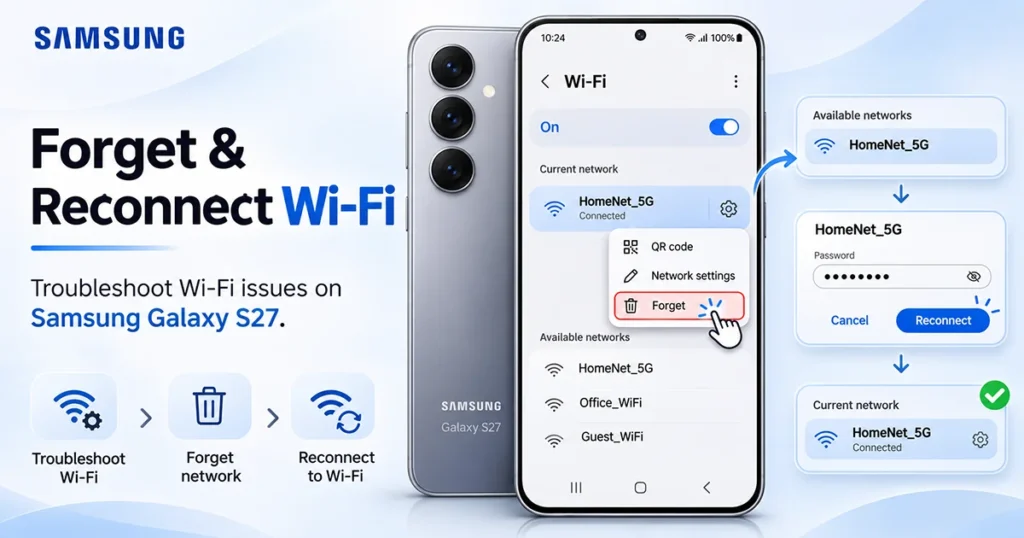
Incorrectly saved network information or an outdated password can prevent your Galaxy S27 from connecting successfully.
Remove the saved network and connect again:
- Open Settings and select Connections.
- Tap Wi-Fi.
- Find the wireless network causing the problem.
- Tap the Settings icon beside the network or press and hold its name.
- Select Forget.
- Return to the available network list.
- Select your Wi-Fi network and enter the correct password.
Make sure you enter the password accurately because Wi-Fi passwords are case-sensitive.
5. Check Airplane Mode
Airplane mode can interfere with wireless connectivity if Wi-Fi has been disabled.
To check this setting:
- Swipe down from the top of the screen.
- Find the Airplane mode icon.
- Make sure Airplane mode is turned off.
- Check whether Wi-Fi is enabled.
- Try connecting to your wireless network again.
If Airplane mode is already disabled, toggle it on briefly and then turn it off to refresh your phone’s wireless connections.
6. Update Your Galaxy S27 Software
Outdated system software can sometimes cause wireless connectivity problems. Samsung may address these issues through software updates and bug fixes.
To check for an update:
- Open Settings.
- Scroll down and tap Software update.
- Select Download and install.
- Wait while your phone checks for available updates.
- Install any available update by following the on-screen instructions.
Use a stable connection, such as mobile data if available, and ensure your battery has sufficient charge before installing an update.
7. Reset Wi-Fi and Bluetooth Settings
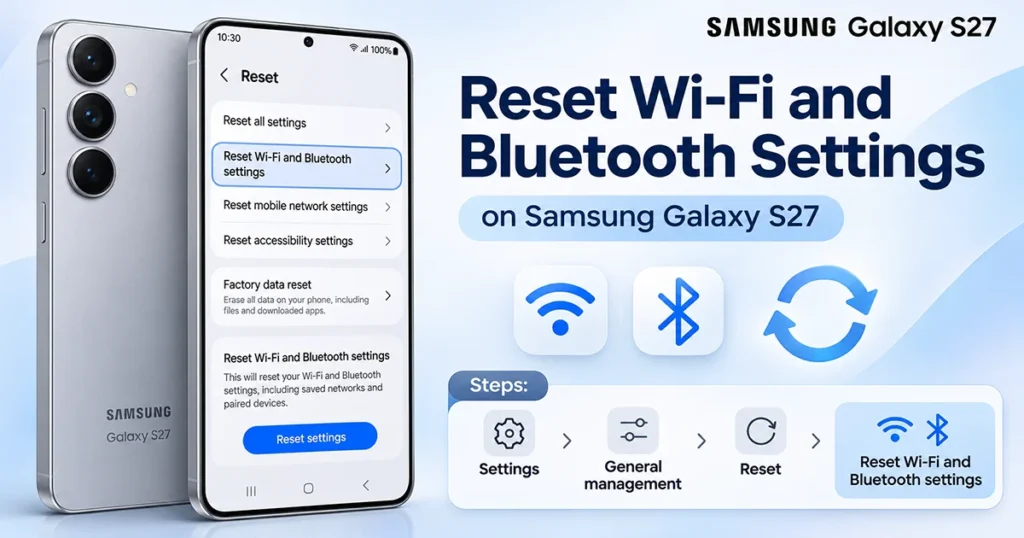
If your Samsung Galaxy S27 still cannot connect to Wi-Fi, resetting its network settings may resolve configuration-related problems.
Follow these instructions:
- Open Settings.
- Tap General management.
- Select Reset.
- Choose Reset Wi-Fi and Bluetooth settings.
- Review the information displayed.
- Tap Reset settings and confirm if requested.
This process resets saved wireless connection configurations. You may need to reconnect to Wi-Fi networks and pair Bluetooth devices again. It does not perform a factory reset or erase your personal photos and files.
Menu names may vary depending on your Galaxy S27 software version and regional configuration.
8. Test Wi-Fi in Safe Mode
Some third-party applications can interfere with network connectivity. Safe Mode temporarily disables downloaded applications, helping you determine whether an installed app is causing the problem.
To enter Safe Mode:
- Open the Quick Settings panel.
- Tap the Power icon.
- Touch and hold the Power off option.
- Select Safe mode.
- Wait for your phone to restart.
- Connect to Wi-Fi and test the connection.
If Wi-Fi works normally in Safe Mode, a recently installed application may be responsible. Uninstall suspicious or recently downloaded applications one at a time.
Restart your phone normally to exit Safe Mode.
9. Run Samsung Members Wi-Fi Diagnostics
Samsung Members includes diagnostic tools that can help identify hardware or connectivity problems.
To run a Wi-Fi test:
- Open the Samsung Members app.
- Select Support.
- Tap Phone diagnostics or Get started, depending on the app version.
- Find and select Wi-Fi.
- Follow the instructions.
- Review the diagnostic results.
If the diagnostic test identifies a problem, follow Samsung’s recommended troubleshooting instructions or contact an authorized service center.
How to Fix Specific Samsung Galaxy S27 Wi-Fi Problems
Different Wi-Fi symptoms may require different solutions. Use the following table to identify the most appropriate fix.
| Wi-Fi problem | Recommended solution |
|---|---|
| Wi-Fi won’t turn on | Restart your phone and install available software updates |
| Wi-Fi network not showing | Restart the router and move closer to it |
| Unable to connect to Wi-Fi | Forget the network and enter the correct password |
| Connected but no internet | Restart the router and check your internet service |
| Wi-Fi keeps disconnecting | Check signal strength and test another network |
| Wi-Fi is slow | Reduce network congestion and move closer to the router |
| Wi-Fi stopped working after an update | Restart the phone and check for another software update |
| Wi-Fi authentication error | Verify the password and reconnect to the network |
If the Galaxy S27 connects successfully to another Wi-Fi network, your original router or internet service may be responsible for the problem.
When to Contact Samsung Support
If none of the troubleshooting methods resolve the problem, your Galaxy S27 may have a more serious software or hardware issue.
Consider contacting Samsung Support when:
- Wi-Fi cannot be enabled after restarting the phone.
- Your device cannot detect any available wireless networks.
- Wi-Fi repeatedly disconnects across multiple networks.
- Samsung Members diagnostics reports a problem.
- Connectivity issues continue after resetting network settings.
Before requesting service, back up your important information. A factory data reset may be considered as a last resort, but it deletes personal information and installed applications. Do not perform it without backing up your data and considering Samsung’s support recommendations.
Frequently Asked Questions
Common reasons include incorrect passwords, temporary software glitches, router problems, outdated software, and corrupted saved network configurations. Restarting your phone and router or forgetting and reconnecting to the network can often resolve the problem.
This usually indicates that your phone has connected to the router but cannot access the internet. Restart your router, check your internet service, and test another connected device to determine whether the problem affects the entire network.
Open Settings > General management > Reset > Reset Wi-Fi and Bluetooth settings. Confirm the reset when prompted. You may need to reconnect to saved Wi-Fi networks and Bluetooth devices afterward.
Frequent disconnections can result from weak signal strength, router instability, network congestion, outdated software, or application conflicts. Restart your router, move closer to it, and test Wi-Fi in Safe Mode.
No. Resetting Wi-Fi and Bluetooth settings does not erase your personal files, photos, videos, or installed applications. However, saved network configurations and Bluetooth pairings may need to be restored.
Final Thoughts
When Samsung Galaxy S27 Wi-Fi is not working, start by restarting your phone and router, refreshing Wi-Fi, and reconnecting to your wireless network. If these basic solutions fail, update your software, reset Wi-Fi and Bluetooth settings, and test the connection in Safe Mode. Samsung Members diagnostics can also help identify potential device problems. If Wi-Fi continues to fail across multiple networks, contact Samsung Support for further assistance.
External reference:

1 thought on “Samsung Galaxy S27 Wi-Fi Not Working: How to Fix Connection Problems”