If your Samsung Galaxy S27 screen is not responding to touch, the fastest fix is a force restart: hold the Side key and Volume Down together for about 7 to 10 seconds until the Samsung logo appears. This clears most temporary software glitches and keeps your data safe. If the touchscreen is still frozen afterward, work through the fixes below, ordered from easiest to most drastic.
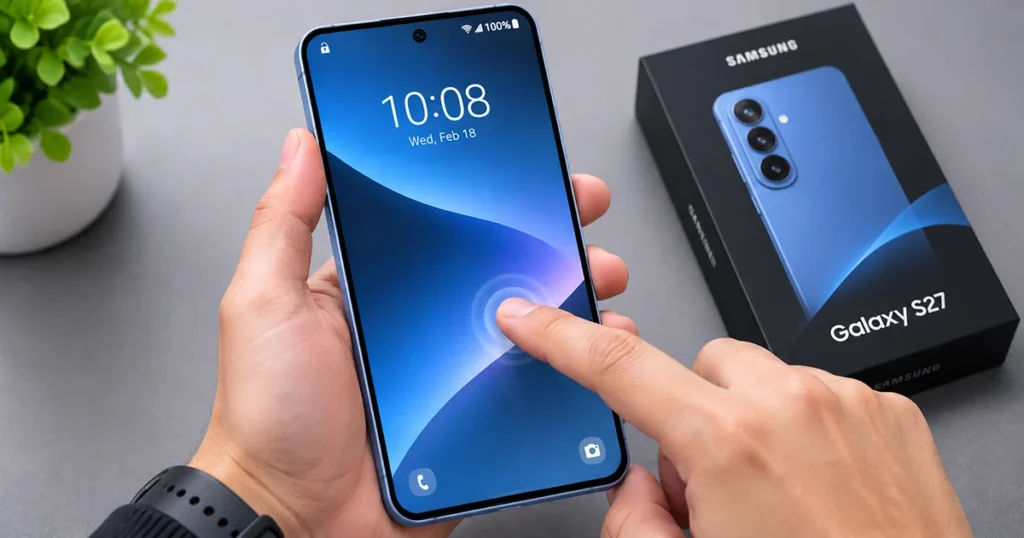
Quick Answer: How Do You Fix an Unresponsive Galaxy S27 Screen?
Try these in order, and stop as soon as touch works again:
- Force restart the phone (Side key + Volume Down, 7 to 10 seconds).
- Remove the case and screen protector, then wipe the screen dry.
- Turn on Touch sensitivity in Settings > Display.
- Install the latest software update.
- Boot into Safe Mode to rule out a faulty app.
If none of these help, run the touchscreen test in Samsung Members, then reset settings or contact Samsung Support.
Why Is My Samsung Galaxy S27 Screen Not Responding?
Samsung S27 user manual pages say an unresponsive Galaxy display usually comes from temporary system errors, outdated software, display or accessibility settings, accessories, moisture, or physical damage. Most causes are fixable at home. Use this table to match your symptom to a likely cause.
| Symptom | Likely cause | Best first fix |
|---|---|---|
| Screen frozen, buttons still work | Software glitch or misbehaving app | Force restart |
| Touch works only in some areas or at the edges | Non-certified screen protector or case | Remove accessories and retest |
| Erratic or delayed taps after washing hands or in humid air | Moisture or grease on the display | Wipe with a soft, dry cloth |
| Phone speaks aloud, gestures behave oddly | TalkBack or Magnification shortcut enabled | Turn off TalkBack, check Magnification |
| Problem began after an app install or update | Incompatible app | Safe Mode, then uninstall the app |
| Screen unresponsive after a drop or water exposure | Hardware damage | Stop using it and book a repair |
| Phone hot and sluggish | Overheating throttles performance | Cool the phone, remove the case |
9 Fixes for a Galaxy S27 Touchscreen That Won’t Respond
Before visiting a Samsung service center, try the following troubleshooting methods to identify the cause and restore normal touch functionality.
1. Force Restart Your Galaxy S27
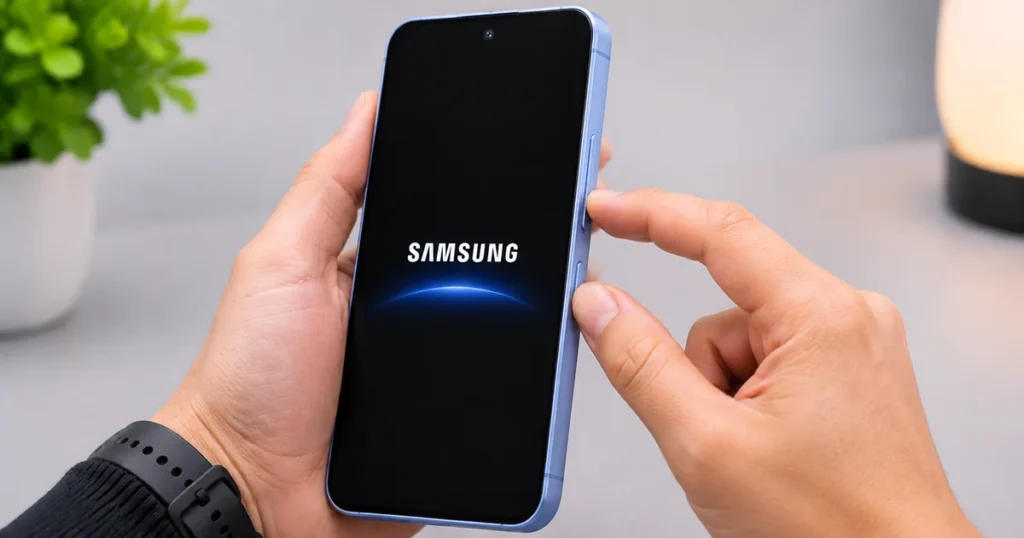
A force restart is the single most effective first step because it reboots the system without erasing anything. Press and hold the Side key and Volume Down at the same time.
Keep holding for about 7 to 10 seconds, even if the Restart menu doesn’t appear, until the phone vibrates and the Samsung logo shows.
2. Remove the Case and Screen Protector
Non-genuine screen protectors, thick tempered glass, and cases with magnets can interfere with touch recognition, especially near the edges.
Take everything off and test with a bare, clean finger. If touch returns, switch to a Samsung-certified protector.
3. Clean and Dry the Screen
Moisture, sweat, or grease can confuse the touch sensors. Wipe the display with a soft, dry microfiber cloth, remove gloves, and make sure your fingers are clean and dry. Avoid tapping with sharp objects.
4. Turn On Touch Sensitivity
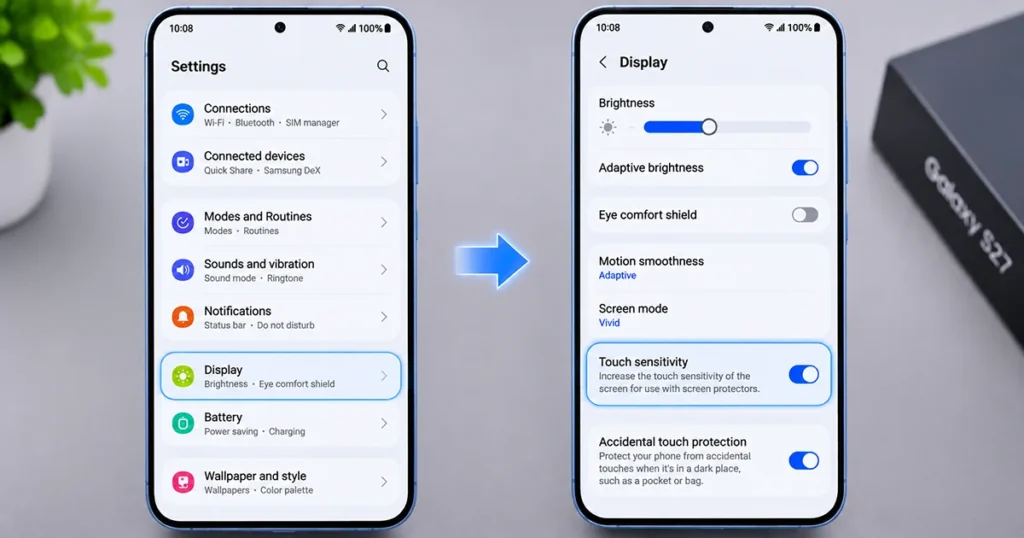
If you prefer to keep a screen protector on, open Settings > Display and switch on Touch sensitivity. It boosts responsiveness through protective films. If the screen is too frozen to navigate, restart first.
5. Update Your Software and Apps
New flagship phones can ship with early software bugs, and updates often include touchscreen and stability patches.
Go to Settings > Software update > Download and install on a strong Wi-Fi connection with the charger plugged in. Then open the Google Play Store, tap your profile icon, and choose Manage apps & device > Update all, since outdated apps can also cause display problems.
6. Boot Into Safe Mode
Safe Mode disables third-party apps temporarily. Press and hold the Side key, then long-press the Power off icon and tap Safe mode. If the screen works normally there, a downloaded app is the culprit.
Restart normally and uninstall recently added apps one at a time until the problem stops.
7. Check Accessibility Settings
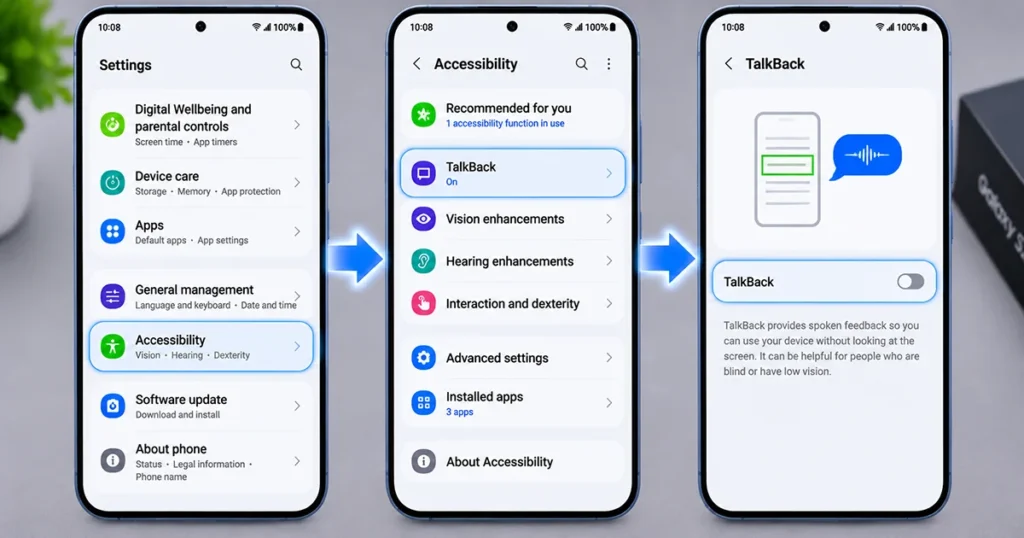
If voice guidance speaks when you touch the screen, TalkBack may be on, which changes how taps work (tap once to select, double-tap to open).
Turn it off in Settings > Accessibility. Also review Interaction and dexterity and your Magnification shortcut: a triple-tap shortcut can make quick touches feel missed or slow.
8. Run the Touchscreen Diagnostic Test
The Samsung Members app can test the digitizer. Open Samsung Members, go to Support > Phone diagnostics, choose Touch screen, and touch every empty square on the grid.
Failed squares point to a hardware fault, which means a service visit rather than more settings tweaks.
9. Reset Settings, Then Factory Reset as a Last Resort
Try Settings > General management > Reset > Reset all settings first. It restores system settings such as Wi-Fi, Bluetooth pairings, and display preferences without deleting photos, messages, or apps.
A full factory reset erases everything, so back up to Samsung Cloud or a computer before you try it.
What If the Galaxy S27 Screen Is Completely Dead?
When you can’t tap anything at all, rely on the hardware buttons. Force restart (fix 1) works without touch. After a restart, leave the phone on a known-good charger for a while, because a drained battery or weak charger can make the display seem dead.
Check the USB-C port for lint, and try a different cable. A USB-C mouse can also help you navigate long enough to back up your data.
When to Get Your Galaxy S27 Repaired
Stop troubleshooting and contact Samsung Support or visit an authorized service center if:
- The screen cracked, or the phone took a hard impact or liquid exposure.
- Lines, flickering, or dead zones appear along with the touch problem.
- The diagnostic test fails in specific areas.
- Touch still fails in Safe Mode and after a settings reset.
Samsung notes that physical damage from impact can prevent the display from working normally, so keep using it as little as possible to avoid spreading cracks. Check your warranty or care plan status before paying for repairs.
How to Prevent Touchscreen Problems
- Use a Samsung-certified case and protector.
- Install software updates promptly.
- Keep the screen and your hands clean and dry.
- Avoid heat: don’t leave the phone in direct sun or a hot car.
- Restart the phone once a week to clear background glitches.
Frequently Asked Questions
The display and the touch layer are separate. A software glitch, an accessory, moisture, or an accessibility setting can disable touch while the picture still shows. Force restart, remove accessories, and test in Safe Mode.
Hold the Side key and Volume Down together for about 7 to 10 seconds until the phone restarts. No data is lost.
Only if the cause is software. If the touchscreen diagnostic fails or the phone was dropped, a reset won’t help and the screen likely needs repair. Always back up first.
Yes. Non-certified or poorly applied protectors can reduce touch accuracy. Enable Touch sensitivity or switch to a certified protector.
Bottom Line
A Samsung Galaxy S27 screen that is not responding is usually a software or accessory issue you can fix in minutes. Start with a force restart, remove the case, update the software, and use Safe Mode and the Samsung Members diagnostics to separate app problems from hardware faults. If the screen is cracked or the test fails, book a repair rather than risking more damage.
Reference:
