Is your Samsung Galaxy S27 running slow, freezing, or taking too long to open apps? Performance problems can make everyday tasks frustrating, especially when switching between applications, browsing the web, or navigating the home screen. Fortunately, most slow Galaxy phone problems can be resolved without a factory reset.
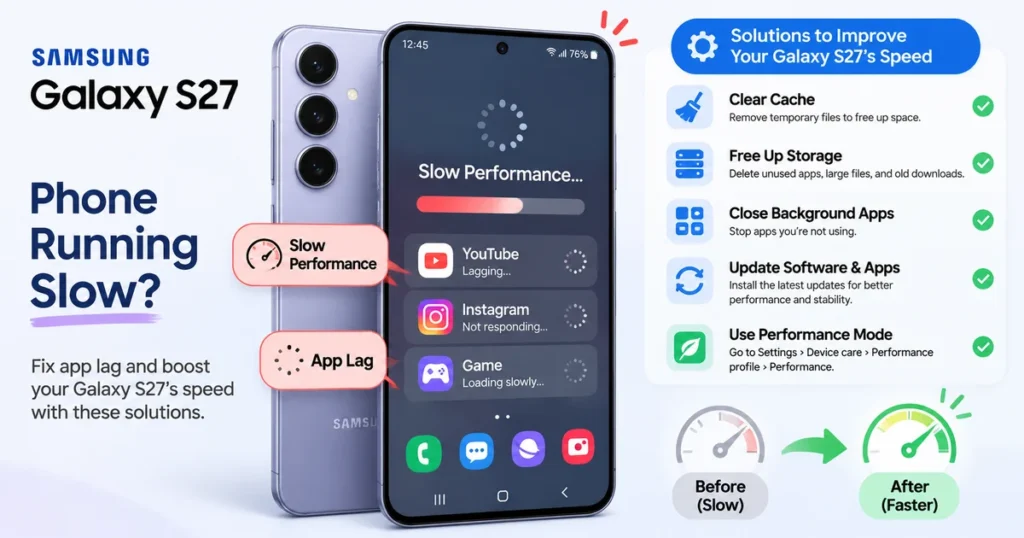
Common causes include insufficient storage, background applications, outdated software, overheating, and temporary system errors. To speed up your Galaxy S27, restart the phone, free up storage, close unnecessary background apps, update One UI, and identify applications that consume excessive resources. Follow these troubleshooting steps to restore smoother performance.
Why Is My Samsung Galaxy S27 Running Slow?
Several factors can affect your Galaxy S27’s performance. Identifying the cause helps you choose the right solution instead of unnecessarily resetting your phone.
| Possible cause | Common symptoms | Recommended solution |
|---|---|---|
| Low storage space | Apps load slowly and system lag | Delete unnecessary files |
| Too many background apps | Slow app switching | Close unused applications |
| Outdated software | Freezing and unexpected glitches | Install software updates |
| Problematic applications | Individual apps become unresponsive | Clear cache or uninstall apps |
| Overheating | Performance slows during heavy use | Allow the phone to cool |
| Temporary system errors | Random lag or freezing | Restart the phone |
How to Fix a Slow Samsung Galaxy S27
Try these solutions in order. Test your phone after each step to determine whether performance improves.
1. Restart Your Galaxy S27
Restarting is one of the easiest ways to resolve temporary performance problems. It closes running processes, refreshes system resources, and clears minor software glitches.
Follow these steps:
- Swipe down from the top of the screen to open the Quick Settings panel.
- Swipe down again if necessary.
- Tap the Power icon.
- Select Restart.
- Wait for your Galaxy S27 to boot completely.
If the phone freezes and does not respond, press and hold the Side button and Volume Down button together for approximately seven seconds until the device restarts.
Check whether applications open faster after restarting.
2. Free Up Storage Space
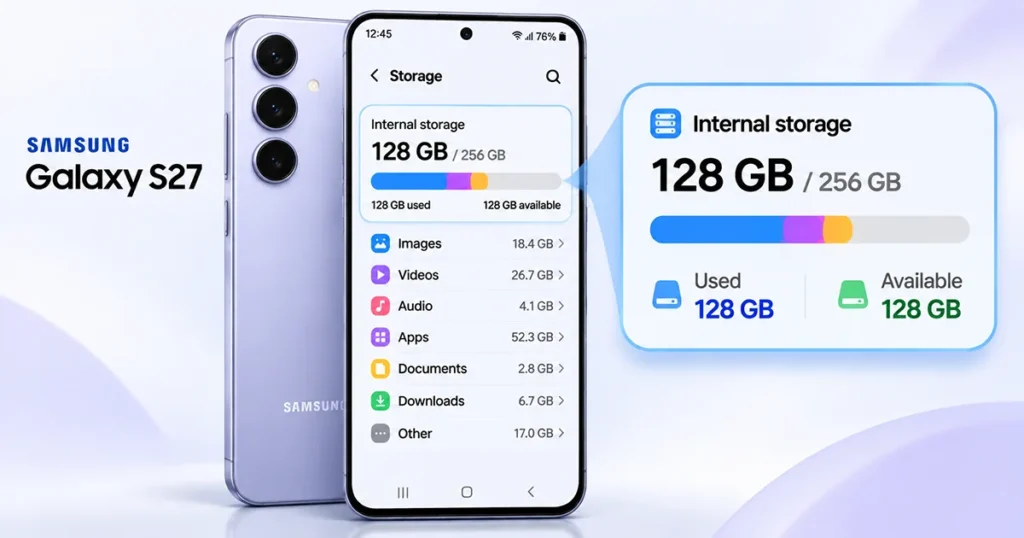
Insufficient storage can affect system performance, app updates, and temporary file management. Removing unnecessary files can help your Galaxy S27 operate more smoothly.
To check available storage:
- Open Settings.
- Tap Device care.
- Select Storage.
- Review your storage usage.
- Remove unnecessary downloads, duplicate files, and unused applications.
You can also delete old videos, photos, and documents after backing up anything important.
Avoid deleting files you cannot identify. Keep enough free storage for system updates, application data, and temporary files.
3. Close Background Apps and Free Up Memory
Applications running in the background may consume memory and other system resources. Closing unnecessary applications can help when your phone becomes sluggish.
Try this:
- Tap the Recent apps button.
- Review the applications currently running.
- Close applications you no longer need.
- Open Settings.
- Navigate to Device care > Memory, if available.
- Tap Clean now.
You do not need to close every application constantly. Focus on applications that consume excessive resources or cause noticeable performance problems.
4. Update Your Galaxy S27 Software
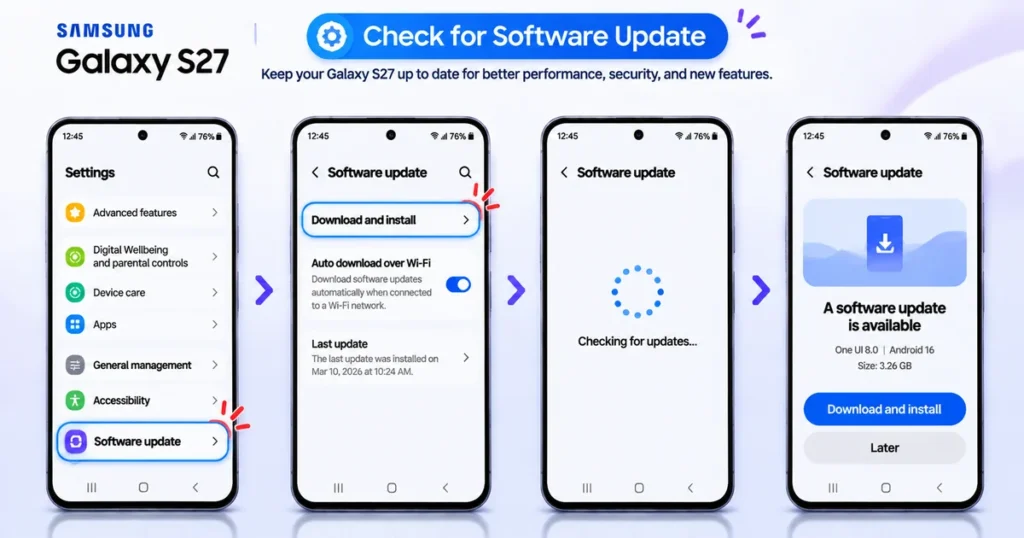
Samsung releases software updates to improve device stability, fix bugs, and address compatibility problems. An outdated One UI version may contribute to lagging or unexpected freezing.
To check for updates:
- Open Settings.
- Scroll down and select Software update.
- Tap Download and install or Check for updates, depending on the software version.
- Install an available update.
- Restart your phone if prompted.
Connect to Wi-Fi and ensure your battery has sufficient charge before installing an update.
If your Galaxy S27 started running slowly immediately after an update, allow some time for background optimization to finish. If the problem continues, proceed with the remaining troubleshooting steps.
5. Clear the Cache of Slow Applications
If your entire phone works normally but certain applications open slowly, their temporary files may be causing problems.
Clearing an application’s cache can remove corrupted or outdated temporary files without deleting your personal account information.
Follow these steps:
- Open Settings.
- Tap Apps.
- Select the application experiencing problems.
- Tap Storage.
- Select Clear cache.
- Reopen the application.
Repeat the process for other applications that consistently run slowly.
Important: Avoid tapping Clear data unless necessary. This can remove application settings, locally stored information, and login sessions.
6. Check Whether Your Galaxy S27 Is Overheating
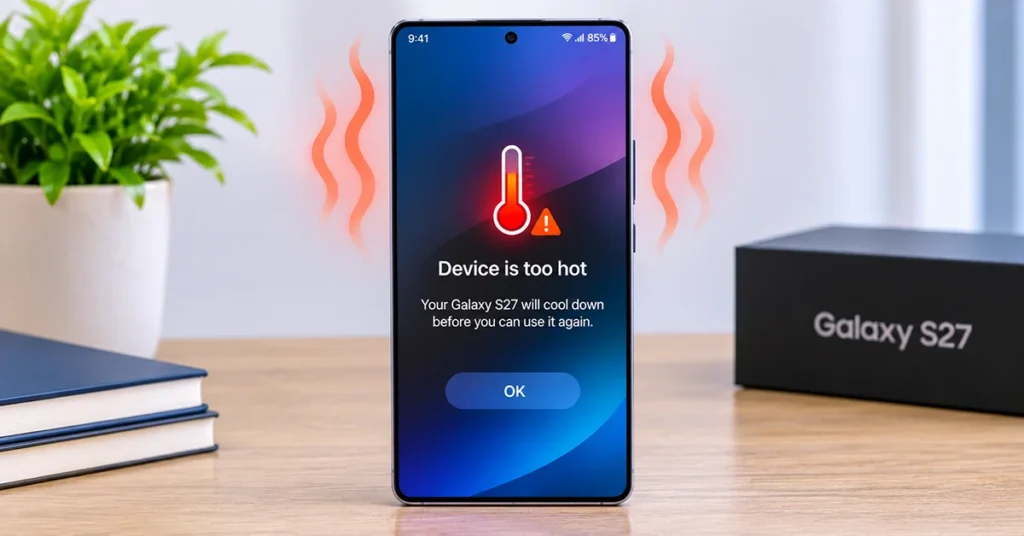
Excessive heat can cause a smartphone to reduce performance to protect its internal components.
Your Galaxy S27 may become warm during gaming, video recording, navigation, charging, or demanding multitasking.
If the phone feels unusually hot:
- Close demanding applications.
- Stop gaming or recording temporarily.
- Disconnect the charger if charging is contributing to excessive heat.
- Move the phone away from direct sunlight.
- Allow it to cool naturally before using demanding applications again.
Avoid placing the phone in a refrigerator or using ice to cool it down.
If overheating repeatedly causes performance problems during normal use, investigate the underlying issue.
7. Use Safe Mode to Find Problematic Apps
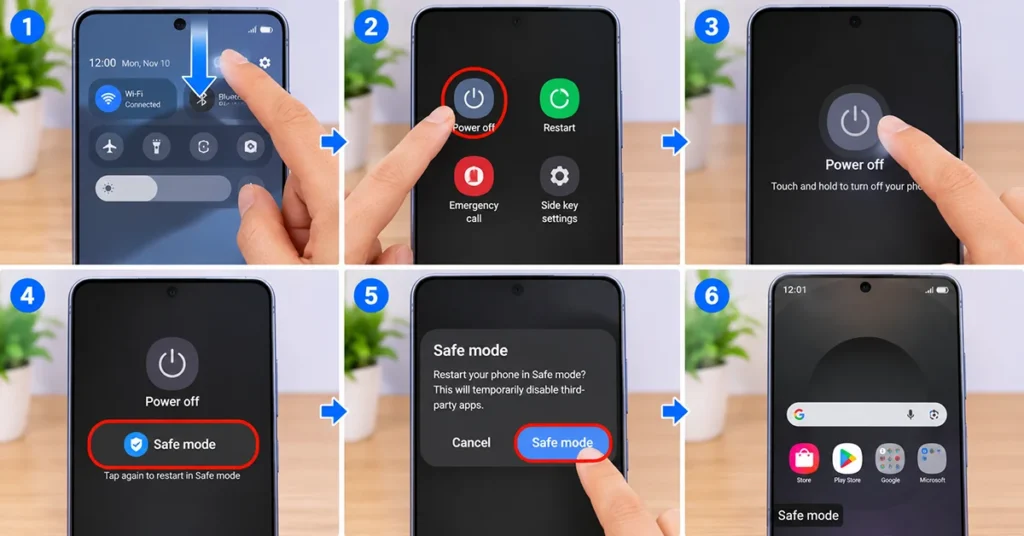
A recently installed third-party application may cause your Galaxy S27 to lag, freeze, or behave unpredictably.
Safe Mode temporarily disables downloaded applications, helping you determine whether an installed app is responsible.
To enter Safe Mode:
- Open the Power menu.
- Touch and hold the Power off option.
- Select Safe mode when prompted.
- Wait for the phone to restart.
Use your phone for several minutes and check its performance.
If the lag disappears in Safe Mode, a downloaded application may be responsible. Restart normally and uninstall recently installed or suspicious applications one at a time.
If the phone remains slow in Safe Mode, the problem may involve system software, storage, or hardware.
8. Run Samsung Members Diagnostics
Samsung Members includes diagnostic tools that can help identify potential problems with supported Galaxy devices.
To run diagnostics:
- Open the Samsung Members application.
- Navigate to Support.
- Select Phone diagnostics.
- Choose the available tests or select Test all.
- Review the results.
Follow any recommended actions if the diagnostics identify a problem.
The available tests may vary depending on your device, software version, and region.
When Should You Factory Reset Your Galaxy S27?
A factory reset should be your last troubleshooting option. Consider it only when your Galaxy S27 continues to experience serious performance problems after trying the previous solutions.
Before resetting, back up your photos, videos, documents, contacts, and other important information.
To reset your phone:
- Open Settings.
- Tap General management.
- Select Reset.
- Tap Factory data reset.
- Review the information carefully.
- Select Reset and follow the on-screen instructions.
A factory reset erases personal data and installed applications. Restore your backup only after checking whether the phone performs normally.
If the device remains slow after a clean reset, contact Samsung Support or an authorized service center for further inspection.
Frequently Asked Questions
Common causes include insufficient storage, background applications, outdated software, overheating, and problematic third-party apps. Restarting the phone and checking Device care are good first steps.
Free up storage, close unnecessary background applications, install software updates, clear problematic app caches, and restart your phone.
An application may have corrupted temporary files, consume excessive resources, or require an update. Clear its cache and check whether other applications experience the same problem.
Clearing an application’s cache can resolve problems caused by corrupted temporary files. However, it will not necessarily improve overall phone performance if the actual cause is insufficient storage or a system issue.
No. Try restarting, freeing storage, updating software, and testing Safe Mode first. Factory resetting should be a last resort after backing up important data.
Final Thoughts
A slow Samsung Galaxy S27 does not automatically indicate a hardware problem. In many cases, background applications, insufficient storage, overheating, or software issues are responsible.
Start with a restart and storage cleanup before moving to more advanced troubleshooting. If your Galaxy S27 remains slow after these steps, use Safe Mode and Samsung Members diagnostics to identify the cause. Consider professional assistance if performance problems persist.
References:
- Samsung: Galaxy device slow or unresponsive.
- Samsung: Slow performance after installing third-party apps.
