Taking a screenshot on the Samsung Galaxy S27 should be simple. The quickest way is to press the Side button and Volume Down button simultaneously, then release them immediately. Your phone captures the current screen, allowing you to save, edit, or share the image.
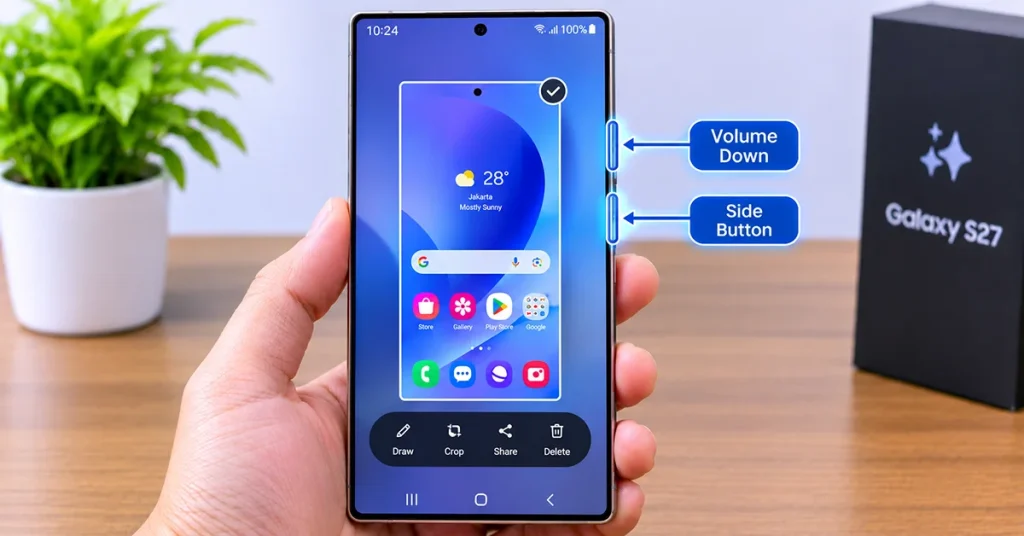
Samsung Galaxy phones also support alternative screenshot methods, including Palm swipe, voice commands, and Scroll capture. Depending on the Galaxy S27 model and its One UI software, additional options may be available.
Whether you want to save an important message, capture a webpage, or share something interesting with friends, this guide explains the screenshot methods to look for on your Galaxy S27.
How to Take a Screenshot on Galaxy S27 Using Buttons
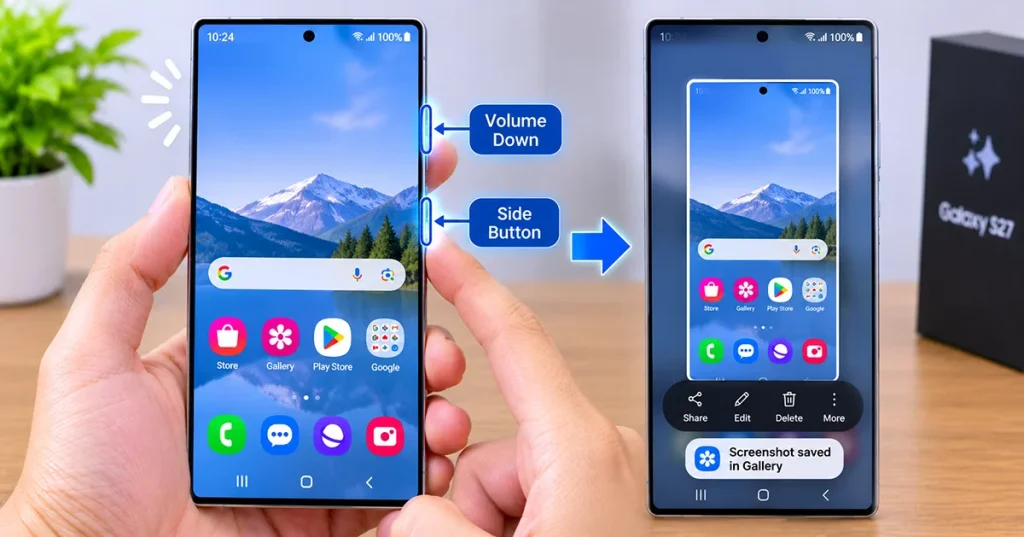
The button combination is the easiest and most widely supported way to capture your Galaxy S27 screen. You do not need to install an additional application or change any settings.
Follow these steps:
- Open the app, webpage, conversation, or screen you want to capture.
- Locate the Side button and Volume Down button on your Galaxy S27.
- Press both buttons simultaneously.
- Release the buttons immediately after pressing them.
- Wait for the screen flash or screenshot preview to confirm the capture.
Your screenshot should automatically save to your phone’s Gallery.
Tip: Avoid holding both buttons for several seconds. A prolonged press may trigger the power menu or another button function instead of capturing the screen.
How to Take a Screenshot on Galaxy S27 Without Buttons
If you prefer not to use physical buttons, Samsung offers alternative screenshot features on supported Galaxy devices. One convenient option is Palm swipe to capture.
Use Palm Swipe to Capture
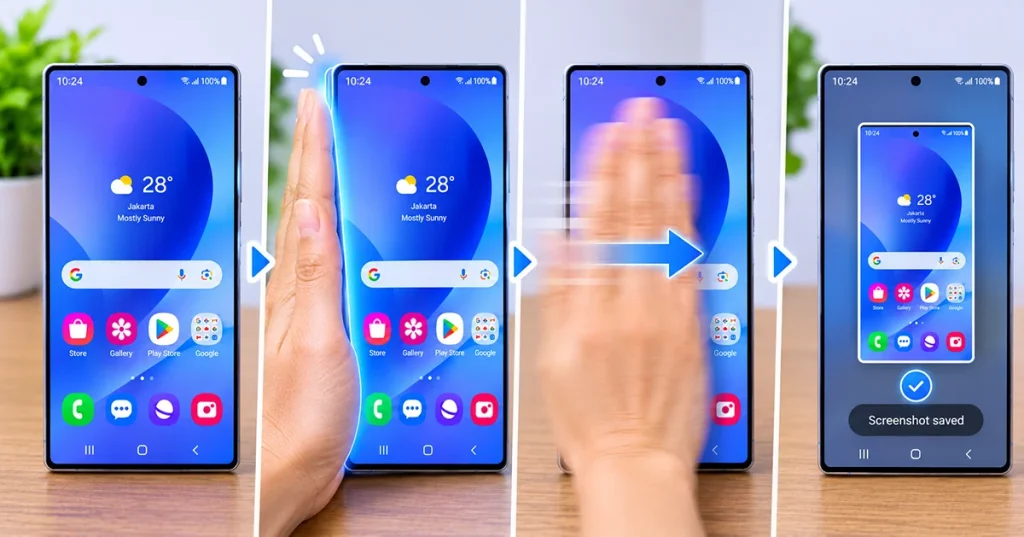
Palm swipe allows you to take a screenshot by moving the edge of your hand across the display.
First, check whether the feature is available and enabled:
- Open Settings on your Galaxy S27.
- Tap Advanced features.
- Select Motions and gestures.
- Look for Palm swipe to capture.
- Turn on the feature if it is available.
To capture a screenshot:
- Open the screen you want to save.
- Place the edge of your hand against one side of the display.
- Swipe your hand horizontally across the screen.
- Wait for the screenshot confirmation.
If the gesture does not work, try keeping the edge of your hand in contact with the display throughout the movement.
Note that Palm swipe availability may depend on the device and One UI version.
How to Take a Long Screenshot on Galaxy S27
A regular screenshot only captures the content currently visible on your display. However, you can use Scroll capture to save longer content, such as webpages, articles, and conversations, in one tall image.
Here’s how:
- Open a webpage or app containing content that extends beyond the screen.
- Take a regular screenshot using the Side and Volume Down buttons.
- Wait for the screenshot toolbar to appear.
- Tap the Scroll capture icon, usually represented by two downward arrows.
- Continue tapping the icon to capture additional sections.
- Stop when you have captured all the content you need.
- Open the screenshot preview to review or edit the image.
The phone combines the captured sections into one long screenshot.
Important: Scroll capture works only with supported scrollable content. Some apps, websites, and protected screens may prevent this feature from working.
How to Take a Screenshot Using Voice Commands
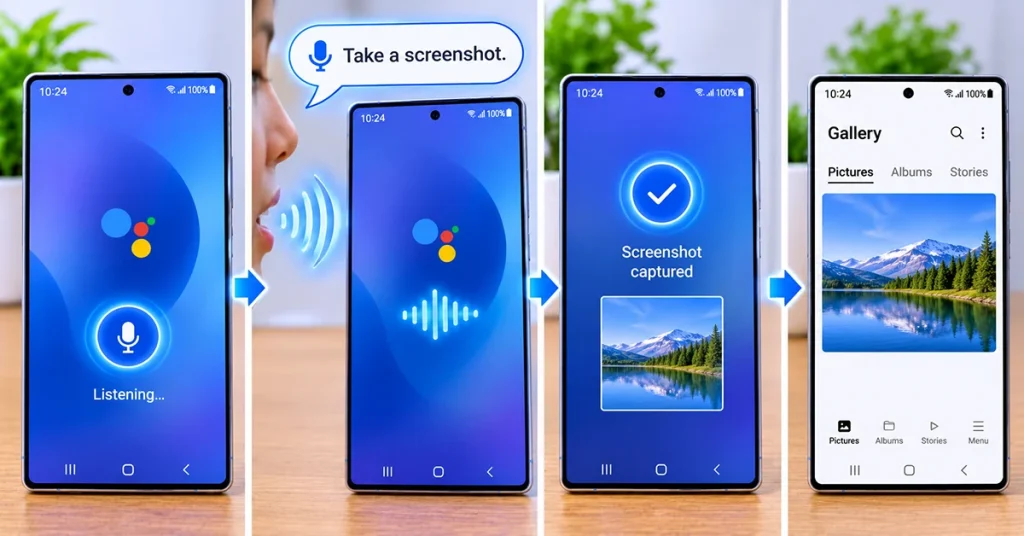
Voice commands provide another convenient way to capture your screen without pressing physical buttons.
If Bixby or Google Assistant is available and configured on your Galaxy S27, you can try the following:
- Activate your preferred voice assistant.
- Make sure the screen you want to capture is displayed.
- Say, “Take a screenshot.”
- Wait for the assistant to process your command.
- Open Gallery to check the captured image.
Voice screenshot functionality depends on the assistant, language, permissions, and software version. If the command is not recognized, check your assistant settings or use the button shortcut instead.
Where Are Screenshots Saved on Galaxy S27?
After capturing a screenshot, you can find it in the Samsung Gallery app.
Follow these steps:
- Open Gallery.
- Tap Albums.
- Find and open the Screenshots album.
- Select the image you want to view.
You can also use the image options to crop, edit, delete, or share your screenshot.
If you prefer using a file manager, open My Files and look for the Pictures/Screenshots folder. The exact storage location may vary depending on your device’s software and configuration.
How to Edit and Share Screenshots on Galaxy S27
You do not need a separate image-editing application for basic screenshot adjustments. Samsung’s built-in screenshot tools make it possible to modify and share captured images.
After taking a screenshot:
- Tap the screenshot preview or thumbnail.
- Select the editing option to crop or draw on the image.
- Highlight important information using the available drawing tools.
- Tap Save to keep your changes.
- Select Share to send the image through your preferred application.
Editing is useful when you want to hide unnecessary information, highlight a particular section, or explain something visually.
Galaxy S27 Screenshot Methods Compared
Here is a quick comparison of the screenshot methods covered in this guide.
| Screenshot method | Best for | Requires setup? |
|---|---|---|
| Side + Volume Down | Everyday screenshots | No |
| Palm swipe | Capturing without buttons | Yes, if available |
| Scroll capture | Long webpages and conversations | No additional setup |
| Voice commands | Hands-free screenshots | Assistant setup required |
| S Pen Screen Write | Annotating screenshots | Compatible S Pen device required |
The availability of optional features depends on the final Galaxy S27 hardware and One UI software.
How to Fix Galaxy S27 Screenshot Not Working
If your Galaxy S27 does not capture screenshots, try these troubleshooting suggestions.
1. Press both buttons simultaneously. Make sure you press the Side and Volume Down buttons at exactly the same time. Release them immediately after the screen flashes.
2. Check the physical buttons. Make sure your phone case is not blocking the buttons. Test whether both buttons respond normally.
3. Restart your phone. A temporary software issue may interfere with screenshot functionality. Restart your Galaxy S27 and try again.
4. Check Palm swipe settings. If the gesture is not working, confirm that Palm swipe to capture is enabled and supported.
5. Check app restrictions. Some banking applications, streaming services, and secure screens block screenshots to protect sensitive information. You may see a security restriction message when attempting to capture them.
6. Update your software. Check for available One UI updates under Settings > Software update > Download and install.
If screenshots still do not work across ordinary apps, consider contacting Samsung Support.
Frequently Asked Questions
Press the Side button and Volume Down button simultaneously, then release them immediately. The phone should capture the current screen.
Yes, if supported by your software. You can use Palm swipe to capture or a compatible voice assistant to take screenshots without using the physical buttons.
Take a regular screenshot and tap the Scroll capture icon in the screenshot toolbar. Continue capturing additional sections until you reach the bottom of the webpage.
Possible reasons include incorrect button timing, unresponsive physical buttons, temporary software problems, or application security restrictions. Restarting the phone and checking the button combination are good first steps.
Yes. Screenshots are generally saved automatically in the Screenshots album in the Gallery app.
Final Thoughts
Taking a screenshot on the Galaxy S27 should be straightforward using the Side and Volume Down buttons. If you prefer a button-free method, check for Palm swipe or use a compatible voice assistant. For longer content, Scroll capture is the most useful option.
Once captured, your screenshots can be found in Gallery, where you can edit, organize, and share them whenever needed.

2 thoughts on “How to Take a Screenshot on Samsung Galaxy S27 (All Methods)”