Turning off your Samsung Galaxy S27 is simple once you know which buttons to use. The quickest method on recent Galaxy phones is to press and hold the Side button and Volume Down button together, then select Power off twice.
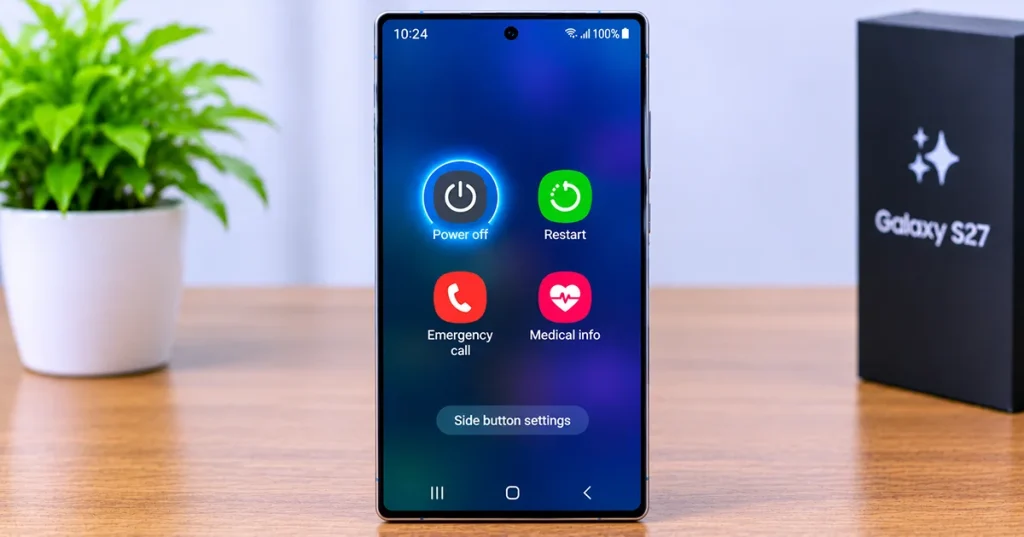
You can also shut down your phone through the Quick Settings panel or use Bixby voice commands. These alternatives are useful if the physical buttons are difficult to reach or the Side button launches the digital assistant instead of displaying the power menu.
1. Turn Off Galaxy S27 Using the Side and Volume Down Buttons
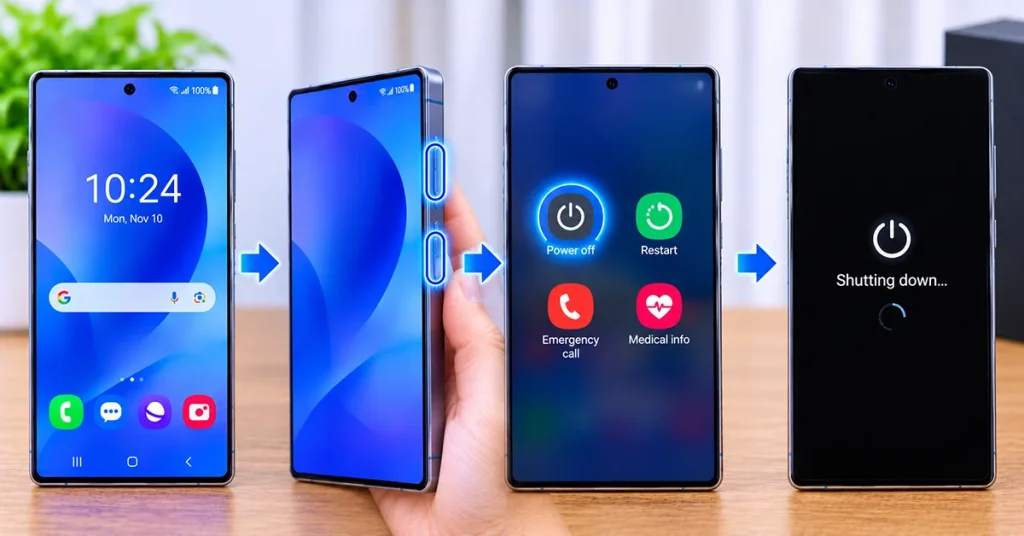
The hardware button combination is the quickest way to access the power menu on recent Samsung Galaxy phones.
Follow these steps:
- Locate the Side button and Volume Down button on your Galaxy S27.
- Press and hold both buttons simultaneously for a few seconds.
- Wait for the power menu to appear.
- Tap Power off.
- Tap Power off again to confirm.
Your Samsung Galaxy S27 will begin shutting down. Wait until the screen goes completely black before putting your phone away.
Important: Do not press the Side button alone if it is configured to launch Bixby or another digital assistant. The two-button combination provides an alternative way to access the power menu.
2. Turn Off Samsung Galaxy S27 Using Quick Settings
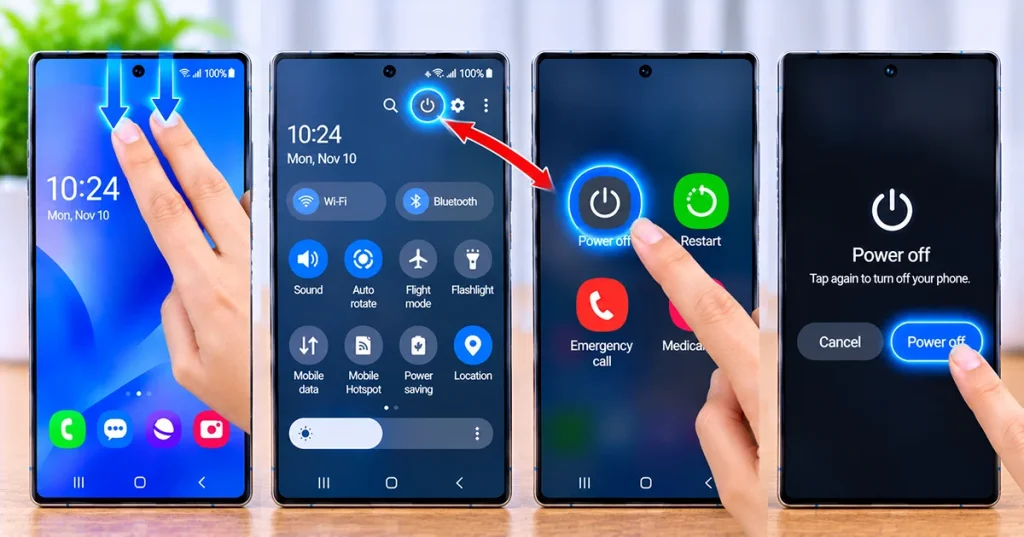
If your physical buttons are difficult to use, the Quick Settings panel provides another convenient way to shut down your phone.
You do not need to change any button settings or activate Bixby.
Here is how:
- Unlock your Galaxy S27.
- Swipe down from the top of the screen using two fingers to open the full Quick Settings panel.
- Find the Power icon near the top-right corner.
- Tap the Power icon.
- Select Power off.
- Tap Power off again to confirm.
Your Galaxy S27 will shut down automatically.
This method is particularly useful when you prefer touchscreen controls or when the Side button is not working properly.
3. Change the Side Button to Open the Power Menu
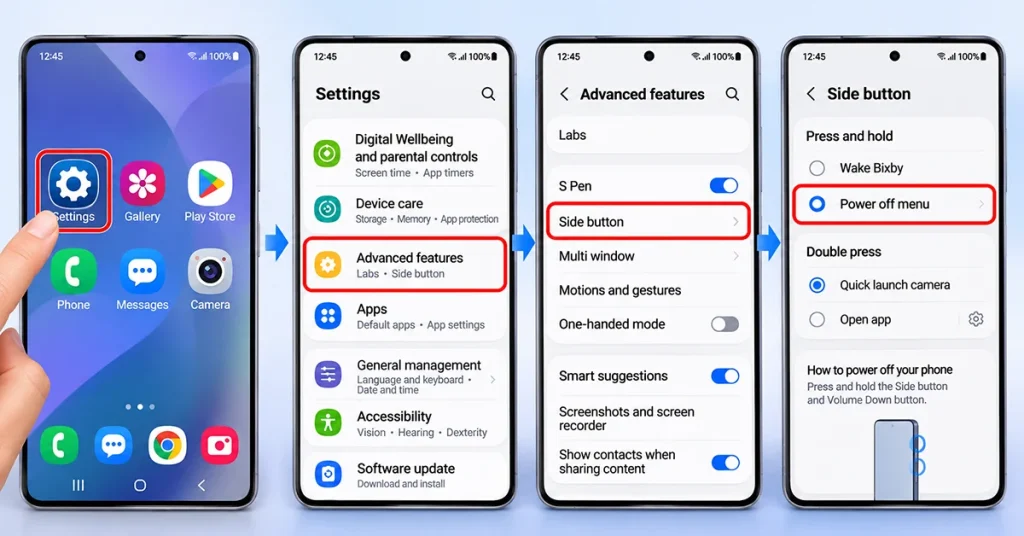
By default, pressing and holding the Side button on many recent Samsung phones can activate Bixby or another assistant.
If you frequently turn off your phone, changing this shortcut can make the process easier.
Follow these instructions:
- Open the Settings app.
- Tap Advanced features.
- Select Side button.
- Find the Press and hold option.
- Select Power off menu.
After changing this setting, press and hold the Side button to display the power menu.
You can then tap Power off twice to shut down your phone.
Tip: If you do not see these exact options, check for a different Side button menu label or consult the device’s software documentation. Menu names can vary between Galaxy models and software versions.
4. Turn Off Galaxy S27 Using Bixby
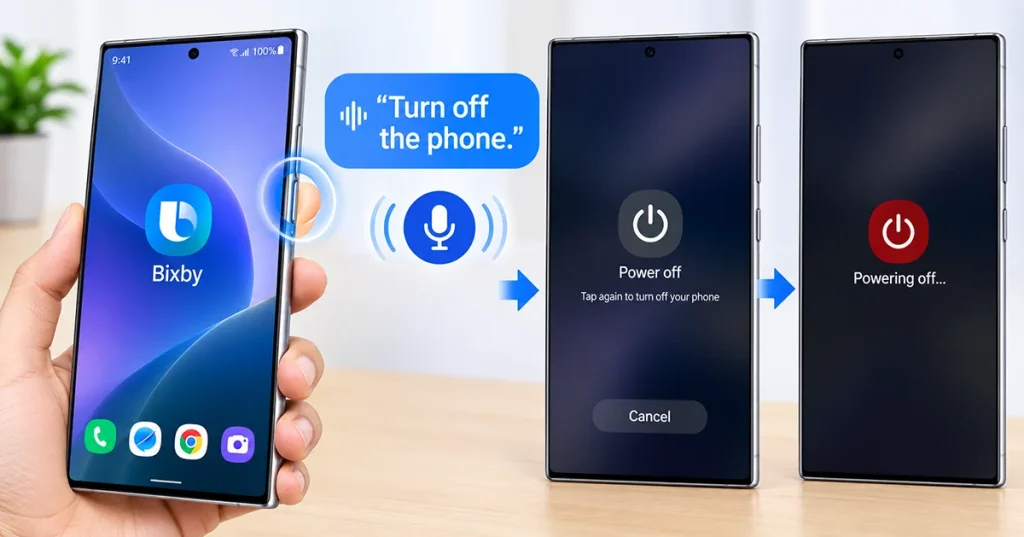
You can also use Samsung’s Bixby voice assistant to turn off your Galaxy phone without navigating through the settings menu.
This method is useful when your hands are occupied or you prefer voice commands.
First, make sure Bixby Voice is configured on your device.
Then follow these steps:
- Press and hold the Side button if it is configured to activate Bixby.
- Wait for Bixby to respond.
- Say, “Turn off the phone.”
- Follow the confirmation prompt.
- Confirm that you want to power off the device.
Bixby will initiate the shutdown process.
Keep in mind that this feature requires Bixby Voice setup and may depend on your device configuration, language, and software version.
Galaxy S27 Power-Off Methods Compared
You can use several methods to shut down your Samsung phone. The following table summarizes the differences.
| Method | What you need | Best for |
|---|---|---|
| Side + Volume Down | Physical buttons | Quick shutdown |
| Quick Settings | Touchscreen | Alternative button-free method |
| Side button customization | Settings access | Frequent shutdowns |
| Bixby voice command | Configured Bixby | Hands-free operation |
For most users, the Side + Volume Down combination is the easiest option. Quick Settings is a good alternative if you cannot use the physical buttons.
How to Force Restart Galaxy S27 If It Is Frozen
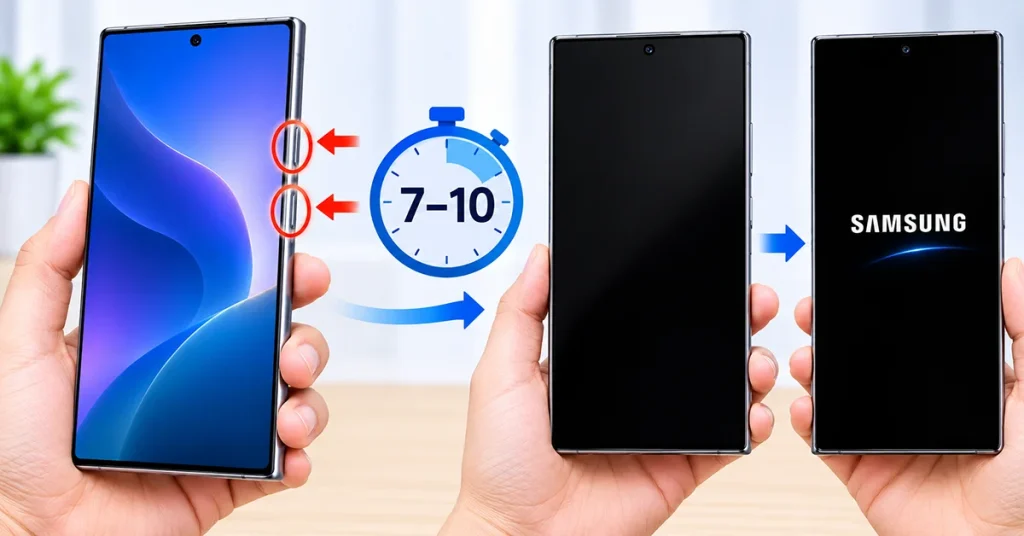
Sometimes your Samsung Galaxy S27 may become unresponsive because of a software problem, a frozen application, or a temporary system error.
If the touchscreen does not respond, you may need to force restart the device.
Try these steps:
- Press and hold the Side button and Volume Down button simultaneously.
- Keep holding both buttons for approximately 7–10 seconds.
- Release the buttons when the screen turns off or the phone begins restarting.
- Wait for the Samsung logo to appear.
- Allow the phone to complete the restart.
A force restart is different from a normal shutdown. It restarts the operating system without using the touchscreen.
Important: A force restart does not normally erase your photos, applications, or personal files. However, unsaved work may be lost.
If your phone repeatedly freezes, check for available software updates and investigate recently installed applications.
Frequently Asked Questions
The expected button arrangement follows recent Galaxy designs, which use a multifunction Side button alongside the Volume buttons. The Side button handles several functions, including waking the screen and accessing power controls.
The Side button may be configured to launch Bixby or another digital assistant. Use Side + Volume Down to access the power menu, or change the long-press setting under Settings > Advanced features > Side button.
Yes. Open the Quick Settings panel by swiping down from the top of the screen with two fingers. Tap the Power icon, select Power off, and confirm your choice.
Open the power menu using Side + Volume Down or Quick Settings. Select Restart, then confirm. Your phone will shut down and turn back on automatically.
A standard force restart does not normally delete stored personal data. However, unsaved information in open applications may be lost. It is not the same as performing a factory reset.
Conclusion
Turning off your Samsung Galaxy S27 should be straightforward once you know where to find the power menu. Pressing Side + Volume Down is the quickest approach, while Quick Settings provides a convenient alternative. You can also customize the Side button or use Bixby to make shutdown easier.
If your phone freezes, try a force restart before considering more advanced troubleshooting.

4 thoughts on “How to Turn Off Your Samsung Galaxy S27: 4 Easy Methods”