Is your Galaxy S27 not charging when you connect it to a power adapter? Charging problems can happen because of a damaged USB-C cable, incompatible charger, dirty charging port, moisture detection, overheating, or a temporary software issue.
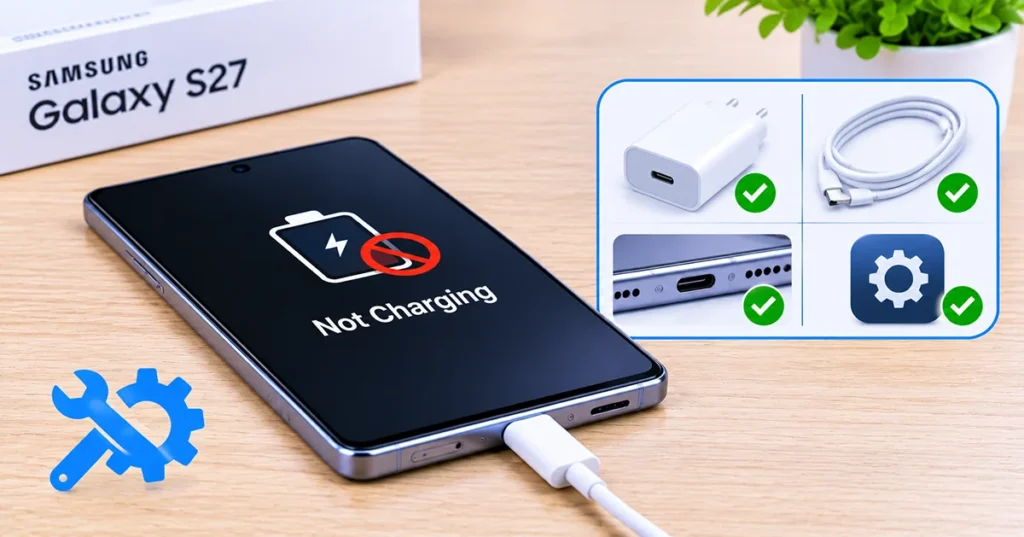
Fortunately, many Samsung Galaxy charging problems can be resolved at home without visiting a repair center. Start by checking your charging cable and power adapter, then inspect the charging port and restart your phone. If the battery still does not charge, try the additional troubleshooting methods below.
This guide explains how to fix a Galaxy S27 that won’t charge, charges slowly, stops charging unexpectedly, or refuses to charge wirelessly.
Why Is My Galaxy S27 Not Charging?
Your Galaxy S27 may stop charging because of a faulty power adapter, damaged USB-C cable, dust inside the charging port, excessive temperature, moisture detection, or battery-related problems.
Software glitches and incompatible wireless charging accessories can also interrupt the charging process.
Here are the most common causes and their recommended solutions:
| Charging problem | Possible cause | Recommended solution |
|---|---|---|
| Phone won’t charge | Faulty adapter or cable | Try another compatible charger |
| Charging connects and disconnects | Loose or damaged USB-C port | Inspect the charging connection |
| Galaxy S27 charges slowly | Incompatible charger or overheating | Use a compatible adapter and cool the phone |
| Moisture detected warning | Water or humidity in the port | Disconnect and let the port dry |
| Battery stops at 80% | Battery protection enabled | Check Battery protection settings |
| Wireless charging not working | Incorrect alignment or incompatible pad | Reposition the phone |
| Phone won’t turn on or charge | Deeply discharged battery or hardware issue | Try a known-good charger and seek service if necessary |
10 Ways to Fix Galaxy S27 Not Charging
Try these solutions in order, starting with the simplest checks.
1. Check Your Charging Cable and Power Adapter
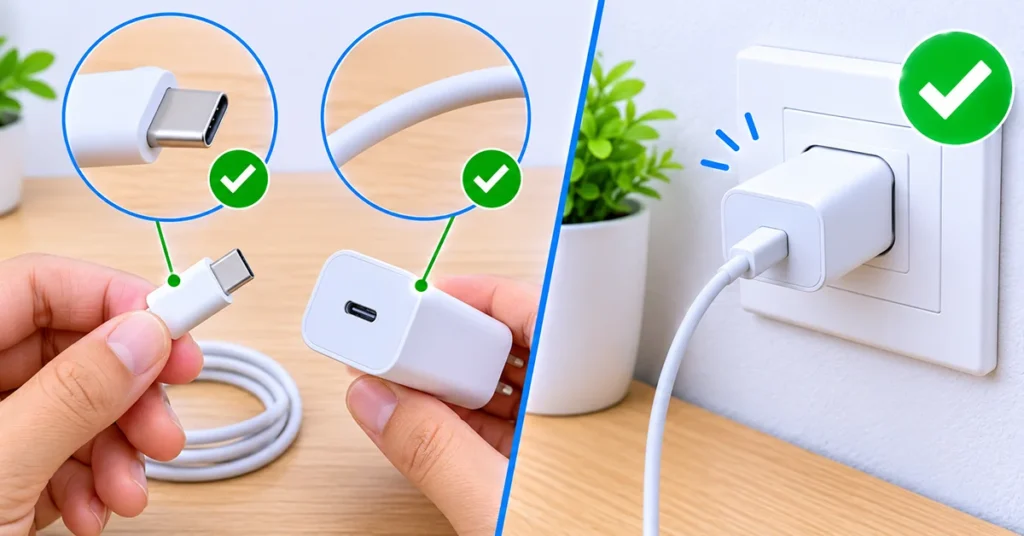
A damaged charging cable or incompatible power adapter is one of the first things to investigate when your Galaxy S27 won’t charge.
Even if a charger looks normal, its internal components may be damaged or unable to deliver sufficient power.
Follow these steps:
- Disconnect the USB-C cable from your phone.
- Inspect the cable and adapter for visible damage.
- Check that the adapter is firmly connected to the electrical outlet.
- Try another compatible USB-C cable and power adapter.
- Connect your Galaxy S27 and check whether the charging indicator appears.
Use a Samsung-approved or compatible USB-C charger that supports your device’s charging requirements.
2. Inspect and Clean the USB-C Charging Port
Dust, lint, and other debris can accumulate inside the USB-C port, preventing the cable from making a proper connection.
To inspect the charging port:
- Disconnect the charging cable and turn off your phone.
- Use a flashlight to inspect the USB-C port.
- Look for dust, lint, or visible damage.
- If debris is visible, have the port cleaned safely by a qualified technician.
Avoid inserting metal objects, needles, or sharp tools into the charging port. Do not pour liquid or cleaning solutions into it.
If the cable feels loose or charging works only at a particular angle, the charging port may require professional inspection.
3. Restart Your Galaxy S27
A temporary software problem can sometimes prevent Android from recognizing a connected charger correctly.
Restarting your phone can resolve minor system glitches.
- Disconnect the charging cable.
- Press and hold the Side and Volume Down buttons.
- Select Restart if the power menu appears.
- Wait for the phone to restart completely.
- Connect the charger again and check the battery indicator.
If your phone is completely unresponsive, use the manufacturer’s recommended restart procedure for your model.
4. Check for Moisture Detection Warnings
Samsung Galaxy phones can prevent USB charging when moisture is detected inside the charging port.
If you see a waterdrop icon or moisture warning, disconnect the charger immediately.
Try these steps:
- Disconnect the USB-C cable.
- Wipe the outside of the phone with a clean, soft cloth.
- Hold the phone with the charging port facing downward.
- Allow the port to dry naturally in a well-ventilated area.
- Wait until the moisture warning disappears before reconnecting the charger.
Do not use a hairdryer, external heater, or metal object to dry the charging port. Water resistance does not mean the charging port can safely accept power while wet.
5. Let Your Phone Cool Down
Excessive heat can cause charging to slow down or temporarily stop.
This may happen when you play demanding games, record videos, use navigation, or charge your phone in direct sunlight.
To resolve overheating-related charging problems:
- Disconnect the charger.
- Close demanding applications.
- Remove the phone case if it traps heat.
- Move your phone away from direct sunlight.
- Allow the device to return to a normal operating temperature.
- Connect the charger again.
Avoid placing your phone in a refrigerator or freezer to cool it down.
6. Check Battery Protection Settings
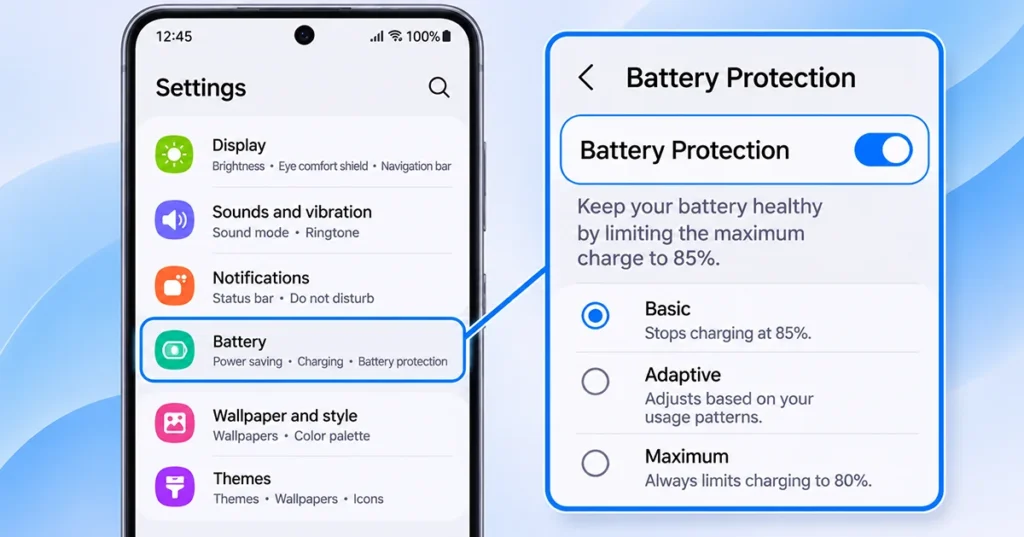
Your Galaxy S27 may stop charging before reaching 100% because of its battery protection feature.
Battery protection helps reduce battery wear by limiting the maximum charging level, depending on the selected mode.
To check this setting:
- Open Settings.
- Select Battery.
- Tap Battery protection.
- Review the available charging options.
- Adjust the charging limit if you want the phone to charge beyond its current limit.
The exact menu and available options may differ depending on the final software version.
If your battery consistently stops at 80% or another selected limit, this may be normal behavior rather than a charging defect.
7. Check Fast Charging Settings
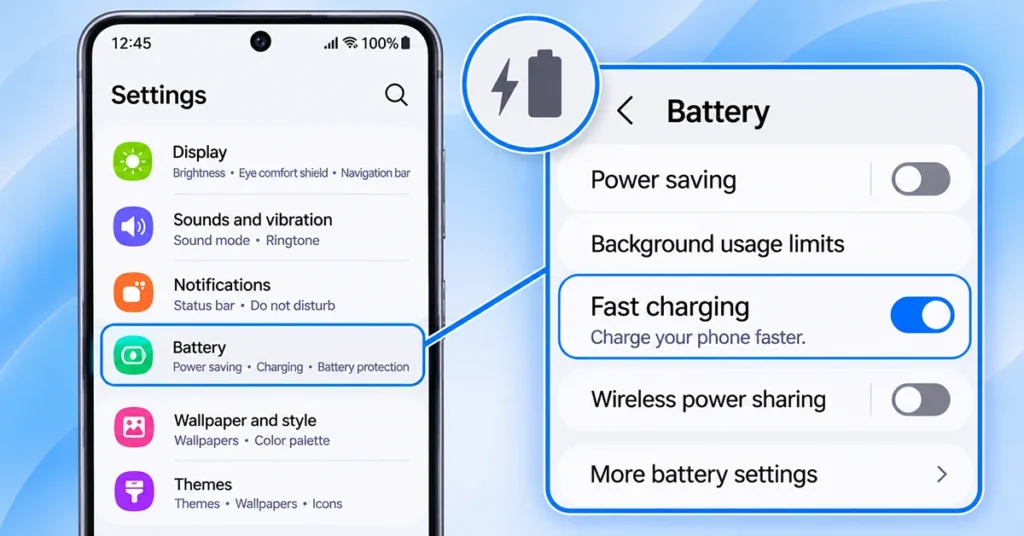
If your Galaxy S27 charges but takes longer than expected, check whether fast charging is enabled.
Follow these steps:
- Open Settings.
- Tap Battery.
- Select Charging settings, if available.
- Look for the Fast charging option.
- Enable it if supported and currently disabled.
Also check that your USB-C adapter and cable support the charging standard required by your device.
Remember that fast charging availability and maximum charging speed depend on the phone model, charger, cable, battery temperature, and current battery level.
8. Try Wireless Charging
If your Galaxy S27 supports wireless charging, testing a compatible wireless charger can help identify whether the problem is related to the USB-C port.
Follow these steps:
- Disconnect the USB-C charging cable.
- Connect a compatible wireless charging pad to its power adapter.
- Remove thick phone cases or accessories.
- Place your phone in the center of the charging pad.
- Check whether the wireless charging indicator appears.
If wireless charging works but wired charging does not, the USB-C port or cable connection may be the source of the problem.
9. Start Your Phone in Safe Mode
Some third-party applications can interfere with normal device behavior.
Safe Mode temporarily disables downloaded applications, helping you determine whether an installed app is contributing to the charging problem.
To enter Safe Mode:
- Open the Power menu.
- Touch and hold the Power off option.
- Select Safe mode when the prompt appears.
- Wait for the phone to restart.
- Connect your charger and observe whether charging works normally.
If charging improves in Safe Mode, recently installed applications may be responsible. Uninstall suspicious or recently added apps one at a time.
10. Run Samsung Members Diagnostics
If the previous solutions do not work, use Samsung Members to check your phone’s battery and charging components.
Follow these steps:
- Open the Samsung Members application.
- Select the Support section.
- Find Phone diagnostics.
- Choose the available battery and charging-related tests.
- Follow the instructions displayed on the screen.
Diagnostic options may vary by device and software version.
If the diagnostic test identifies a problem, contact an authorized Samsung service center for further inspection.
When Should You Visit a Samsung Service Center?
If your Galaxy S27 still refuses to charge after trying these solutions, the problem may involve damaged hardware.
Consider professional repair if you notice:
- The USB-C port is physically damaged or corroded.
- The phone repeatedly disconnects from the charger.
- The battery becomes unusually hot.
- The phone has a swollen battery or damaged back cover.
- Both wired and supported wireless charging fail.
- The phone does not respond after being connected to a known-good charger.
Stop charging immediately if the battery is swollen, smoking, or producing a burning smell. Do not attempt to open the phone yourself.
Frequently Asked Questions
The problem may be caused by a faulty charger, damaged USB-C cable, dirty charging port, moisture detection, overheating, or a software issue. Try another compatible charger and inspect the charging port first.
Slow charging can result from an incompatible adapter, damaged cable, high device temperature, background applications, or disabled fast charging settings. Check your accessories and charging settings.
Battery protection may be limiting the maximum charging level to reduce battery wear. Check the Battery protection settings before assuming that the battery is defective.
If your device supports wireless charging, you can use a compatible wireless charger as an alternative. However, if the phone has liquid damage or abnormal heating, have it inspected before charging.
Not necessarily. Charging problems can also originate from the cable, adapter, charging port, or software. Run available diagnostics and have the phone inspected before replacing the battery.
Final Thoughts
When your Galaxy S27 is not charging, start by checking the USB-C cable, power adapter, and electrical outlet. Next, inspect the charging port, restart your phone, and check for moisture or overheating.
If the problem continues, test compatible wireless charging, review battery protection settings, and run Samsung Members diagnostics where available.
Persistent charging problems may indicate a damaged charging port, battery, or internal component. Contact an authorized Samsung service center for a professional diagnosis rather than attempting an unsafe repair.
References:
The technical troubleshooting recommendations are supported by these manufacturer resources:
- Samsung – Galaxy device not charging or charging slowly.
- Samsung – Galaxy fast charging troubleshooting.
- Google – Fix an Android device that won’t charge or turn on.
