If your Galaxy S27 battery is not lasting all day, background apps, 5G connectivity, high screen brightness, and demanding features may be consuming more power than expected. Fortunately, you can improve battery life without immediately replacing the battery or performing a factory reset.
Start by checking battery usage under Settings, restricting apps that consume excessive power, and adjusting display settings. You should also check for software updates and enable Power Saving mode when necessary. The following troubleshooting methods will help identify what’s draining your Galaxy S27 battery and show you how to make it last longer throughout the day.
Why Is My Galaxy S27 Battery Draining So Fast?
Several factors can cause your Samsung Galaxy S27 battery to drain faster than expected. Some are related to everyday usage, while others may indicate a software problem or deteriorating battery condition.
Common causes include:
- Background apps: Social media, navigation, messaging, and streaming apps may continue running when you’re not using them.
- High screen brightness: Keeping the display at maximum brightness increases power consumption.
- 5G connectivity: Maintaining a connection in areas with weak or unstable 5G coverage can consume additional battery power.
- High refresh rate: A smoother display experience may use more power than a standard refresh rate.
- Always On Display: Continuously displaying information on the lock screen consumes additional energy.
- Software problems: Outdated applications, system bugs, or incomplete updates can contribute to excessive battery consumption.
- Battery aging: Battery capacity gradually decreases with repeated charging and discharging.
If your Galaxy S27 is new, increased battery consumption during the first few days may also be normal. Background synchronization, app installations, and system optimization can temporarily increase power usage.
How to Fix Galaxy S27 Battery Not Lasting All Day
Try these solutions in order to identify the cause and improve your phone’s battery performance.
1. Check Which Apps Are Draining Your Battery
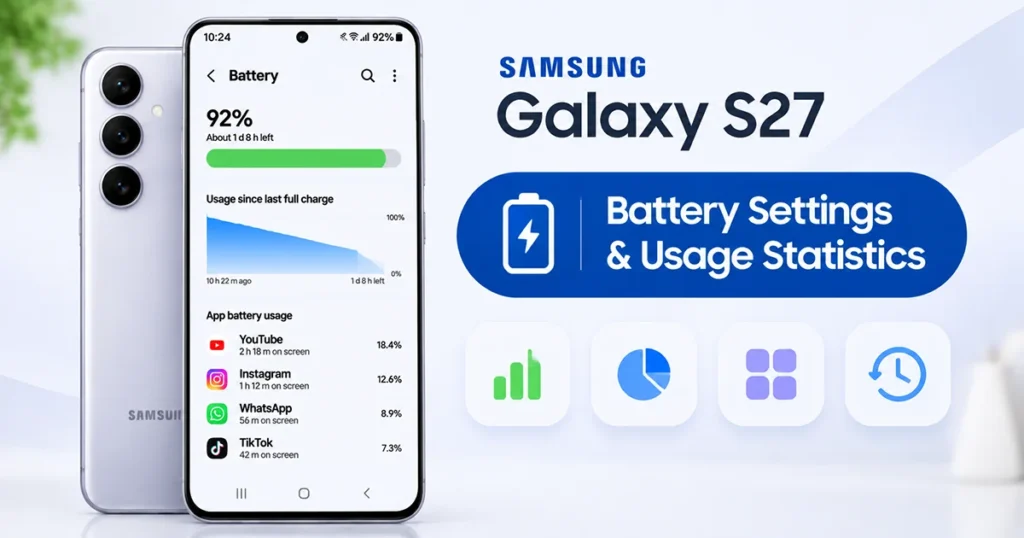
The first step is identifying applications that consume unusually high amounts of battery power.
Some apps continue using mobile data, location services, and background processes even when they aren’t actively open.
Follow these steps:
- Open Settings on your Galaxy S27.
- Tap Battery.
- Select the battery usage graph or View details, if available.
- Review the list of applications consuming battery power.
- Identify apps with unusually high background usage.
- Restrict background activity or uninstall applications you no longer need.
Pay particular attention to social media, video streaming, navigation, and gaming applications.
If an application consumes excessive battery without a clear reason, update it or reinstall it to determine whether the problem disappears.
2. Enable Power Saving Mode
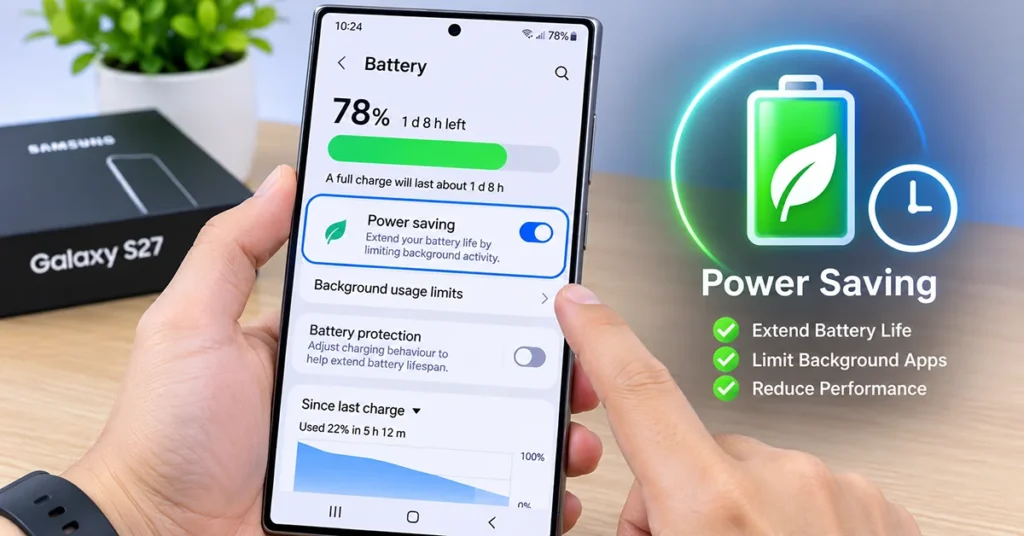
Power Saving mode is one of the quickest ways to extend your Galaxy S27 battery life.
It reduces power consumption by restricting certain background activities and limiting selected performance features.
To enable it:
- Open Settings.
- Tap Battery.
- Select Power saving.
- Turn on the Power saving switch.
- Adjust the available restrictions according to your preferences.
Depending on the available options, you can limit background data, reduce performance, lower screen brightness, and disable Always On Display.
This setting is particularly useful when your battery is running low and you still need your phone for calls, messages, and essential applications.
3. Reduce Screen Brightness and Refresh Rate
The display is one of the major sources of battery consumption, especially when you frequently use your phone outdoors or watch videos.
Reducing brightness and selecting a standard refresh rate can help your Galaxy S27 last longer.
Try these adjustments:
- Open Settings.
- Tap Display.
- Enable Adaptive brightness or manually lower the brightness.
- Tap Motion smoothness.
- Select Standard if available.
- Return to Display settings.
- Tap Screen timeout and choose a shorter duration, such as 30 seconds.
You can also enable Dark mode to reduce power consumption in certain display conditions.
4. Limit Background Apps
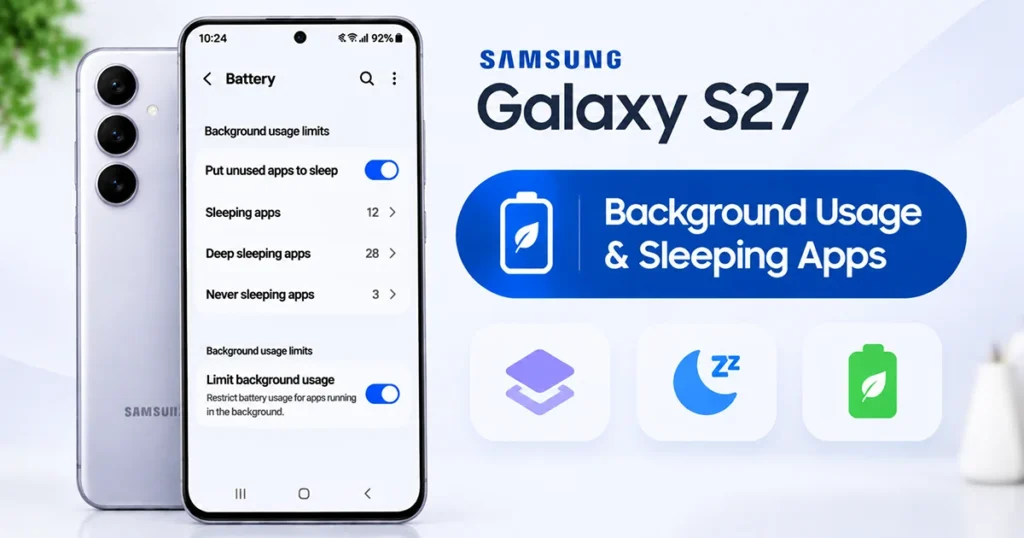
Applications that constantly synchronize information or refresh content can contribute to battery drain.
Samsung provides background usage controls that allow you to manage applications you rarely use.
To configure them:
- Open Settings.
- Tap Battery.
- Select Background usage limits.
- Enable Put unused apps to sleep.
- Open Sleeping apps or Deep sleeping apps.
- Add applications that do not need frequent background activity.
Deep sleeping apps generally operate only when you open them manually.
Avoid placing important messaging, email, or security applications into deep sleep if you depend on their notifications.
5. Switch to LTE When 5G Coverage Is Weak
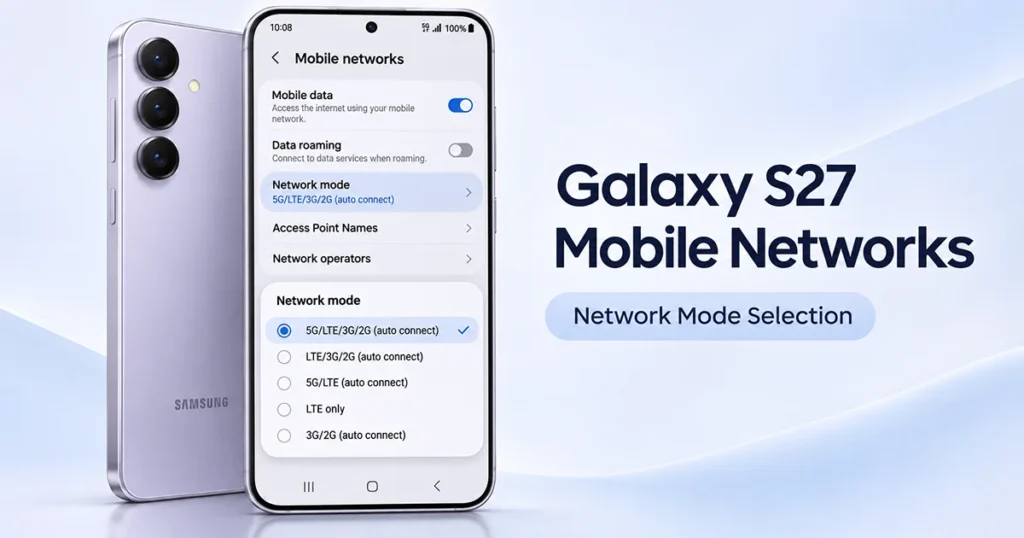
Your Galaxy S27 may consume more battery when maintaining an unstable 5G connection.
This is particularly noticeable in areas where 5G coverage is inconsistent or the signal frequently switches between network types.
If you don’t need 5G speeds, consider switching to LTE when supported by your carrier.
- Open Settings.
- Tap Connections.
- Select Mobile networks.
- Tap Network mode.
- Choose an LTE/4G option if available.
The exact options depend on your carrier and regional device configuration.
You can switch back to 5G whenever you need faster mobile data speeds.
6. Turn Off Always On Display
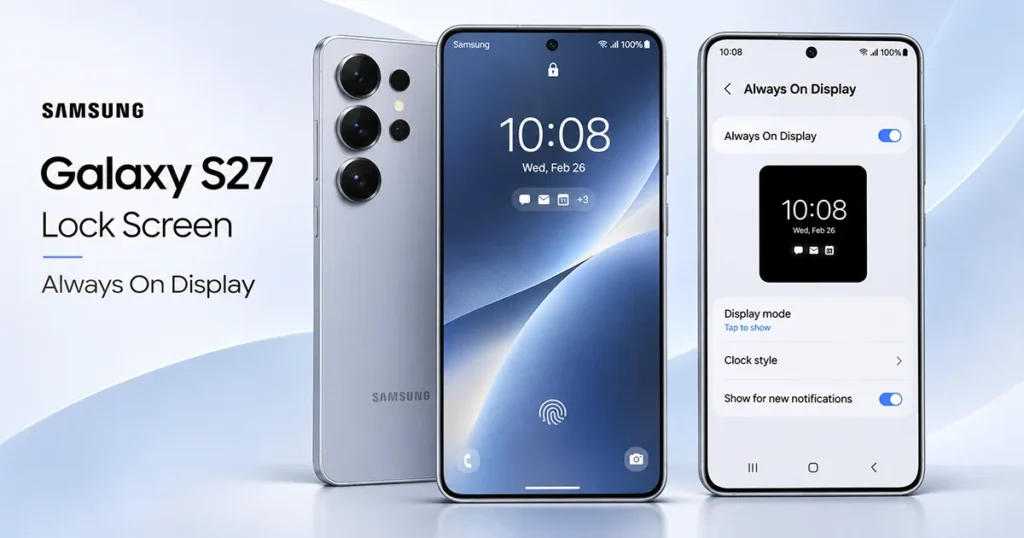
Always On Display provides convenient access to the time, notifications, and other information without unlocking your phone.
However, keeping it active can contribute to additional battery consumption.
To adjust it:
- Open Settings.
- Tap Lock screen and AOD.
- Select Always On Display.
- Turn it off or choose a more limited display schedule.
If you regularly check your phone throughout the day, reducing how often the feature appears may help conserve battery power.
7. Update Your Galaxy S27 Software and Apps
Outdated software can sometimes cause excessive battery consumption because of bugs, compatibility problems, or poorly optimized applications.
Check for available updates:
- Open Settings.
- Tap Software update.
- Select Download and install.
- Install any available updates.
- Open Google Play Store and Galaxy Store.
- Update your installed applications.
Restart your Galaxy S27 after installing updates.
If the battery problem started immediately after a software update, allow some time for background optimization to finish before deciding that the update caused a persistent problem.
8. Restart Your Phone and Optimize Device Care
Temporary software issues or background processes can sometimes contribute to unusual battery consumption.
Restarting your phone can help resolve minor problems.
- Open the Quick panel.
- Tap the Power icon.
- Select Restart.
- Confirm the restart.
- After the phone turns on, open Settings.
- Select Device care.
- Tap Optimize now, if available.
Use your phone normally afterward and check whether battery consumption improves.
Galaxy S27 Battery Optimization Settings
The following table summarizes the recommended settings and how they can help extend battery life.
| Setting | Recommended action | Battery benefit |
|---|---|---|
| Power Saving | Enable when needed | Reduces background consumption |
| Screen brightness | Use Adaptive brightness | Avoids unnecessary brightness |
| Motion smoothness | Select Standard | Reduces display power usage |
| Background usage limits | Sleep unused apps | Limits background activity |
| Network mode | Use LTE in weak 5G areas | Reduces network-related drain |
| Always On Display | Turn off or limit usage | Reduces display power consumption |
| Screen timeout | Set to 30 seconds | Shortens unnecessary screen activity |
| Software updates | Keep updated | Helps address software issues |
How to Check Galaxy S27 Battery Health
If your Galaxy S27 continues losing battery quickly after applying the recommended settings, check its battery condition.
Samsung Members provides built-in diagnostic tools that can help identify battery-related problems.
Follow these steps:
- Open the Samsung Members app.
- Select Support.
- Find Phone diagnostics or the diagnostics option.
- Select Battery status.
- Run the available battery test.
- Review the diagnostic results.
If the results indicate a battery problem, contact Samsung Support or visit an authorized Samsung service center.
You should also consider professional inspection if the phone shuts down unexpectedly, becomes unusually hot during normal use, or experiences sudden battery percentage drops.
When Should You Replace Your Galaxy S27 Battery?
Battery replacement may be necessary if your phone consistently loses power unusually quickly despite software troubleshooting and normal usage.
Consider professional battery inspection when:
- The battery drains rapidly even when the phone is idle.
- Your phone unexpectedly shuts down despite showing remaining battery.
- Battery performance has noticeably deteriorated over time.
- Samsung Members reports an abnormal battery condition.
- The device displays a battery degradation warning.
Do not attempt to open the phone or replace an internal battery yourself unless you have the appropriate expertise and equipment.
Final Thoughts
If your Galaxy S27 battery is not lasting all day, start by checking battery usage, restricting unnecessary background apps, and enabling Power Saving mode. Adjusting screen brightness, refresh rate, and Always On Display can also help reduce everyday power consumption.
If these solutions don’t work, update your software, restart your phone, and run Samsung Members battery diagnostics. Persistent battery problems may require professional inspection.
With the right settings and regular maintenance, you can reduce unnecessary battery drain and get more useful time from your Galaxy S27 throughout the day.
External reference:

1 thought on “Galaxy S27 Battery Not Lasting All Day: How to Fix Fast Battery Drain”