Need to connect your laptop, tablet, or another smartphone to the internet when Wi-Fi isn’t available? You can use your Samsung Galaxy S27 as a portable Wi-Fi hotspot and share its mobile data connection with other devices.
To use Galaxy S27 as Wi-Fi hotspot, open Settings > Connections > Mobile Hotspot and Tethering, select Mobile Hotspot, and turn it on. Other devices can then connect using your hotspot’s network name and password.
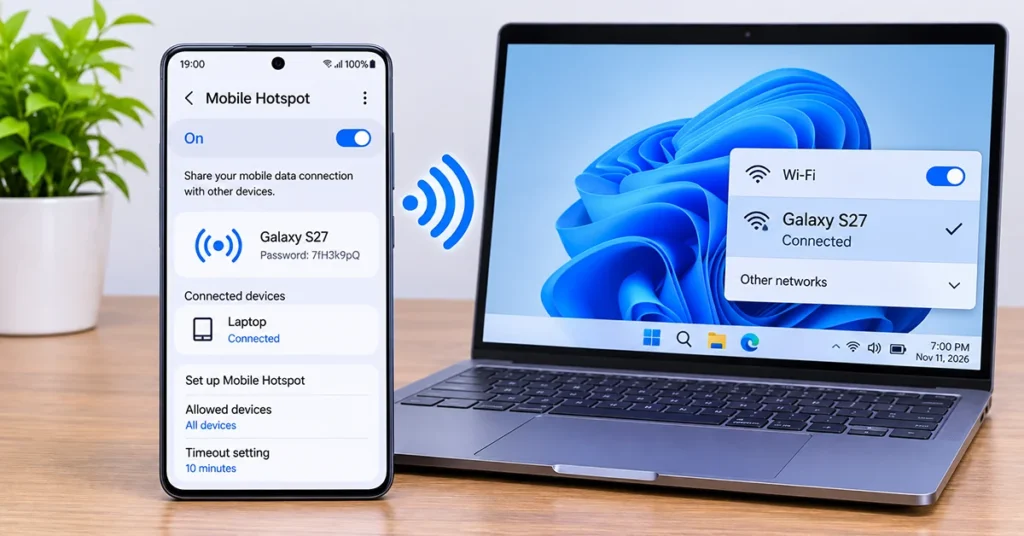
You can also customize the hotspot name, change its password, adjust the network band, and manage connected devices. Here’s how to set everything up and use your Galaxy S27 as a portable internet connection.
How to Turn On Mobile Hotspot on Galaxy S27
Turning on Mobile Hotspot allows your Galaxy S27 to share its cellular internet connection with nearby devices. You can use this feature to connect a Windows laptop, iPad, tablet, or another smartphone.
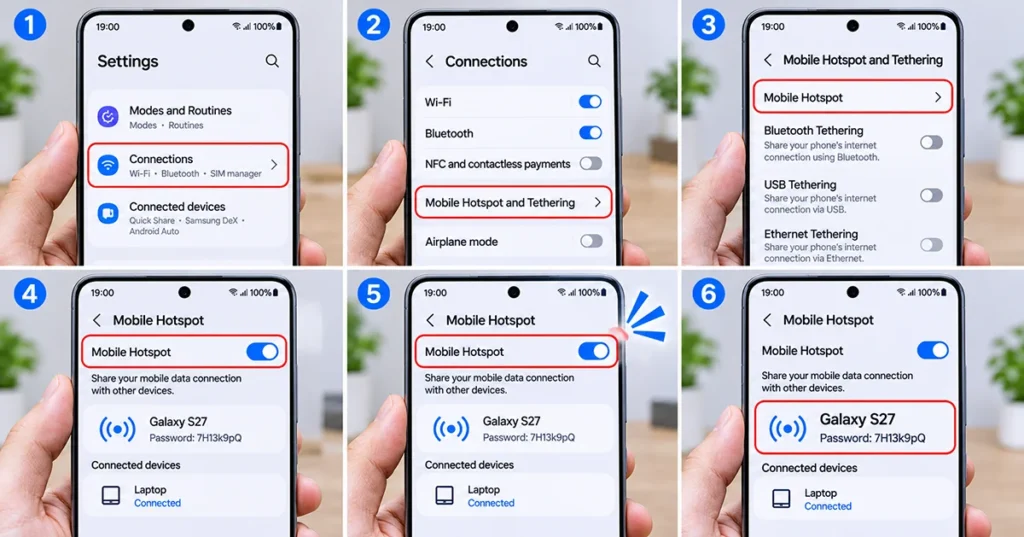
Follow these steps:
- Open the Settings app on your Galaxy S27.
- Tap Connections.
- Select Mobile Hotspot and Tethering.
- Tap Mobile Hotspot.
- Turn on the switch at the top of the screen.
- Check the hotspot network name and password displayed in the settings.
Your Galaxy S27 is now broadcasting a Wi-Fi network that nearby devices can discover and join.
Before enabling the hotspot, make sure Mobile Data is turned on and your phone has an active cellular internet connection. Your carrier must also support mobile tethering.
How to Connect Other Devices to Galaxy S27 Hotspot
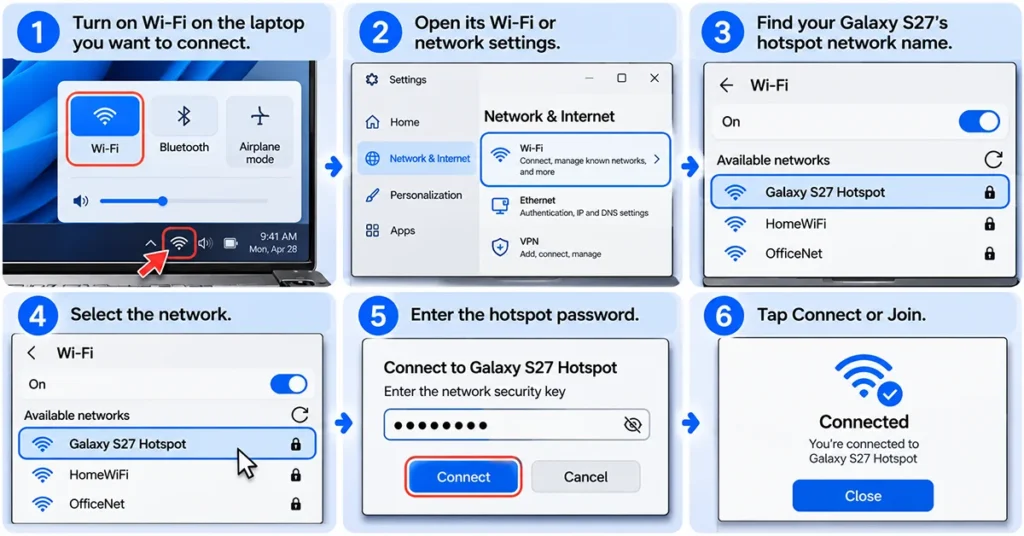
After enabling Mobile Hotspot, you can connect other Wi-Fi-enabled devices to your phone.
Here’s how to connect a laptop or another smartphone:
- Turn on Wi-Fi on the device you want to connect.
- Open its Wi-Fi or network settings.
- Find your Galaxy S27’s hotspot network name.
- Select the network.
- Enter the hotspot password.
- Tap Connect or Join.
Wait a few seconds for the device to establish a connection. Once connected, you should be able to browse websites, send messages, and use online applications through your Galaxy S27’s mobile data connection.
You can repeat these steps to connect additional devices, subject to your phone’s hotspot and carrier limitations.
How to Change Hotspot Name and Password
Changing your hotspot name and password makes your wireless network easier to recognize and helps prevent unauthorized connections.
Follow these steps:
- Open Settings.
- Tap Connections.
- Select Mobile Hotspot and Tethering.
- Tap Mobile Hotspot.
- Open the hotspot configuration or network details.
- Change the Network name to your preferred name.
- Select the Password field and enter a new password.
- Save your changes.
Choose a strong password containing a combination of letters, numbers, and symbols. Avoid using easily guessed information, such as your name, phone number, or birthday.
If you change your hotspot password, previously connected devices may need to reconnect using the new credentials.
How to Change the Hotspot Network Band
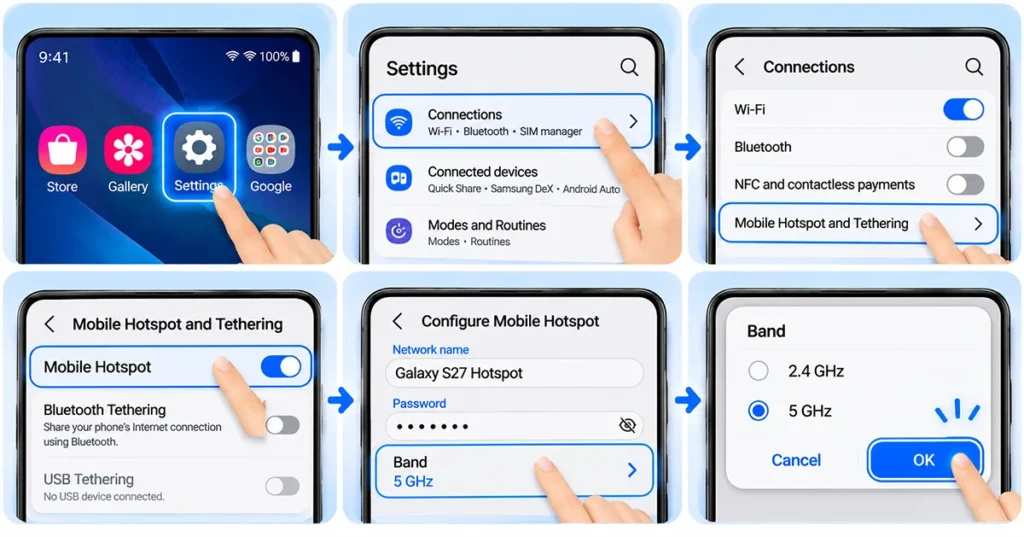
Your Galaxy S27 may provide different Wi-Fi hotspot bands, including 2.4 GHz and 5 GHz. Choosing the right band can improve compatibility or connection performance.
To change the band:
- Open Settings.
- Go to Connections > Mobile Hotspot and Tethering.
- Tap Mobile Hotspot.
- Open the hotspot configuration settings.
- Find the Band option.
- Select 2.4 GHz or 5 GHz, depending on your needs.
Here is how the two bands compare:
| Feature | 2.4 GHz | 5 GHz |
|---|---|---|
| Compatibility | Supports more older devices | Requires compatible devices |
| Connection speed | Generally slower | Generally faster |
| Coverage | Better range through obstacles | Shorter range |
| Interference | More common | Often less crowded |
| Best for | Older laptops and devices | Faster connections nearby |
Choose 2.4 GHz if your laptop or other device cannot find the hotspot. If all your devices support 5 GHz and you need better performance nearby, try that option instead.
How to Turn On Galaxy S27 Hotspot Using Quick Settings
You don’t always need to open the Settings app to activate your hotspot. Samsung Galaxy phones typically provide a Mobile Hotspot shortcut in the Quick Settings panel.
Here’s how to use it:
- Swipe down from the top of the screen using two fingers to open the expanded Quick Settings panel.
- Find the Mobile Hotspot icon.
- Tap the icon to turn on the hotspot.
- Tap it again when you want to turn it off.
If you cannot find the Mobile Hotspot icon, edit the Quick Settings panel and add the shortcut if available.
This method is particularly useful when you frequently share your phone’s internet connection with a laptop or tablet.
How to Save Battery While Using Galaxy S27 as a Hotspot
Running a mobile hotspot can consume considerable battery power, especially when several devices are connected or transferring large amounts of data.
Try these tips to reduce battery consumption:
- Turn off the hotspot when not needed: Disable Mobile Hotspot immediately after finishing your work.
- Enable automatic timeout: If available, configure your hotspot to turn off automatically when no devices are connected.
- Limit connected devices: Disconnect devices that are no longer using the internet.
- Reduce unnecessary background activity: Close applications that continuously download or upload data.
- Avoid excessive heat: Keep your Galaxy S27 away from direct sunlight and hot surfaces while sharing its connection.
- Monitor battery usage: Check Settings > Battery to see how quickly your battery is being consumed.
These adjustments can help your Galaxy S27 maintain a more comfortable operating temperature and preserve battery life during extended hotspot sessions.
What to Do If Hotspot Is Not Working
If other devices cannot find or connect to your Galaxy S27 hotspot, try these troubleshooting steps:
- Check Mobile Data: Make sure cellular data is enabled and your phone has a working internet connection.
- Restart Mobile Hotspot: Turn the hotspot off, wait a few seconds, and turn it back on.
- Check the password: Confirm that you are entering the correct hotspot password.
- Switch to 2.4 GHz: Try a different network band if the connected device cannot detect your hotspot.
- Check hotspot visibility: Make sure your network is not hidden.
- Restart your phone: Restart the Galaxy S27 to resolve temporary software or connectivity problems.
- Check your carrier plan: Contact your mobile provider if tethering is restricted or unavailable.
If the problem continues, check for available software updates and review your carrier’s hotspot restrictions.
Frequently Asked Questions
Yes. You can use your Galaxy S27 as a portable Wi-Fi hotspot to share its cellular internet connection with compatible laptops, tablets, and smartphones.
Yes. Devices connected to your hotspot use your phone’s internet connection. Activities such as video streaming, downloading files, and online gaming can consume substantial amounts of mobile data.
Yes. Enable Mobile Hotspot on your phone, open Wi-Fi settings on your laptop, select your Galaxy S27 network, and enter the hotspot password.
Yes. Mobile hotspot functionality uses additional power because your phone maintains a wireless connection while sharing its internet connection. Battery consumption depends on usage, signal strength, and the number of connected devices.
A hotspot may offer configurable security options, but using a password-protected network is strongly recommended. An unsecured hotspot can allow nearby people to access your connection without permission.
Final Thoughts
Using your Galaxy S27 as a Wi-Fi hotspot is a convenient way to get your laptop, tablet, or another smartphone online when regular Wi-Fi isn’t available.
Simply enable Mobile Hotspot through Settings, configure your network name and password, and connect your other devices. For the best experience, choose the appropriate Wi-Fi band, monitor your mobile data consumption, and turn off the hotspot when you finish using it.
Primary technical reference:
