Is your Samsung Galaxy S27 overheating during charging, gaming, video recording, or everyday use? Excessive heat can affect performance, shorten battery life over time, and interrupt normal phone operation. Fortunately, many overheating problems can be addressed by changing a few settings, updating software, and identifying apps or accessories that consume too much power.
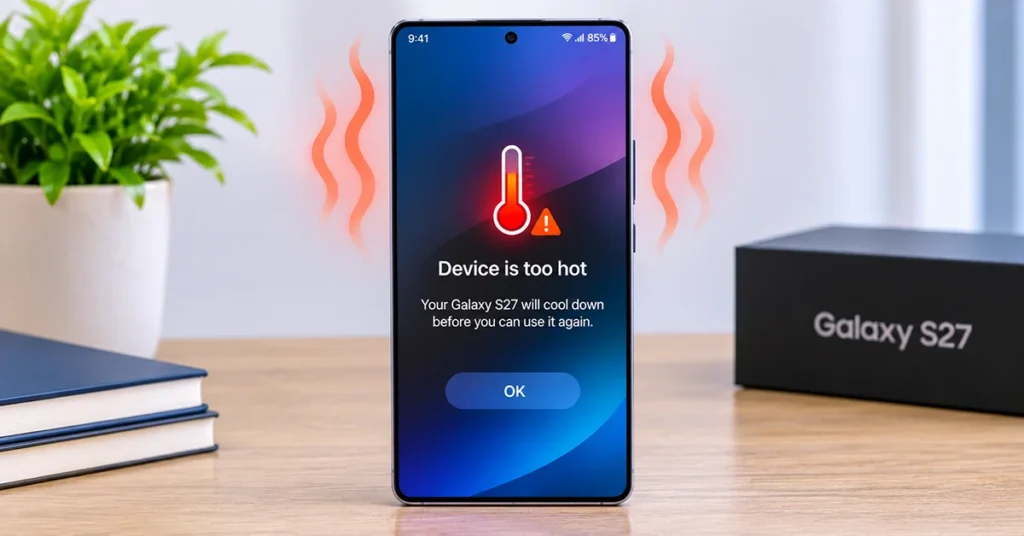
To fix an overheating Galaxy S27, disconnect the charger if the phone is hot, close demanding applications, reduce screen brightness, and let the device cool naturally. If the problem continues, check background apps, inspect your charging accessories, and run Samsung’s built-in device diagnostics.
This guide explains why your Galaxy S27 may get hot and provides practical troubleshooting steps to help prevent overheating.
Why Is Your Samsung Galaxy S27 Overheating?
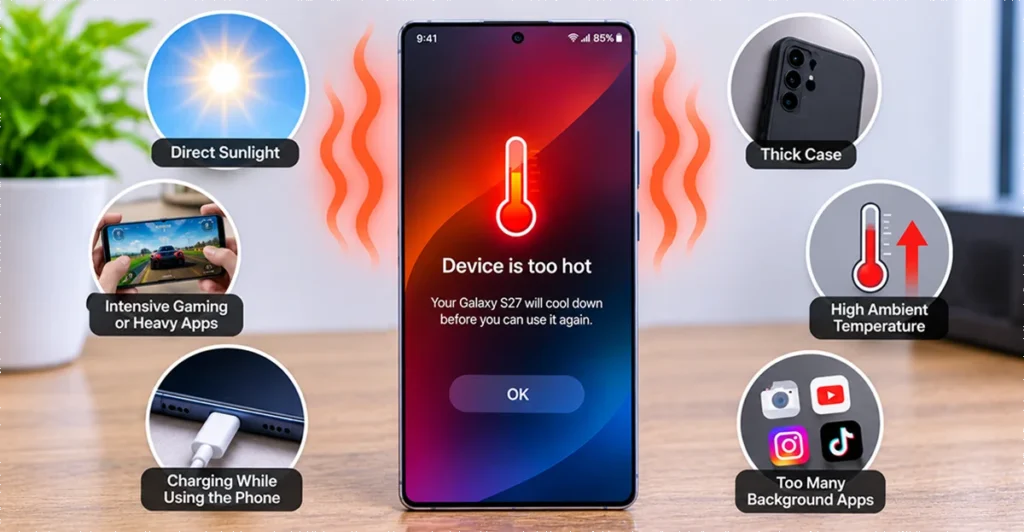
A Samsung Galaxy phone can become warm when its processor, battery, or charging system handles demanding tasks. Occasional warmth is normal, but excessive heat or persistent overheating may indicate a software, charging, or hardware problem.
Here are the most common potential causes:
1. Running demanding applications: Playing graphics-intensive games, recording high-resolution videos, editing media, and multitasking can increase processor activity and generate heat.
2. Fast or wireless charging: Charging naturally produces heat. Using an incompatible charger, damaged cable, or demanding applications while charging can increase temperatures.
3. Too many background applications: Apps that continuously synchronize data, access location services, or run background processes can increase battery consumption and heat generation.
4. Hot environments: Leaving your phone in direct sunlight, inside a parked car, or near other heat sources can cause its temperature to rise.
5. Weak cellular signals: When the phone struggles to maintain a network connection, it may consume additional power while searching for a signal.
6. Software problems: Outdated software, incompatible applications, or temporary system errors can contribute to unusual battery consumption and heating.
How to Fix Samsung Galaxy S27 Overheating
Try these troubleshooting methods to reduce excessive heat and identify the underlying problem.
1. Stop Using the Phone and Let It Cool Down
If your Galaxy S27 feels uncomfortably hot, stop using it immediately. Disconnect any charging accessories and close demanding applications.
Move the phone away from direct sunlight and place it on a cool, dry, flat surface. Allow it to cool naturally before using it again.
Avoid putting the phone in a refrigerator or freezer because sudden temperature changes and condensation can damage internal components.
2. Close Background Applications
Background applications can consume processor resources even when you are not actively using them.
To close unnecessary applications:
- Open the Recent Apps screen.
- Review the applications currently running.
- Close applications you no longer need.
- Restart your phone if excessive heating continues.
You can also check battery usage to identify applications consuming unusually high amounts of power.
3. Reduce Screen Brightness and Refresh Rate
High screen brightness and a higher refresh rate can increase power consumption, particularly during extended use.
To reduce display-related heat:
- Open Settings.
- Tap Display.
- Reduce the screen brightness.
- Look for Motion smoothness if available.
- Select a lower refresh-rate option, such as Standard.
Menu names and available settings may vary depending on the final Galaxy S27 software configuration.
4. Avoid Using Your Phone While Charging
Using demanding applications while charging can increase heat because the processor and charging system are working simultaneously.
For better temperature management:
- Avoid gaming while charging.
- Stop recording long videos during charging.
- Disconnect the charger if the device becomes excessively hot.
- Allow the phone to cool before charging again.
- Use compatible, Samsung-approved charging accessories.
If the phone repeatedly overheats while charging, inspect the charging cable, adapter, and USB-C port for damage or debris.
5. Check Battery Usage and Background Activity
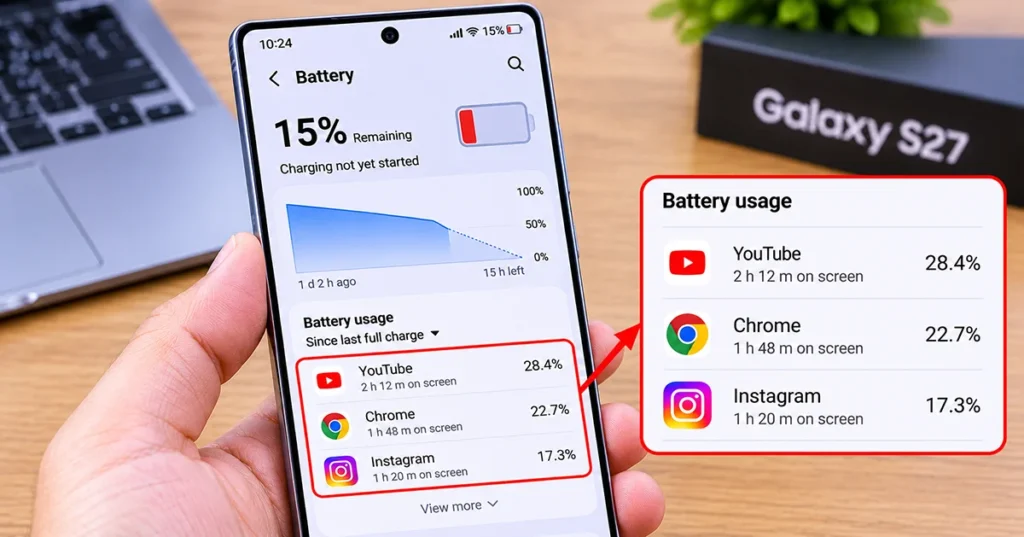
An application with unusually high battery consumption may be contributing to overheating.
Follow these steps:
- Open Settings.
- Select Battery or Battery and device care, depending on the software version.
- Review battery usage.
- Identify applications consuming excessive power.
- Restrict background activity or uninstall applications you no longer need.
Pay particular attention to recently installed applications if the overheating started after installing new software.
6. Update Your Software and Applications
Software updates can resolve bugs, improve application compatibility, and optimize device performance.
To check for system updates:
- Open Settings.
- Tap Software update.
- Select Download and install.
- Follow the on-screen instructions.
Also, open the Google Play Store and Galaxy Store to update installed applications.
7. Enable Power Saving Mode
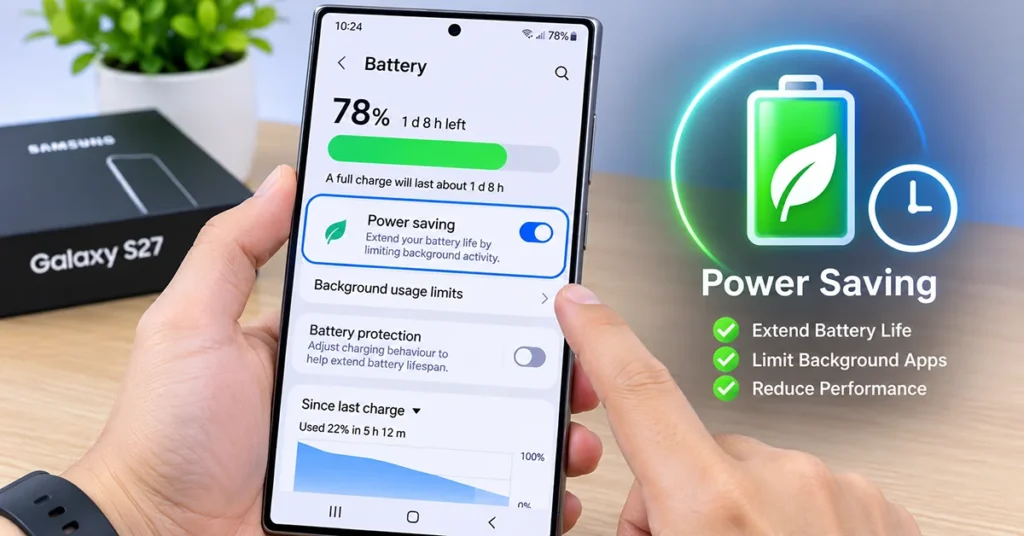
Power Saving Mode can reduce energy consumption by limiting certain background activities and performance-related functions.
To enable it:
- Open Settings.
- Select Battery.
- Tap Power saving.
- Turn on the feature.
This can help reduce unnecessary power consumption during extended use. However, it is not a substitute for repairing a faulty battery or charging component.
8. Check Your Charger and USB-C Port
If your Galaxy S27 becomes hot primarily during charging, the charging accessories or connection may be responsible.
Check the following:
- Use a compatible Samsung-approved charger and cable.
- Avoid damaged or uncertified charging accessories.
- Inspect the USB-C port for visible debris or damage.
- Remove foreign objects from wireless charging surfaces.
- Avoid using demanding applications during fast charging.
Do not insert metal objects into the charging port or attempt to repair a damaged connector yourself.
9. Restart Your Galaxy S27
Temporary software conflicts can sometimes cause unusual processor activity.
Restarting your device can help clear temporary system issues.
- Open the Quick Settings panel.
- Tap the Power icon.
- Select Restart.
- Wait for the device to boot completely.
Monitor the phone afterward to see whether its temperature returns to normal.
10. Run Samsung Members Diagnostics
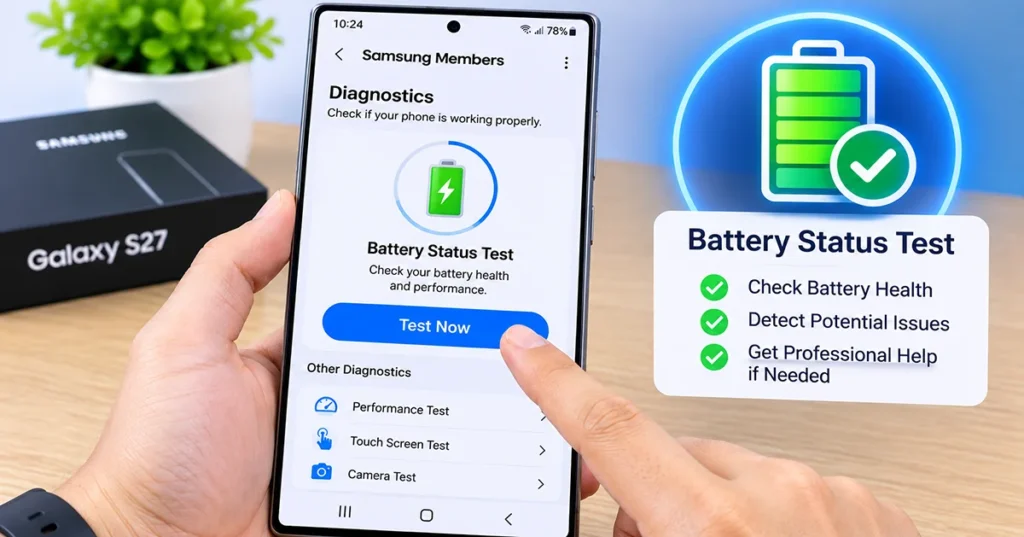
If overheating continues despite trying the previous solutions, use Samsung Members to check the device’s available hardware diagnostics.
- Open the Samsung Members application.
- Select Support.
- Tap Phone diagnostics.
- Run the available battery and charging-related tests.
- Follow any recommended actions.
The available diagnostic tests may vary by device and software version. If the results indicate a problem or overheating persists, contact an authorized Samsung service center.
Samsung Galaxy S27 Overheating: Causes and Solutions
Use this troubleshooting table to identify the likely cause and the appropriate solution.
| Overheating situation | Possible cause | Recommended solution |
|---|---|---|
| While charging | Fast charging or damaged accessories | Disconnect charger and inspect accessories |
| While gaming | High processor and graphics usage | Reduce gaming sessions and graphics settings |
| While recording videos | Extended camera processing | Stop recording and let the phone cool |
| During normal use | Background applications | Check battery usage and close unnecessary apps |
| While using GPS | Continuous location tracking | Disable location when unnecessary |
| During standby | Background synchronization or software issues | Review battery usage and update apps |
| In direct sunlight | External environmental heat | Move the phone to a cooler location |
How to Prevent Samsung Galaxy S27 Overheating
Preventing overheating is easier than troubleshooting persistent temperature problems. Follow these practical recommendations:
- Keep your phone’s software and applications updated.
- Avoid prolonged gaming sessions, especially while charging.
- Reduce screen brightness when maximum brightness is unnecessary.
- Disable GPS, Bluetooth, and mobile hotspot when not needed.
- Avoid leaving your phone in direct sunlight or hot vehicles.
- Use compatible charging accessories.
- Limit unnecessary background application activity.
- Allow the phone to cool naturally after intensive tasks.
These habits can help maintain stable performance and reduce unnecessary battery consumption.
Frequently Asked Questions
Your phone may heat up because of demanding applications, fast charging, background processes, software updates, or high environmental temperatures. If it becomes excessively hot during light use, investigate battery usage and consider professional inspection.
Some warmth during charging is normal. However, excessive heat, repeated charging interruptions, or an uncomfortable temperature should not be ignored. Disconnect the charger and allow the device to cool before charging again.
Stop using the phone, disconnect the charger, close demanding applications, and move it away from direct sunlight. Place it on a cool, dry surface and allow it to cool naturally.
Repeated exposure to excessive heat can accelerate battery degradation and reduce long-term battery performance. Avoid prolonged high temperatures and use compatible charging accessories.
Contact an authorized Samsung service center if your phone repeatedly overheats during normal use, displays persistent temperature warnings, shuts down unexpectedly, or becomes excessively hot while charging.
If you notice battery swelling, smoke, unusual odors, or signs of physical damage, stop using and charging the device and seek professional assistance immediately.
Final Thoughts
Samsung Galaxy S27 overheating can result from demanding applications, charging conditions, background activity, software problems, or environmental temperatures. Start by stopping intensive activities, disconnecting the charger if necessary, and allowing the phone to cool naturally.
Next, check battery usage, update your software, reduce unnecessary background activity, and inspect your charging accessories. If the problem continues despite these steps, Samsung Members diagnostics and professional inspection can help identify potential hardware issues.
Taking these precautions can help keep your Galaxy S27 running comfortably and reduce unnecessary battery wear.
Reference documentation:
- Samsung Support – Galaxy Device Overheating Guide.

3 thoughts on “Samsung Galaxy S27 Overheating: Causes and How to Fix It”