If Bluetooth is not working on your Galaxy S27, the fastest fix is to turn Bluetooth off and on, restart the phone, then unpair and re-pair the device that won’t connect. These three steps solve most pairing and dropout problems in under two minutes. If they don’t, the fixes below cover Bluetooth cache, software updates, permissions, and a Bluetooth settings reset, in the order most likely to work.
Quick Fixes: Try These First
- Toggle Bluetooth: Swipe down Quick Settings, tap the Bluetooth icon off, wait 10 seconds, and tap it on.
- Restart both devices: Restart your Galaxy S27 and the accessory (earbuds, speaker, car, watch).
- Unpair and re-pair: Remove the saved connection and pair from scratch.
- Update the software: Install the latest One UI and security patch.
Samsung’s own support page says Bluetooth problems can come from pairing mode errors, connection history errors, outdated software, or Bluetooth configuration problems. That is why the order below goes from simple to thorough.
Why Is Bluetooth Not Working on Galaxy S27?
Several factors can prevent your Samsung Galaxy S27 from detecting or connecting to Bluetooth accessories.
The most common causes include:
- Bluetooth pairing problems: Your accessory may not be in pairing mode or may already be connected to another device.
- Incorrect connection settings: Previously saved pairing information may have become corrupted.
- Outdated software: An older phone operating system or accessory firmware may cause compatibility problems.
- Low battery: Some Bluetooth accessories experience connection problems when their batteries are nearly empty.
- Wireless interference: Physical obstructions and nearby electronic devices can affect Bluetooth connections.
- Temporary software glitches: Background processes or system errors may interfere with Bluetooth functionality.
Before trying advanced solutions, determine whether the problem affects one accessory or every Bluetooth device.
How to Fix Bluetooth Not Working on Galaxy S27
Follow these troubleshooting methods in order, starting with the simplest solutions.
1. Turn Bluetooth Off and On Again
A quick Bluetooth restart can resolve temporary connection problems.
- Swipe down from the top of your Galaxy S27 screen to open the Quick Settings panel.
- Find the Bluetooth icon.
- Tap Bluetooth to turn it off.
- Wait approximately 10 seconds.
- Tap the icon again to enable Bluetooth.
- Try connecting your accessory.
You can also open Settings > Connections > Bluetooth to check whether Bluetooth is enabled.
2. Restart Your Galaxy S27 and Bluetooth Device
Temporary software problems can prevent your phone from detecting nearby accessories.
Restart both devices to refresh their wireless connections.
- Open the Quick Settings panel.
- Tap the Power icon.
- Select Restart.
- Wait until your Galaxy S27 starts again.
- Turn your Bluetooth accessory off and back on.
- Try connecting the devices again.
If you are using wireless earbuds, place them in their charging case before restarting them, if supported.
3. Make Sure Your Bluetooth Device Is in Pairing Mode
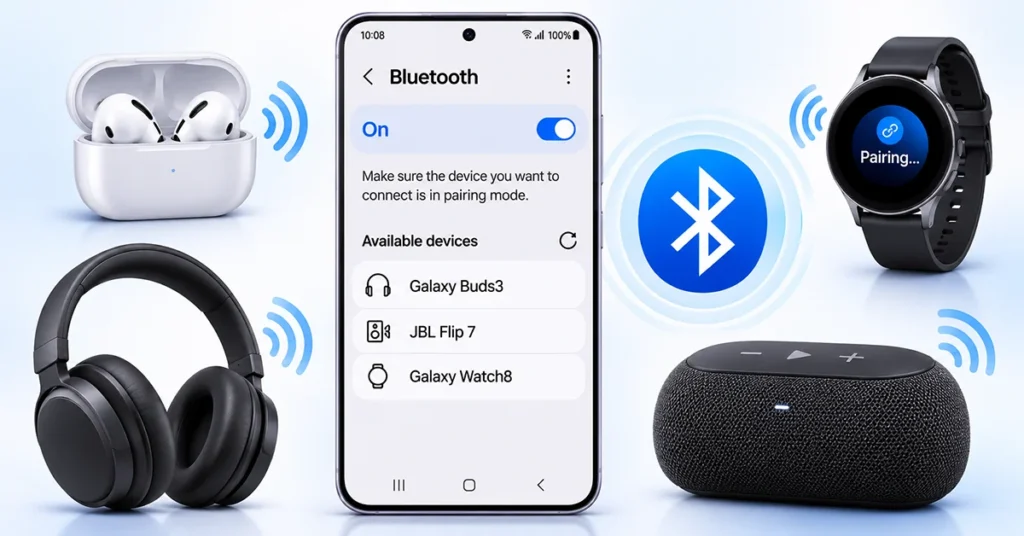
If your Galaxy S27 cannot find a Bluetooth device, the accessory might not be discoverable.
Bluetooth accessories generally need to enter pairing mode before a new phone can detect them.
Follow these steps:
- Turn on your Bluetooth headphones, earbuds, speaker, or smartwatch.
- Activate pairing mode using the accessory’s instructions.
- Open Settings on your Galaxy S27.
- Select Connections > Bluetooth.
- Wait for the accessory to appear under available devices.
- Tap its name.
- Follow the on-screen instructions to complete pairing.
Remember that pairing procedures differ between manufacturers. Consult the accessory’s user manual if you cannot activate pairing mode.
4. Forget the Bluetooth Device and Pair It Again
If your Galaxy S27 previously connected to an accessory but cannot reconnect, remove its saved connection and establish a new pairing.
Follow these instructions:
- Open Settings.
- Tap Connections.
- Select Bluetooth.
- Find the accessory that is not connecting.
- Tap the Settings icon next to its name.
- Select Unpair or Forget.
- Put the accessory into pairing mode again.
- Select it from the available devices list.
- Complete the pairing process.
This solution is particularly useful when Galaxy S27 Bluetooth pairing problems occur after switching between phones or other connected devices.
5. Disconnect the Accessory From Other Devices
Some Bluetooth accessories automatically connect to previously paired phones, tablets, or computers.
For example, your wireless headphones might already be connected to your laptop, preventing them from connecting to your Galaxy S27.
To fix this:
- Check whether the accessory is connected to another device.
- Disconnect it from that device.
- Turn off Bluetooth on the previously connected device temporarily.
- Activate pairing mode on your accessory.
- Search for it using your Galaxy S27.
- Complete the connection.
If your accessory supports multipoint Bluetooth, check its manufacturer’s instructions for managing simultaneous connections.
7. Update Your Galaxy S27 Software
Outdated software can cause Bluetooth compatibility and connectivity problems.
Samsung periodically releases software updates that improve device performance, compatibility, and system stability.
To check for updates:
- Open Settings.
- Scroll down and select Software update.
- Tap Download and install.
- Wait while your Galaxy S27 checks for available updates.
- Install any available update.
- Restart your phone if required.
You should also check whether your Bluetooth accessory has a firmware update. For Samsung earbuds and compatible wearables, use the Galaxy Wearable app when applicable.
7. Reset Wi-Fi and Bluetooth Settings
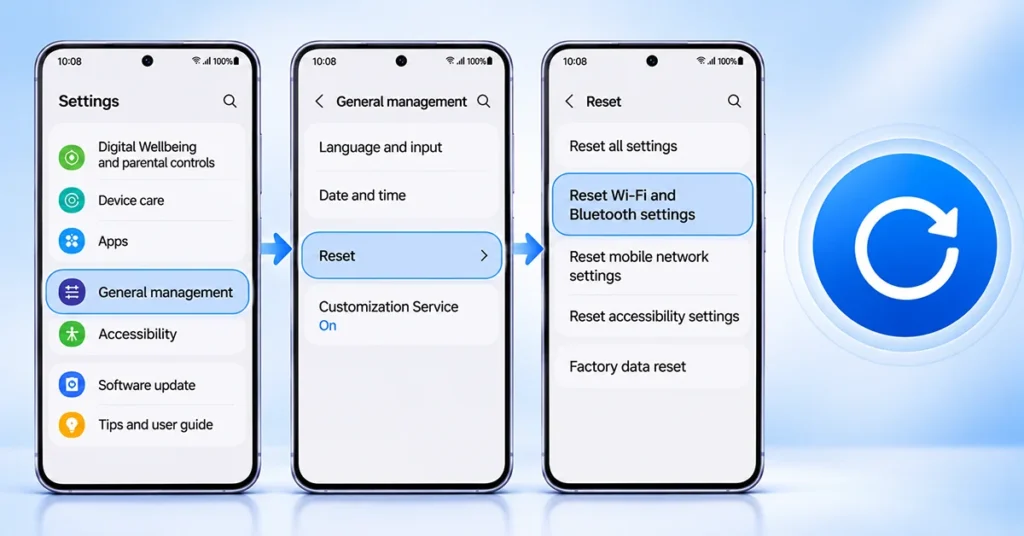
If Bluetooth still does not work after trying the previous methods, resetting your connection settings may help.
This process clears saved Wi-Fi and Bluetooth connection information. You may need to reconnect to Wi-Fi networks and pair your Bluetooth accessories again.
Follow these steps:
- Open Settings.
- Select General management.
- Tap Reset.
- Choose Reset Wi-Fi and Bluetooth settings.
- Review the information displayed.
- Tap Reset settings.
- Confirm your security credentials if requested.
After resetting, enable Bluetooth and pair your accessory again.
Important: This option also affects saved Wi-Fi connection information, so make sure you have access to your Wi-Fi passwords before proceeding.
8. Run Samsung Members Bluetooth Diagnostics
Samsung Members includes diagnostic tools that can help identify hardware or software problems.
If your Galaxy S27 cannot detect any Bluetooth accessories, run a Bluetooth diagnostic test.
- Open the Samsung Members app.
- Select Support.
- Tap Phone diagnostics or Get started, depending on the app version.
- Find and select Bluetooth.
- Follow the instructions on the screen.
- Review the diagnostic results.
If the test identifies a problem, follow Samsung’s recommended troubleshooting instructions or contact customer support.
9. Test With Another Bluetooth Accessory
Testing another accessory helps determine whether the issue comes from your Galaxy S27 or the original Bluetooth device.
For example, if your headphones cannot connect, try pairing a Bluetooth speaker or smartwatch.
Use the following checks:
- If another accessory connects successfully, the original device may have a pairing or compatibility problem.
- If multiple accessories fail to connect, the Galaxy S27 may have a software or hardware issue.
- If your headphones connect to another phone but not your Galaxy S27, investigate the phone’s Bluetooth configuration.
This test helps narrow down the cause before considering professional repair.
Galaxy S27 Bluetooth Troubleshooting Table
Use this table to identify the most appropriate solution based on your Bluetooth problem.
| Bluetooth problem | Recommended solution |
|---|---|
| Bluetooth won’t turn on | Restart the phone and install software updates |
| Galaxy S27 cannot find devices | Activate pairing mode and check connection range |
| Bluetooth won’t connect | Forget the device and pair again |
| Bluetooth keeps disconnecting | Check battery, distance, and interference |
| Headphones won’t connect | Disconnect other devices and re-pair |
| Car Bluetooth not working | Enable pairing mode in the vehicle |
| Bluetooth stopped working after an update | Restart and reset Wi-Fi and Bluetooth settings |
| Multiple accessories cannot connect | Run Samsung Members diagnostics |
How to Fix Galaxy S27 Bluetooth Problems With Specific Devices
Galaxy S27 Bluetooth Headphones Not Connecting
If wireless headphones cannot connect, make sure they are charged and in pairing mode. Disconnect them from other devices and remove their existing pairing record from your Galaxy S27.
For Samsung Galaxy Buds, check the Galaxy Wearable app for connection problems and available firmware updates.
Galaxy S27 Bluetooth Not Connecting to Car
If your phone cannot connect to your vehicle’s Bluetooth system:
- Enable Bluetooth on your Galaxy S27.
- Open your vehicle’s Bluetooth settings.
- Activate pairing mode on the car’s infotainment system.
- Search for your phone from the vehicle when necessary.
- Confirm the pairing request on both devices.
If an old phone pairing record exists in the vehicle, remove it and try pairing again.
Galaxy S27 Bluetooth Keeps Disconnecting
Frequent disconnections can result from low battery levels, excessive distance, interference, or outdated firmware.
Charge both devices, keep them close together, restart them, and check for software updates.
Frequently Asked Questions
Bluetooth may stop working because of incorrect pairing settings, outdated software, corrupted connection information, low battery levels, or temporary system errors. Restarting both devices and pairing the accessory again are good first steps.
Your accessory may not be in pairing mode, may already be connected to another device, or may be outside Bluetooth range. Activate pairing mode and search again from Settings > Connections > Bluetooth.
Open Settings > General management > Reset > Reset Wi-Fi and Bluetooth settings. Confirm the reset and reconnect your Bluetooth accessories afterward. Menu names may vary depending on the installed software version.
Common causes include low accessory battery, excessive distance, wireless interference, outdated firmware, and connection problems. Charge both devices, move them closer together, and restart them.
Yes. Resetting Wi-Fi and Bluetooth settings removes saved Bluetooth connection information. You will need to pair your accessories again. It also removes saved Wi-Fi connection information.
Run Bluetooth diagnostics through Samsung Members. If multiple Bluetooth devices still cannot connect or diagnostics indicate a hardware problem, contact Samsung Support or visit an authorized Samsung service center.
Conclusion
Bluetooth not working on Galaxy S27 can usually be resolved by checking pairing mode, restarting connected devices, forgetting and reconnecting accessories, or installing software updates. If these basic solutions fail, reset Wi-Fi and Bluetooth settings and run Samsung Members diagnostics to investigate the problem.
If your Galaxy S27 still cannot detect or connect to multiple Bluetooth accessories, contact Samsung Support for further assistance rather than immediately performing a factory reset.
Reference:
- Samsung – Bluetooth device will not connect.
- Samsung – Galaxy phone fails to connect to Bluetooth devices.

1 thought on “How to Fix Bluetooth Not Working on Samsung Galaxy S27”