If your Samsung Galaxy S27 is not detected on your computer, the problem may be caused by an incompatible USB cable, incorrect connection settings, missing USB drivers, or a Windows device recognition error. In many cases, you can fix the issue without visiting a repair center.
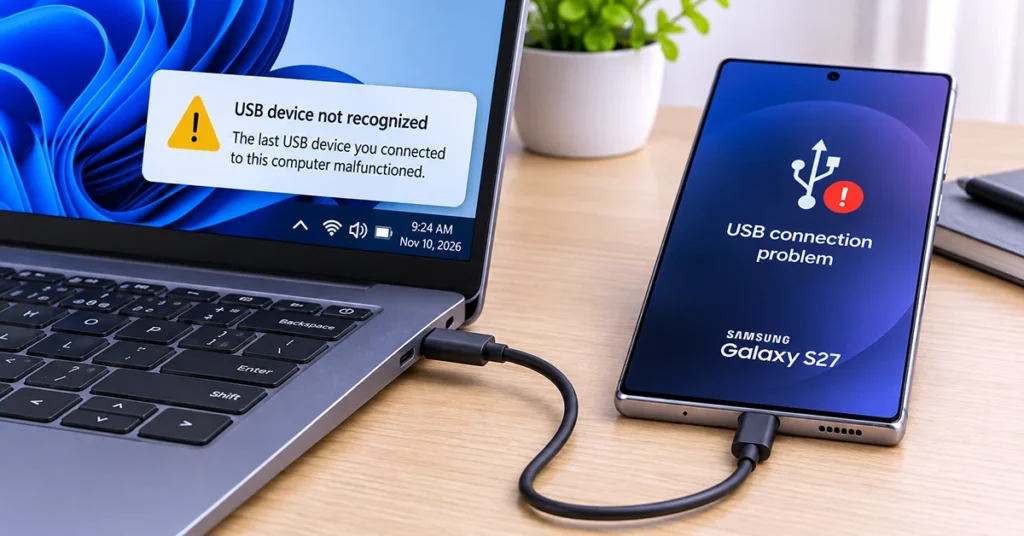
Start by unlocking your Galaxy S27, connecting it with a USB data cable, and selecting Transferring files / Android Auto from the USB notification. If the computer still does not recognize your phone, try another USB port, reinstall the Samsung USB driver, or restart both devices.
This guide explains nine ways to troubleshoot Galaxy S27 USB connection problems on Windows PCs and Mac computers.
Why Is My Galaxy S27 Not Showing Up on My Computer?
Several problems can prevent your Galaxy S27 from appearing on your computer. Some are related to the phone’s USB settings, while others involve the computer’s drivers or hardware.
Common causes include:
| Possible cause | Recommended solution |
|---|---|
| Faulty USB cable | Try another data-capable cable |
| Charging-only connection | Select Transferring files |
| Phone remains locked | Unlock the Galaxy S27 |
| Missing USB permission | Allow access to phone data |
| Outdated USB driver | Update or reinstall Samsung drivers |
| Windows recognition error | Check Device Manager |
| Faulty USB port | Try another computer port |
| Temporary software issue | Restart both devices |
| Damaged USB-C port | Inspect and seek professional service |
Try the following solutions in order, starting with the simplest checks.
1. Check the USB Cable and Computer Port
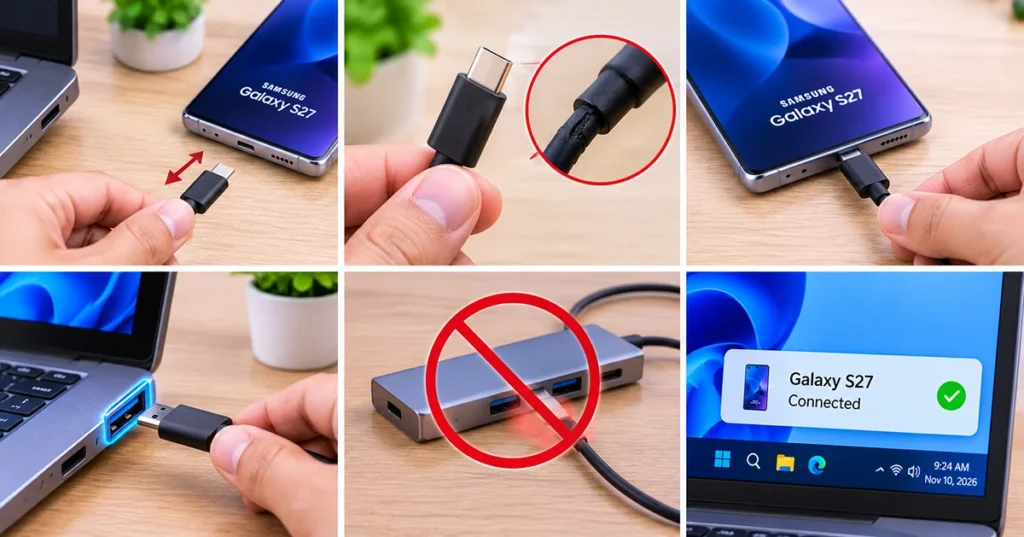
A faulty USB cable is one of the first things to investigate when your Galaxy S27 charges but does not appear on your computer.
Not every USB-C cable supports data transfer. Some cables only provide power, meaning they can charge your phone without establishing a connection for transferring files.
Follow these steps:
- Disconnect your Galaxy S27 from the computer.
- Check the USB-C cable for visible damage.
- Connect your phone using another USB cable that supports data transfer.
- Plug the cable directly into a USB port on your computer.
- Avoid USB hubs and extension adapters while troubleshooting.
- Check whether Windows recognizes your phone.
If possible, test another USB port. Desktop users should try a USB port directly on the back of the computer.
If the phone works with another cable or port, you have identified the likely source of the problem.
2. Unlock Your Galaxy S27 and Allow Data Access
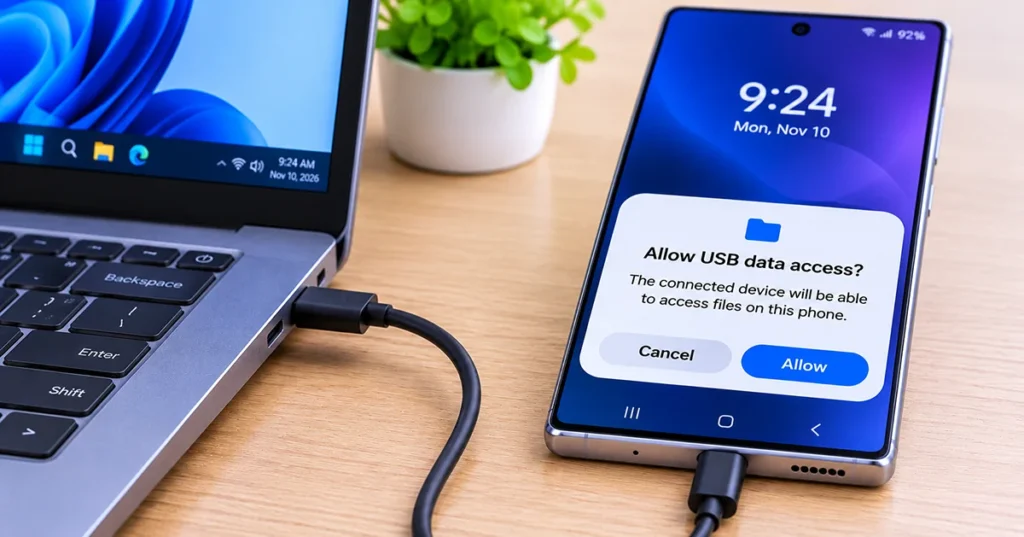
Your computer may recognize the Galaxy S27 but fail to display its internal storage when the phone remains locked.
Samsung devices can require authentication before allowing a connected computer to access personal files.
To fix this:
- Connect your Galaxy S27 to your computer.
- Unlock the phone using your PIN, password, pattern, or fingerprint.
- Look for an Allow access to phone data notification.
- Tap Allow if the permission prompt appears.
- Open File Explorer on your Windows computer.
- Select your Galaxy S27 under This PC.
- Open Internal Storage to view your files.
If you do not grant the required permission, your computer might recognize the device without displaying its folders.
3. Change the USB Connection Mode to File Transfer
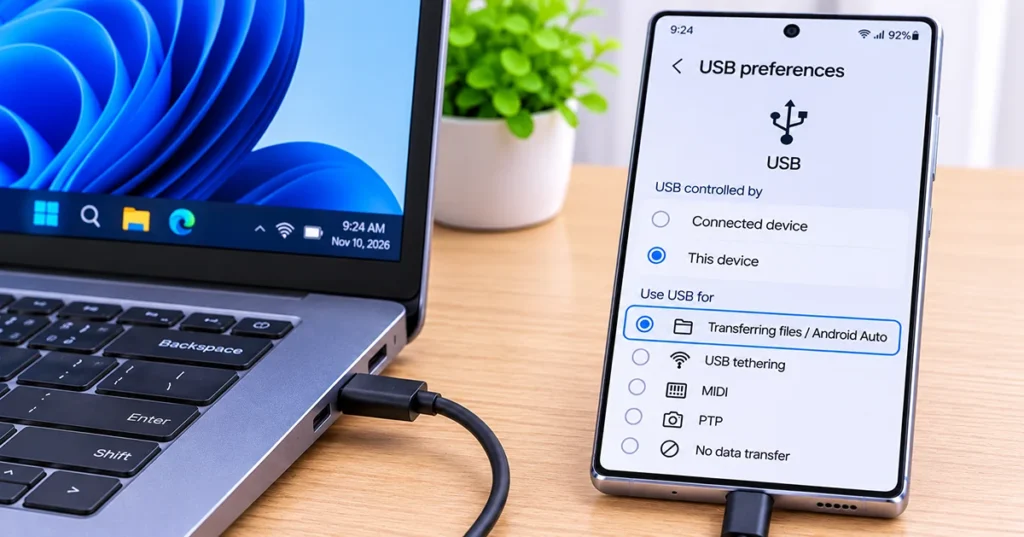
Your Galaxy S27 may default to charging instead of transferring files.
When this happens, the phone receives power, but Windows cannot access its internal storage through the USB connection.
Change the USB mode as follows:
- Connect your Galaxy S27 to your computer using a USB cable.
- Unlock the phone.
- Swipe down from the top of the screen to open the notification panel.
- Find the USB connection notification.
- Tap the notification to open USB settings.
- Under Use USB for, select Transferring files / Android Auto.
- Wait for your computer to recognize the device.
After changing the connection mode, open File Explorer and check whether your Galaxy S27 appears.
Important: Menu names and default USB settings may vary depending on the installed One UI version.
4. Install or Reinstall Samsung USB Drivers
If your computer still cannot recognize the Galaxy S27, the problem may involve missing or corrupted device drivers.
Samsung USB drivers help supported Windows applications communicate with Samsung Android devices.
To troubleshoot driver problems:
- Disconnect your Galaxy S27 from the computer.
- Download Samsung Smart Switch from the official Samsung website.
- Install and open Smart Switch.
- Access its additional options.
- Find the option to reinstall the device driver.
- Confirm the driver reinstallation.
- Restart your computer.
- Reconnect your Galaxy S27.
You can also download the Samsung Android USB Driver directly from the Samsung Developer website.
Use official Samsung downloads rather than third-party driver websites.
5. Check Device Manager in Windows
Windows Device Manager helps identify whether your computer detects the Galaxy S27 but cannot load the correct driver.
Follow these instructions:
- Disconnect and reconnect your Galaxy S27.
- Right-click the Start button on Windows.
- Select Device Manager.
- Expand Portable Devices.
- Look for your Samsung device.
- Check Universal Serial Bus controllers and Other devices if necessary.
- Look for an unknown device or a yellow warning icon.
If you find a problematic entry, right-click it and select Update driver.
Follow the Windows instructions to search for an available driver.
If updating does not help, uninstall the problematic device entry, disconnect your phone, restart Windows, and reconnect it.
Avoid uninstalling unrelated USB controllers.
6. Restart Both Devices
Temporary software problems can interfere with USB communication.
Restarting both devices can refresh their connection and clear temporary errors.
On your Galaxy S27:
- Open the Quick Settings panel.
- Tap the Power icon.
- Select Restart.
- Wait for the phone to boot completely.
On your computer, select Start > Power > Restart.
Once both devices restart, reconnect the USB cable and select Transferring files if prompted.
7. Update Windows and Your Galaxy S27 Software
Outdated software can sometimes cause compatibility problems between your phone and computer.
Check for available updates on both devices.
Update your Galaxy S27:
- Open Settings.
- Select Software update.
- Tap Download and install.
- Install an available update if one is offered.
- Restart your phone.
Update Windows:
- Open Windows Settings.
- Select Windows Update.
- Click Check for updates.
- Install available updates.
- Restart your computer.
After updating, connect your Galaxy S27 again.
8. Check the USB Connection on a Mac
If you use a Mac, the troubleshooting process is slightly different.
macOS does not provide the same native Android MTP file browsing experience as Windows.
Try these steps:
- Unlock your Galaxy S27.
- Connect it using a USB data cable.
- Select Transferring files if the USB notification appears.
- Check whether your chosen Android-compatible file transfer application supports your macOS version and device.
- Restart your Mac and Galaxy S27 if the connection fails.
You can also use Samsung Smart Switch for supported backup and transfer operations.
9. Inspect the Galaxy S27 USB-C Port
If your Galaxy S27 remains undetected on multiple computers, the USB-C port may be damaged or obstructed.
Dust, lint, moisture, or physical damage can interfere with the connection.
Try the following:
- Inspect the USB-C port under good lighting.
- Check for visible debris or damage.
- Do not insert metal objects into the connector.
- Disconnect the cable if the phone reports moisture.
- Allow the port to dry naturally before reconnecting.
If the connection remains unreliable, contact Samsung support or an authorized service center for inspection.
Alternative Ways to Transfer Files Without USB
If you cannot establish a wired connection, you can still transfer files between your Galaxy S27 and computer.
Consider these alternatives:
| Transfer method | Best use |
|---|---|
| Quick Share | Wireless file sharing |
| Samsung Smart Switch | Backing up and transferring phone data |
| Link to Windows | Accessing supported phone content on Windows |
| Google Drive | Uploading and downloading files |
| Bluetooth | Transferring smaller files |
Quick Share is particularly useful for sending photos, videos, and documents without connecting a USB cable.
Frequently Asked Questions
Your USB cable may support charging but not data transfer. Try another USB-C data cable and select Transferring files / Android Auto from the phone’s USB notification.
Your phone may be locked, the USB connection may be set to charging only, or Windows may have a driver problem. Unlock your phone, allow data access, and check the USB connection mode.
Windows may install compatible drivers automatically. However, Samsung USB drivers can help resolve recognition problems, particularly when using Samsung development tools or supported desktop software.
No. USB debugging is primarily intended for Android development and ADB communication. You generally do not need to enable it for ordinary file transfers.
You can use Quick Share, Link to Windows, Bluetooth, or cloud storage services such as Google Drive. These options allow you to transfer supported files without a wired connection.
Final Thoughts
When your Galaxy S27 is not detected on a computer, start by checking the USB cable, unlocking your phone, and changing the connection mode to Transferring files. These simple steps can resolve many common connection problems.
If the issue continues, reinstall Samsung USB drivers, check Windows Device Manager, and update both devices. Persistent connection failures across multiple computers may indicate a damaged USB-C port that requires professional inspection.

1 thought on “Samsung Galaxy S27 Not Detected on Computer? 9 Fixes That Actually Work”