To enable USB debugging on Galaxy S27, open Settings > About phone > Software information, tap Build number seven times to unlock Developer Options, then go to Settings > Developer options and toggle on USB debugging. This process works the same way across recent Samsung flagships running One UI.
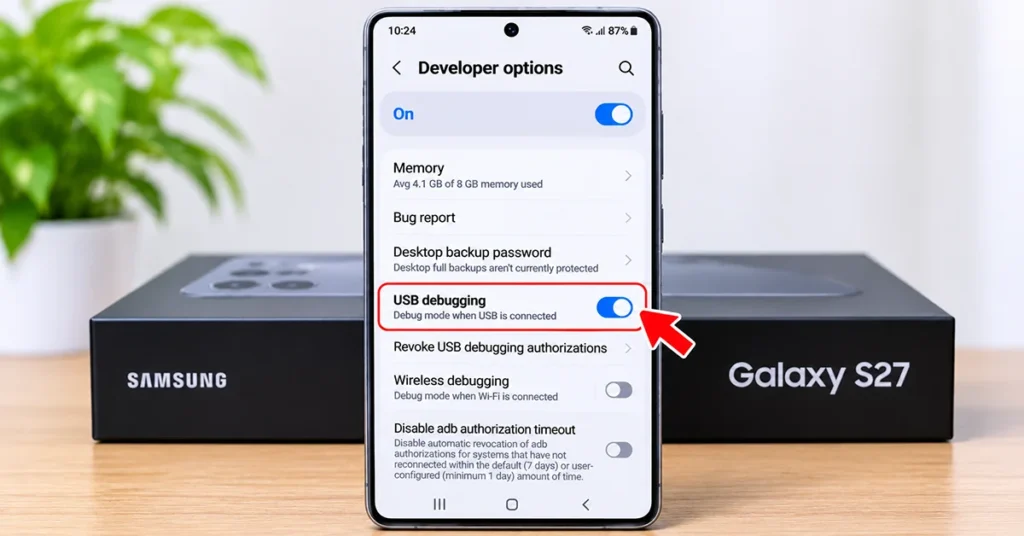
USB debugging is a developer-focused setting that lets your phone communicate with a computer through the Android Debug Bridge (ADB). It’s required for installing apps via ADB, flashing firmware, using certain mobile-management tools, or debugging apps during development. It’s hidden by default because it gives a connected computer low-level access to the device, so Samsung buries it a few menus deep.
How to Enable USB Debugging on Samsung Galaxy S27
Follow these steps to activate USB debugging on your Galaxy S27.
Step 1: Enable Developer Options
Developer Options is hidden by default on Samsung Galaxy smartphones. You must activate this menu before accessing USB debugging.
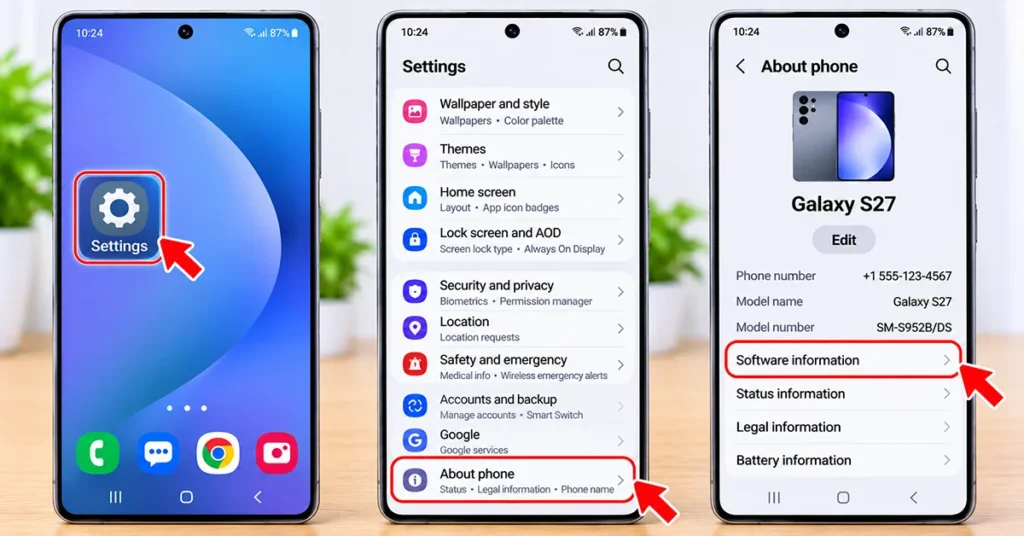
- Open the Settings application on your Galaxy S27.
- Scroll down and select About phone.
- Tap Software information.
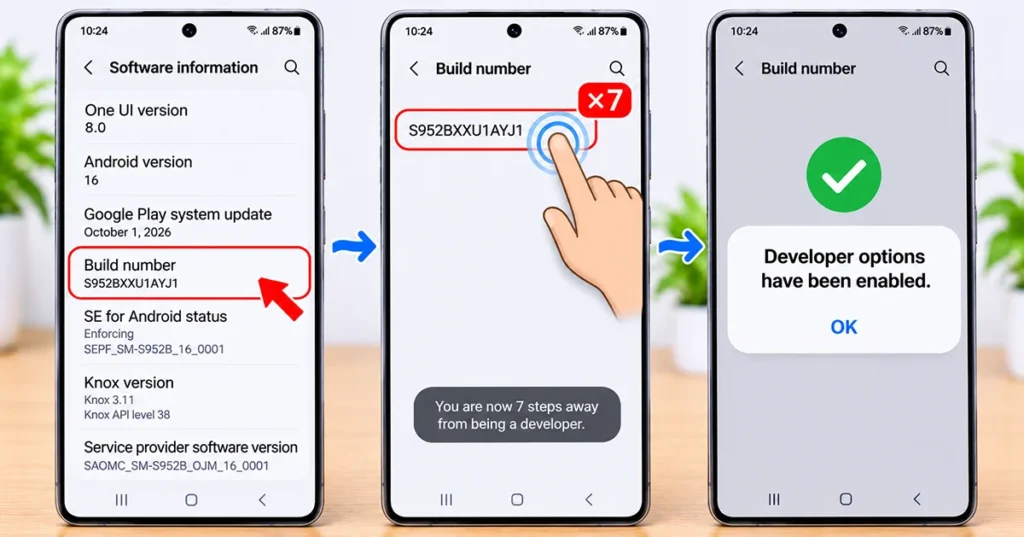
- Find the Build number option.
- Tap Build number seven times consecutively.
- Enter your PIN, password, or screen lock pattern if requested.
- Wait for the confirmation message indicating that Developer Options has been enabled.
You have now unlocked the Developer Options menu on your Samsung Galaxy S27.
Step 2: Turn On USB Debugging
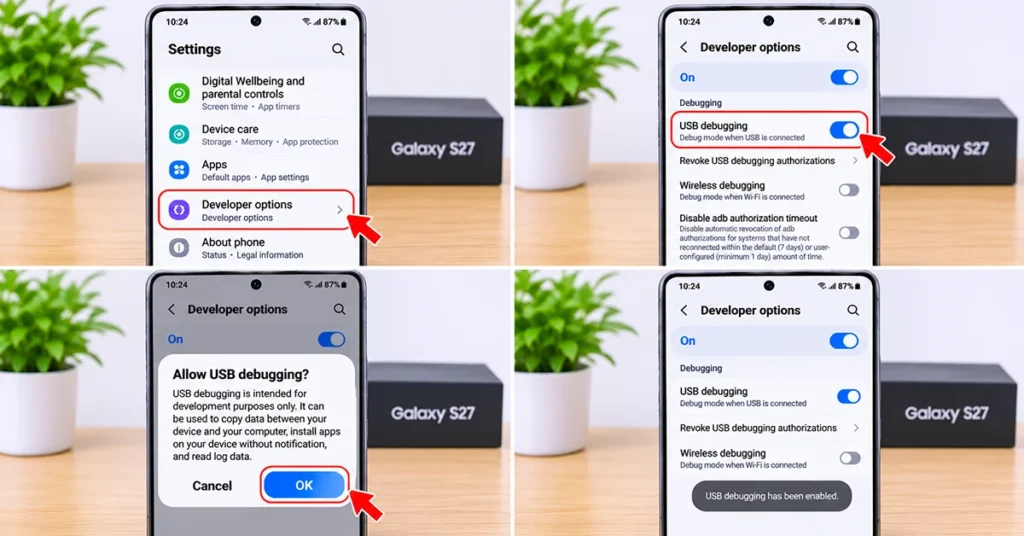
After enabling Developer Options, you can activate USB debugging.
- Return to the main Settings screen.
- Scroll down and open Developer options. On some Samsung software versions, this menu may appear under General management.
- Scroll to the Debugging section.
- Find USB debugging.
- Tap the switch next to USB debugging.
- Read the warning message and select OK to confirm.
USB debugging is now enabled on your Galaxy S27.
Step 3: Connect Galaxy S27 to a Computer
Once USB debugging is active, connect your phone to a computer using a compatible USB data cable.
- Connect your Galaxy S27 to your Windows PC or Mac.
- Unlock your phone.
- Wait for the USB debugging authorization prompt.
- Review the computer’s RSA fingerprint if displayed.
- Select Always allow from this computer if you regularly use the same trusted computer.
- Tap Allow to authorize the connection.
Your computer can now communicate with your Galaxy S27 through Android Debug Bridge (ADB), provided the necessary computer software and drivers are installed.
If you do not recognize the computer or its authorization fingerprint, select Deny instead.
What Is USB Debugging on Samsung S27?
USB debugging is an Android developer feature that allows a connected computer to communicate with your smartphone through Android Debug Bridge.
ADB is a command-line tool included in the Android SDK Platform Tools package. Developers and advanced users can use it to install applications, execute commands, inspect device logs, and troubleshoot Android software.
Here are some common uses:
- Application development: Install and test applications directly on your Galaxy S27.
- ADB commands: Execute supported Android commands from a computer.
- Troubleshooting: Collect system logs and diagnostic information.
- App testing: Investigate application behavior and software errors.
- Device management: Perform supported developer operations through ADB.
USB debugging is not required for ordinary file transfers, charging, or everyday smartphone use.
How to Verify USB Debugging Is Working
You can check whether your computer recognizes your Galaxy S27 through ADB.
First, download Android SDK Platform Tools from the official Android Developers website. Extract the downloaded package and open a terminal or command prompt in the extracted folder.
Connect your unlocked Galaxy S27 and enter:
adb devices
If everything works correctly, ADB should display your device’s serial number and its authorization status.
| ADB status | Meaning | What to do |
|---|---|---|
| Device | Phone is connected and authorized | ADB is ready |
| Unauthorized | Computer has not been authorized | Check your phone for the permission prompt |
| Offline | Device is detected but not communicating properly | Reconnect the cable and restart ADB |
| No devices found | Computer cannot detect the phone | Check the cable, USB port, and drivers |
If the status displays Unauthorized, unlock your phone and approve the USB debugging request.
How to Fix USB Debugging Not Working
If your Galaxy S27 does not connect to your computer, try these troubleshooting methods.
1. Check the USB Cable
Some USB cables support charging but do not support data transfer. Use a compatible USB data cable and try another USB port on your computer.
2. Change the USB Connection Mode
After connecting your phone, open the USB notification in the notification panel.
If available, select Transferring files / Android Auto instead of charging only. This can help when the computer does not establish the expected USB connection.
3. Reconnect Your Phone
Disconnect the USB cable, unlock your Galaxy S27, and reconnect it. Check whether the USB debugging authorization prompt appears.
4. Revoke USB Debugging Authorizations
If your computer was previously denied or has connection problems, reset its authorization.
- Open Settings.
- Select Developer options.
- Find Revoke USB debugging authorizations.
- Tap the option.
- Confirm your selection.
- Reconnect your phone and authorize the computer again.
This removes previously approved computer authorizations, so you will need to approve trusted computers again.
5. Update Your Computer’s USB Drivers
Windows users should check whether the appropriate Samsung USB driver is installed. You can also try another USB port or restart your computer.
Mac users should check their Android development tools and USB connection.
6. Restart ADB
If your computer detects the phone but ADB cannot communicate with it, restart the ADB server.
Run these commands:
adb kill-server
Then enter:
adb start-server
Finally, reconnect your Galaxy S27 and run adb devices again.
How to Disable USB Debugging on Galaxy S27
For better security, turn off USB debugging when you finish using ADB or other development tools.
- Open Settings.
- Select Developer options.
- Find USB debugging under the Debugging section.
- Tap the switch to turn it off.
You can also disable the entire Developer Options menu using its main switch. This hides the developer settings and disables most developer features.
Disabling USB debugging does not delete your personal files, installed applications, photos, or other phone data.
Frequently Asked Questions
No. Enabling USB debugging does not erase your photos, contacts, applications, or personal files. However, certain ADB commands can modify or delete device data, so only execute commands you understand.
USB debugging is generally safe when used with trusted computers. However, authorizing an unknown computer can expose your device to potentially unwanted commands. Disable debugging when you no longer need it.
Developer Options is hidden by default. Open Settings > About phone > Software information and tap Build number seven times to unlock it.
No. Normal file transfers do not require USB debugging. Connect your phone using a compatible data cable and select the appropriate file-transfer USB mode.
Yes. You can activate Developer Options and USB debugging directly from your Galaxy S27’s Settings application. A computer is only necessary when you want to use ADB or other development tools.
Final Thoughts
Enabling USB debugging on your Samsung Galaxy S27 is straightforward. Activate Developer Options by tapping Build number seven times, open the developer settings, and turn on USB debugging.
After connecting your phone to a trusted computer, approve its authorization request to establish an ADB connection. Remember to disable USB debugging when you finish development or troubleshooting to reduce unnecessary security risks.

2 thoughts on “Enable USB Debugging on Galaxy S27: Complete Step-by-Step Guide”