A Samsung USB driver allows a Windows computer to communicate with a connected Samsung Galaxy phone or tablet. It helps establish USB connections for Android development, debugging, and certain device-management tasks.
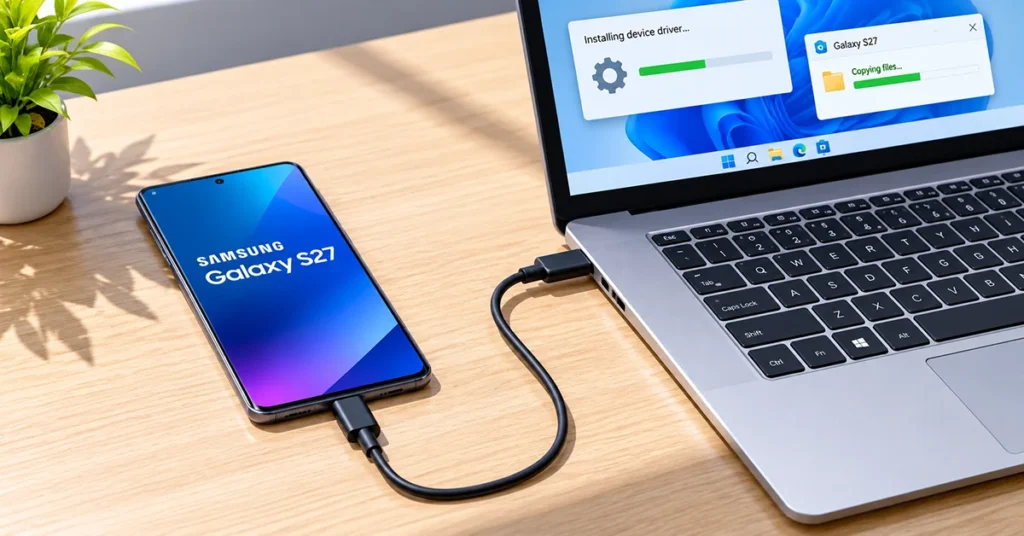
If your computer does not recognize your Galaxy device, installing the official Samsung Android USB driver may help resolve the problem. However, you do not always need to install a separate driver to transfer photos and files. Windows can recognize many Samsung devices automatically through its built-in Media Transfer Protocol (MTP) support.
Samsung provides an official USB driver package for Windows. The listed version is 1.9.5.0, with a download size of 35.5 MB and a publication date of May 6, 2026. Always check Samsung’s developer website for the latest version before downloading.
Where to Download the Official Samsung USB Driver
The safest way to download a USB driver is through Samsung’s official developer website. Avoid unofficial download websites that may distribute outdated installers or unwanted software.
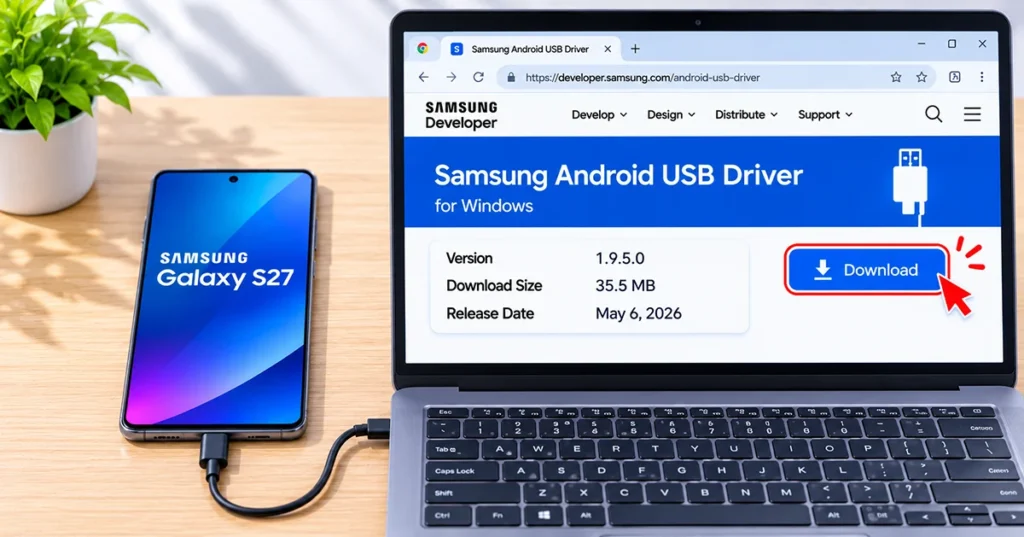
Follow these steps:
- Open the Samsung Android USB Driver download page.
- Find Samsung Android USB Driver for Windows.
- Check the available version and release information.
- Select the download link.
- Save the installer to your Windows computer.
- Wait for the download to finish before opening the file.
The official package is designed for Windows computers that need to connect Samsung Android devices to development environments over USB.
Important: Download the driver directly from Samsung rather than using third-party driver updater applications.
How to Install Samsung USB Drivers on Windows 11 and Windows 10
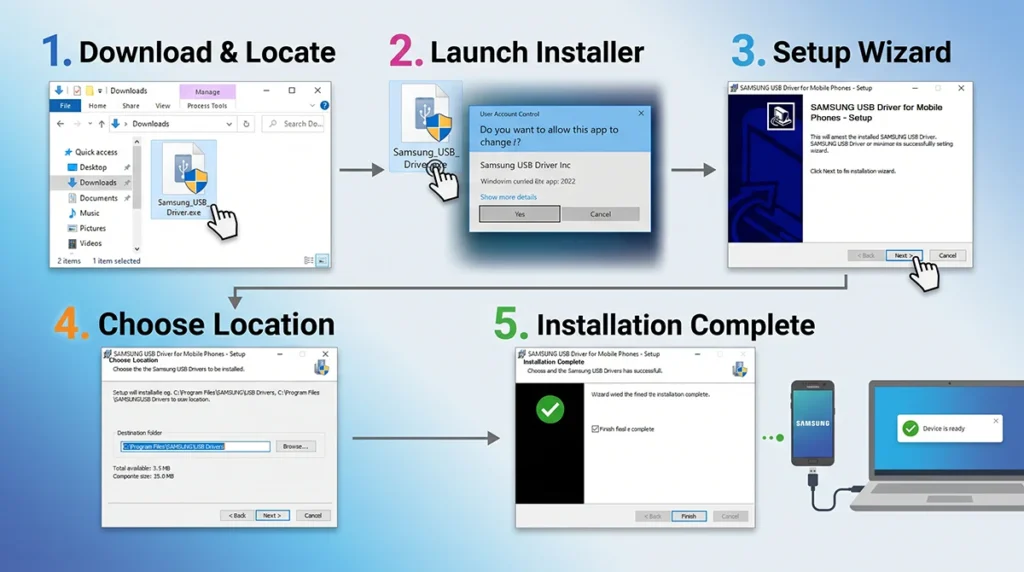
After downloading the installer, you can install the Samsung USB driver using the Windows setup wizard.
Follow these instructions:
- Disconnect your Samsung Galaxy phone from your computer.
- Locate the downloaded Samsung USB driver installer.
- Double-click the installation file.
- Follow the on-screen installation instructions.
- Choose the installation location if the installer asks.
- Complete the installation process.
- Restart Windows if prompted.
- Connect your Samsung Galaxy phone using a USB data cable.
Once Windows loads the driver, it should be able to recognize the supported USB interfaces exposed by your device.
Unlock your Galaxy phone after connecting it. If a USB notification appears, select the appropriate connection mode for your task.
For example, choose Transferring files if you want to access photos, videos, and documents from your computer.
Samsung USB Driver Compatibility
Samsung’s Android USB driver is intended for Windows-based development environments. It supports connections with compatible Samsung Android devices.
Here is a quick overview of common uses:
| Connection type | Purpose | Additional requirements |
|---|---|---|
| USB file transfer | Copy photos and documents | Data cable and MTP |
| ADB connection | Run Android debugging commands | ADB Platform-Tools and USB debugging |
| Android development | Connect devices to development software | Android Studio and appropriate tools |
| Smart Switch | Back up and transfer phone data | Samsung Smart Switch |
| USB charging | Charge your Galaxy phone | Compatible charger or USB port |
The driver does not replace every Samsung application. Smart Switch, Android Debug Bridge (ADB), and Samsung DeX are separate tools with their own requirements.
How to Connect a Samsung Galaxy Phone to a PC
After installing the driver, connect your Galaxy phone to your computer to check whether Windows recognizes it.
- Connect your Samsung Galaxy phone to the PC using a USB data cable.
- Unlock your phone.
- Swipe down from the top of the screen to open the notification panel.
- Find the Android System USB notification.
- Tap USB for file transfer.
- Select Transferring files.
- Open File Explorer on Windows.
- Select your Samsung Galaxy device under This PC.
You should now be able to browse supported folders and transfer files between your phone and computer.
If your phone only charges, check the USB connection mode and try another cable. Some USB cables support charging but do not support data transfer.
How to Fix Samsung USB Driver Not Working
If Windows does not recognize your Samsung Galaxy S27 after installing the driver, try these troubleshooting methods.
1. Check the USB Cable
A faulty or charge-only cable can prevent Windows from detecting your device.
Try another USB cable that supports data transfer. Connect it directly to your computer rather than through a USB hub.
2. Change the USB Connection Mode
Your Galaxy S27 may default to charging instead of file transfer.
Unlock the phone, open the notification panel, tap the USB connection notification, and select Transferring files/Android Auto.
3. Try Another USB Port
A damaged or malfunctioning USB port can interrupt communication between your phone and computer.
Disconnect the device and connect it to another USB port. If possible, test the connection on a different computer.
4. Reinstall the Samsung USB Driver
A damaged or outdated driver installation may cause recognition problems.
Download the latest package from Samsung’s official website and reinstall it. Disconnect your phone before running the installer.
You can also use Samsung Smart Switch to reinstall its device driver:
- Open Samsung Smart Switch on your PC.
- Select the More options menu.
- Choose Reinstall device driver.
- Confirm the operation.
- Reconnect your Galaxy phone.
5. Check Windows Device Manager
Device Manager helps you identify driver-related problems.
- Right-click the Windows Start button.
- Select Device Manager.
- Expand the relevant USB, portable device, or Android device categories.
- Look for your Samsung device.
- Check whether Windows displays a yellow warning icon.
- If necessary, update or reinstall the affected driver.
The exact device name depends on the connection mode and installed software.
6. Enable USB Debugging for ADB
If you are using Android Studio or ADB commands, installing the Samsung USB driver alone is not enough.
You must also enable USB debugging on your Galaxy phone.
Open Settings, navigate to Developer options, and enable USB debugging. If Developer options is unavailable, activate it through the Build number setting under About phone or Software information, depending on your device.
When you connect the phone, approve the USB debugging authorization prompt.
You also need Google’s separate Android SDK Platform-Tools, which includes the ADB command-line utility.
Samsung USB Driver vs. Samsung Smart Switch
Samsung USB drivers and Smart Switch serve different purposes.
The USB driver helps Windows communicate with compatible Samsung device interfaces. Smart Switch provides additional features for backing up, restoring, and transferring phone data.
| Feature | Samsung USB Driver | Samsung Smart Switch |
|---|---|---|
| Device recognition | Yes | Yes, through its device connection components |
| File transfer | Supports USB communication | Supports data transfer workflows |
| Data backup | No | Yes |
| Data restoration | No | Yes |
| Android debugging | With separate ADB tools | No |
| Software installation | Driver installation | Application installation |
If you only need to back up your Galaxy phone, install Smart Switch. If you are developing Android applications or troubleshooting USB driver recognition, the Samsung USB driver may be necessary.
Frequently Asked Questions
Yes. Samsung provides its Android USB driver for Windows as a free download through its official developer website.
Not necessarily. Windows 11 can automatically recognize many Samsung phones for basic file transfers. However, developers and users working with specific USB interfaces may need Samsung’s official driver package.
Samsung provides a Windows USB driver package. Check the official download page for current operating system requirements and compatibility information before installation.
Yes, the Samsung driver can provide the Windows USB interface needed for ADB connections. However, you must install Google’s separate Android SDK Platform-Tools and enable USB debugging on your phone.
Common causes include a charge-only USB cable, an incorrect USB connection mode, a faulty USB port, or a driver problem. Try another data cable and select Transferring files from the phone’s USB notification.
Final Thoughts
The Samsung USB driver helps Windows computers communicate with compatible Samsung Galaxy devices through USB. It is particularly useful for Android developers, ADB connections, and troubleshooting device recognition.
For the safest installation, download the latest package directly from Samsung’s developer website. If you only want to transfer photos or documents, first try Windows’ built-in MTP support and select the appropriate USB connection mode on your phone.

2 thoughts on “Samsung USB Driver: Download, Install, and Fix USB Connection Problems”