The Samsung Galaxy S27 Side button can be customized to launch your favorite apps, activate an AI assistant, open the Camera, or display the Power off menu. You can configure these actions through Settings > Advanced features > Side button, where you can assign different functions to Double press and Long press.
Whether you want faster access to your Camera, prefer Gemini over Bixby, or want to restore the traditional power button behavior, customizing the Side button takes only a few steps.
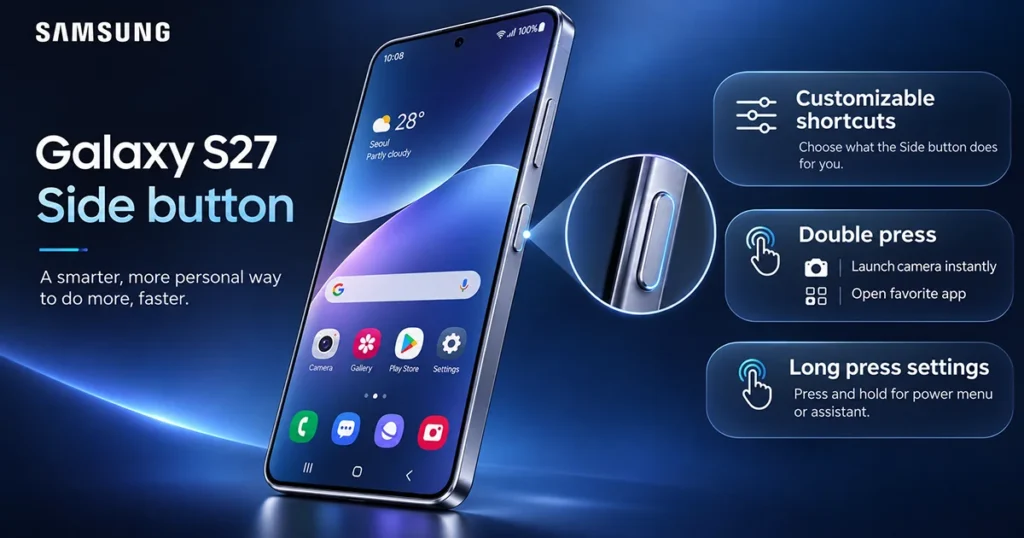
In this guide, you’ll learn how to configure the Galaxy S27 Side button, change its shortcuts, and troubleshoot common problems.
Quick Overview: Galaxy S27 Side Button Functions
The Side button supports several actions depending on your selected settings and software version.
| Button action | Available function |
|---|---|
| Single press | Turn the screen on or off |
| Double press | Launch Camera or a selected app |
| Long press | Open Gemini, Bixby, or Power off menu |
| Side + Volume Down (short press) | Take a screenshot |
| Side + Volume Down (long press) | Access power or emergency options, depending on configuration |
The most useful customization options are Double press and Long press because they allow you to create shortcuts for frequently used functions.
How to Configure the Side Button on Galaxy S27
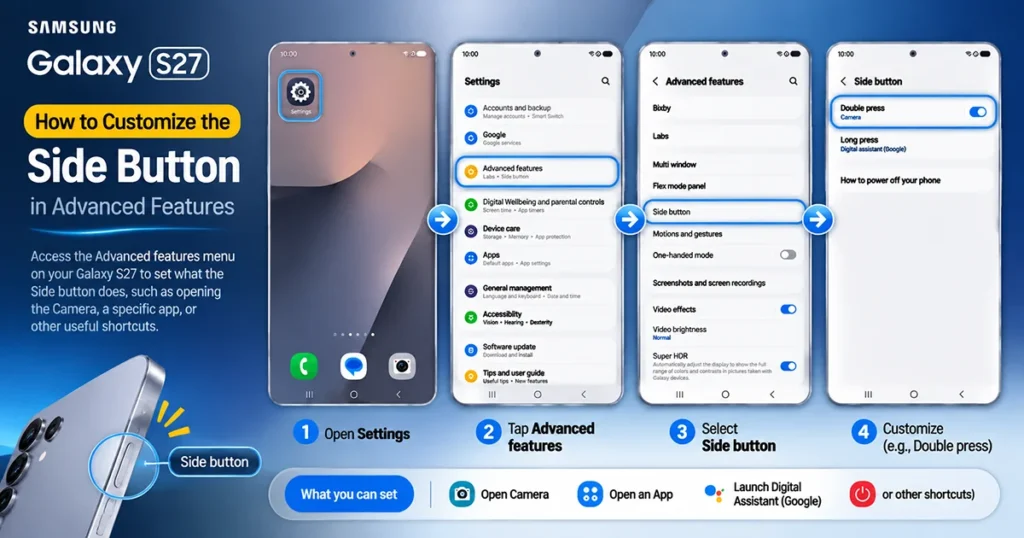
Follow these steps to access the Side button settings and personalize your device.
- Open Settings
Unlock your Samsung Galaxy S27 and open the Settings application from your Home screen or App drawer.
- Navigate to Advanced Features
Scroll through the Settings menu and select Advanced features. This section contains additional device customization options.
- Select Side Button
Find and tap Side button. You should see customization options for Double press and Long press.
- Choose Your Preferred Actions
Select the button gesture you want to customize. You can assign different actions depending on your preferences and the options supported by your software version.
Your changes should take effect immediately after selecting an option.
How to Change the Double Press Side Button Function
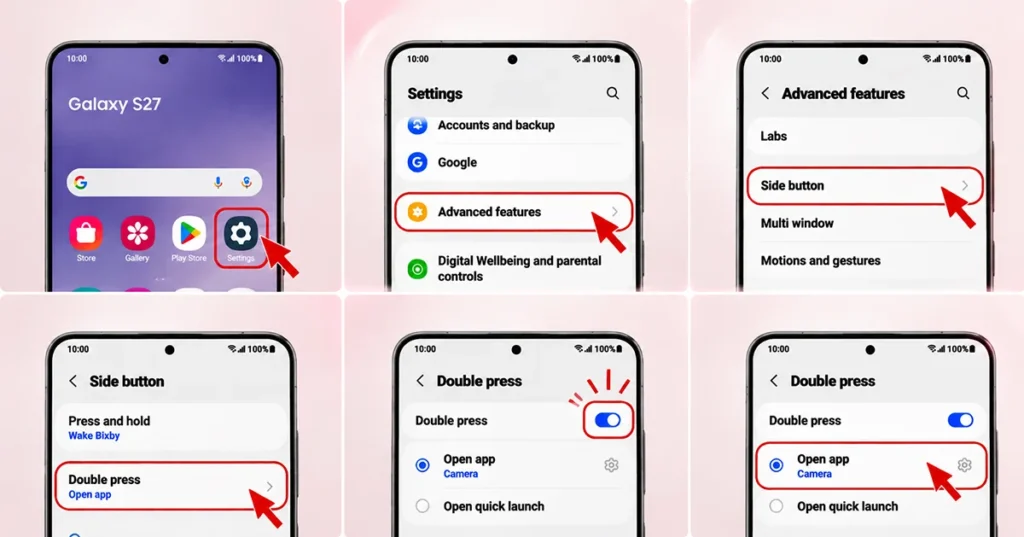
Double press allows you to open an application or supported feature quickly without navigating through your Home screen.
To configure it:
- Open Settings on your Galaxy S27.
- Select Advanced features.
- Tap Side button.
- Select Double press.
- Enable the Double press feature if it is disabled.
- Choose your preferred application or shortcut.
Depending on software version, region, and installed applications, available shortcuts may include:
- Camera: Quickly open the Camera application.
- Samsung Wallet: Access supported payment and wallet features.
- Flashlight: Turn on your flashlight quickly.
- Magnifier: Access the magnification feature.
- Voice Recorder: Start recording.
- Samsung Notes: Access supported note-taking shortcuts.
- Samsung Capture: Open supported screen capture tools.
- Modes and Routines: Activate a supported routine.
- Apps: Select another compatible installed application.
Some applications may display a gear icon next to their name. Tap it to see whether additional in-app shortcuts are available.
For example, you may be able to configure the Camera shortcut to open the selfie camera directly instead of opening the standard camera interface.
How to Change the Long Press Side Button Function
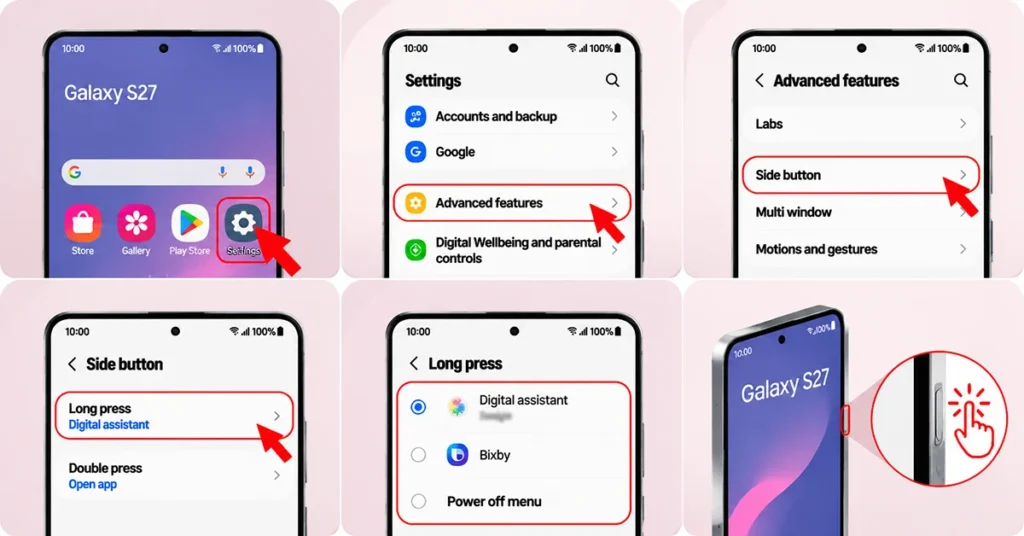
Long press determines what happens when you hold the Side button.
This setting is particularly useful if you frequently use an AI assistant or prefer accessing the Power off menu directly.
To change it:
- Open Settings.
- Select Advanced features.
- Tap Side button.
- Select Long press.
- Choose your preferred action.
- Exit Settings to apply the changes.
Depending on the available software options, you may be able to select:
1. Digital Assistant
Use this option to access your configured digital assistant, such as Gemini. It provides quick access to voice commands, questions, and supported AI features.
2. Bixby
Select Bixby if you prefer Samsung’s virtual assistant for controlling compatible device settings, applications, and smart home features.
3. Power Off Menu
Choose this option if you want holding the Side button to display the traditional Power off menu rather than launching an assistant.
Keep in mind that selecting a digital assistant for Long press may prevent the Side button from directly opening the Power off menu. You can still access the power controls through alternative methods.
Best Side Button Configurations for Galaxy S27
Not sure which settings to choose? The following configurations provide practical recommendations for different usage preferences.
| User preference | Double press | Long press |
|---|---|---|
| Everyday user | Camera | Power off menu |
| Photography enthusiast | Camera | Gemini |
| Productivity user | Voice Recorder | Gemini |
| Samsung ecosystem user | Samsung Wallet | Bixby |
| Quick access user | Flashlight | Power off menu |
For most users, assigning Camera to Double press and Power off menu to Long press provides a practical balance between convenience and accessibility.
However, if you regularly use Gemini or Bixby, assigning your preferred assistant to Long press may be more useful.
How to Turn Off Galaxy S27 Without the Power Button
If you’ve configured Long press to launch Gemini or Bixby, you may wonder how to turn off your Galaxy S27.
Fortunately, there are alternative ways to access the Power off menu.
Method 1: Use the Quick Settings Panel
- Swipe down from the top of the screen to open Quick Settings.
- Expand the panel if necessary.
- Tap the Power icon.
- Select Power off.
- Confirm your selection.
Method 2: Use the Button Combination
- Press and hold the Side button and Volume Down simultaneously.
- Wait for the power menu to appear.
- Select Power off.
- Confirm the action.
These methods provide alternative access to the power controls without changing your preferred Side button shortcuts.
Troubleshooting: Galaxy S27 Side Button Not Working
If your customized Side button does not perform the expected action, check the following solutions.
Double press does not open an application
Make sure Double press is enabled in the Side button settings. Also, verify that the selected application is installed and functioning correctly.
Long press keeps opening Gemini
Navigate to Settings > Advanced features > Side button > Long press. Change the selected action to Bixby or Power off menu if that better suits your preferences.
Side button shortcuts are unavailable
Some features may depend on your software version, region, carrier, or installed applications. Check for available software updates under Settings > Software update.
Power off menu does not appear
Check whether Long press is currently assigned to a digital assistant. If it is, select Power off menu instead, or use the Side button + Volume Down combination.
If the problem continues, restart your device and check the Side button settings again.
Frequently Asked Questions (FAQ)
Yes. You can customize the Side button through Settings > Advanced features > Side button. Supported options include Camera shortcuts, application launching, digital assistants, and power controls.
Yes. Open the Side button settings, select Double press, and choose Camera. You can then launch Camera by pressing the Side button twice.
Yes. Open Settings > Advanced features > Side button > Long press, then choose another available action, such as Bixby or Power off menu.
Open the Side button settings and manually select your preferred default actions. The available default behavior may depend on your installed software version and region.
You may be able to assign WhatsApp or another installed application through the Double press > Apps option, provided the application appears in the supported app list.
Final Thoughts
Configuring the Side button on your Samsung Galaxy S27 is a simple way to improve everyday usability. By customizing Double press and Long press, you can access frequently used applications, launch your preferred digital assistant, and control your device more conveniently.
For most users, setting Double press to Camera and Long press to Power off menu is a practical starting point. However, the best configuration ultimately depends on your daily smartphone habits.
Explore the available shortcuts and choose the functions that make your Galaxy S27 easier and faster to use.
Note: Menu names and available functions may vary depending on the Galaxy S27 software version, region, carrier, and application support. The instructions above follow Samsung’s established Side button customization workflow and should be checked against the released S27 interface before publication.
Reference:
- Samsung – Samsung Galaxy Side button customization.
- Samsung – Customize Double press and Long press.
